
Setting up a centralised inbox (Unified Mail)
If you have linked several email accounts to mailbox (e.g. via IMAP), the folder list can quickly become confusing. With the Unified Mail feature, mailbox offers a convenient solution: a central inbox that clearly consolidates incoming and sent emails from all linked accounts.
Setting up Unified Mail
To set up Unified Mail:
- In the mailbox webmailer, click the gear icon in the top right-hand corner and then click All settings.
- In the settings, navigate to Accounts.
- In the Your Accounts section, click Edit next to your external inbox.
- Tick the box next to Use unified mail for this account.
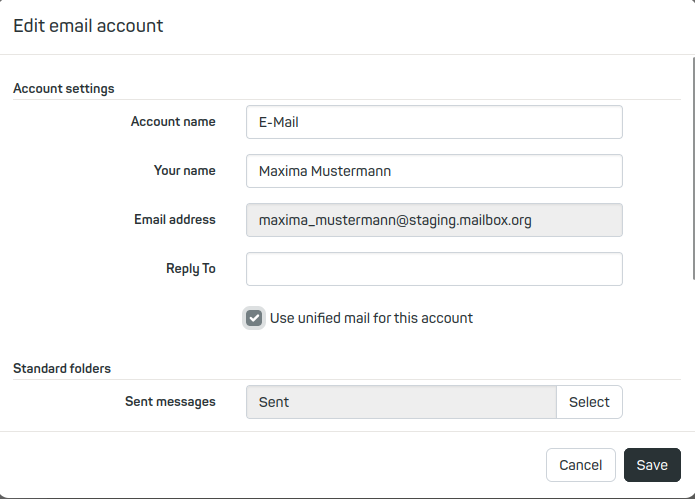
Setting up Unified Mail - To ensure a consistent folder structure across the integrated inboxes, define standard folder names under Standard folders.
- Click Save.
- Apply these settings to all your inboxes, including your mailbox inbox.
Note
Unified Mail displays content in a consolidated view without altering the structure of the individual accounts. You can still access all the original folders for each account.


