
POP3 support with mailbox
What is POP3?
The POP3 protocol is an older, simple retrieval protocol that can only download emails from the inbox. All emails are retrieved from the external provider and, by default, deleted there. The emails are then only stored in your mailbox inbox.
Other email folders in the mailbox webmail client (apart from the inbox) are not retrieved or synchronised by the POP3 protocol. It is not possible to send emails using the address linked via POP3.
If you work with folders or wish to keep your emails synchronised across multiple devices, we strongly recommend fully integrating your external email address.
Accessing emails via POP3
Retrieving emails from external POP3 accounts is only available for the Standard and Premium plans.
The hostname (incoming mail server) is as follows:
pop3.mailbox.org
The connection is secured via SSL/TLS. Modern email programmes usually recognise this automatically and configure the settings correctly on their own.
Using mailbox as a POP3 client
mailbox retrieves emails from external POP3 accounts every 30 minutes. In exceptional cases – for example, when there is a high volume of emails – the intervals may be longer.
To retrieve emails from an external provider via POP3 in mailbox, configure the relevant account in the settings:
- Click on the gear icon in the top right-hand corner and select All settings.
- In the settings, navigate to External POP3 accounts.
- In the Fetching external POP3 accounts section, enter the email address of your external provider, e.g.
marcus.example@external.com.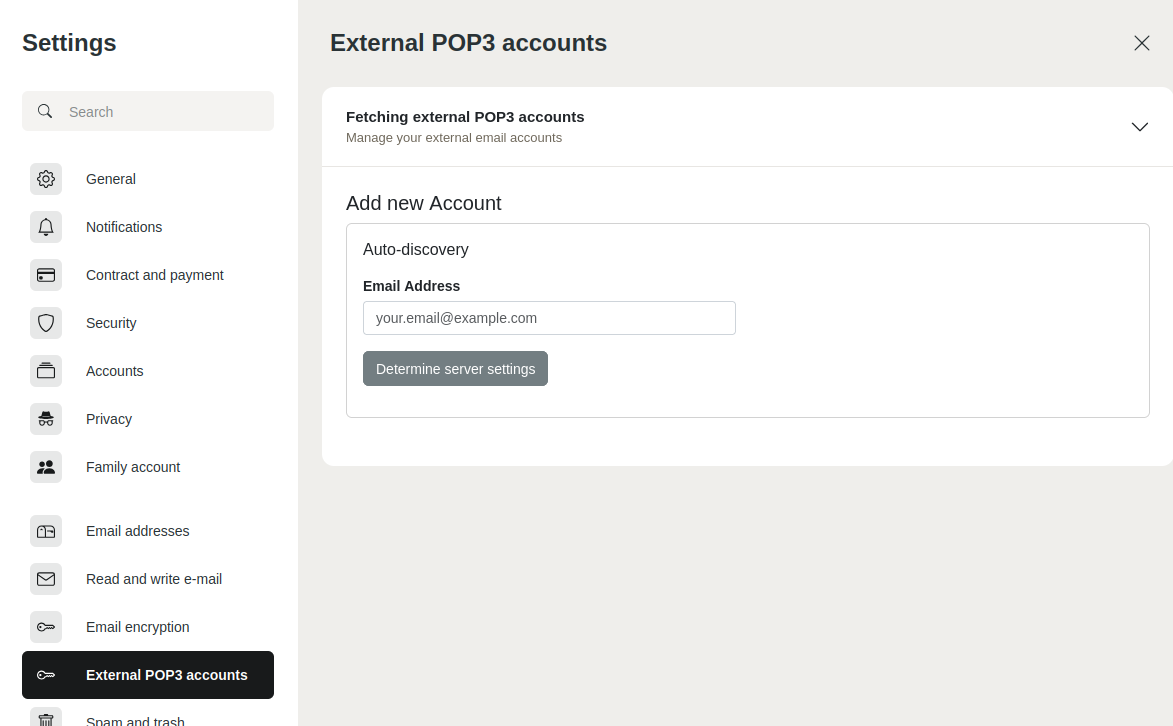
Adding an external email account using POP3 - Click Determine server settings.
- Check the detected server settings and make any necessary changes.
- Enter your password for the external account.
- Click Add.
Your login details are stored securely in encrypted form. Please ensure you enter the correct server details (server, connection type) – you can obtain these from your external email provider.
All emails arriving in your mailbox via POP3 can be used with all of mailbox’s features – these include:
If you prefer to retrieve emails via IMAP or integrate them directly using forwarding or aliases, please also read the following article:
Removing a POP3 inbox
To remove a POP3 inbox:
- Click the gear icon in the top right-hand corner and select All settings.
- In the settings, navigate to External POP3 accounts.
- Under Already configured accounts, find the relevant inbox and click X (Delete).
The inbox will be removed from your mailbox account. Any messages you have already downloaded will be retained.


