
Setting up synchronisation on iOS devices
Notes on synchronisation with Exchange ActiveSync
You can synchronise emails, calendars, contacts, tasks and notes on your iPhone or iPad with your mailbox account using Exchange ActiveSync (EAS). EAS is particularly handy as it enables automatic, real-time synchronisation (“push”).
EAS was developed by Microsoft and works most reliably on most Microsoft devices. EAS generally works on Apple devices too, but does not support shared calendars or contacts. Certain features, such as push notifications for subfolders, depend on the specific device and software implementation, so there may be limitations in this regard.
mailbox has no influence over these limitations and cannot alter their behaviour.
For maximum compatibility, we recommend open standards such as IMAP, CalDAV and CardDAV (see Recommendation).
Requirements
- Active mailbox account
- iPhone or iPad running the latest iOS version
If you have enabled two-factor authentication (2FA), external email applications or mobile calendar and contact apps can no longer access mailbox using your regular password. For access, you need to create an application password. Without enabled 2FA, the use of application passwords is optional.
Option 1: Automatic setup via the mailbox Suite (web client)
- Log in to mailbox from your desktop computer.
- In the Connect your device widget, click the Connect button.
- Select iPhone or iPad > Exchange ActiveSync.
- On your iOS device, open the camera app and scan the QR code displayed on your desktop screen.
- Tap the Safari notification that appears at the top of your camera view.
- Approve the download and installation of the configuration profile.
- Enter your mailbox password when prompted.
After successful installation, your device is configured for Exchange ActiveSync.
If the setup fails or the device does not accept the profile, use the manual configuration method described below.
Option 2: Manual setup on the iOS device
Quick overview of technical specifications
| Setting | Value |
|---|---|
| Server address | app.mailbox.org |
| Domain | mailbox.org |
| User name | Part before the @ |
| Protocol | Exchange ActiveSync |
Step-by-step guide to manual setup
- On your iPhone or iPad, open the Settings.
- Navigate to Mail > Accounts > Add account.
- Select the account type Microsoft Exchange.
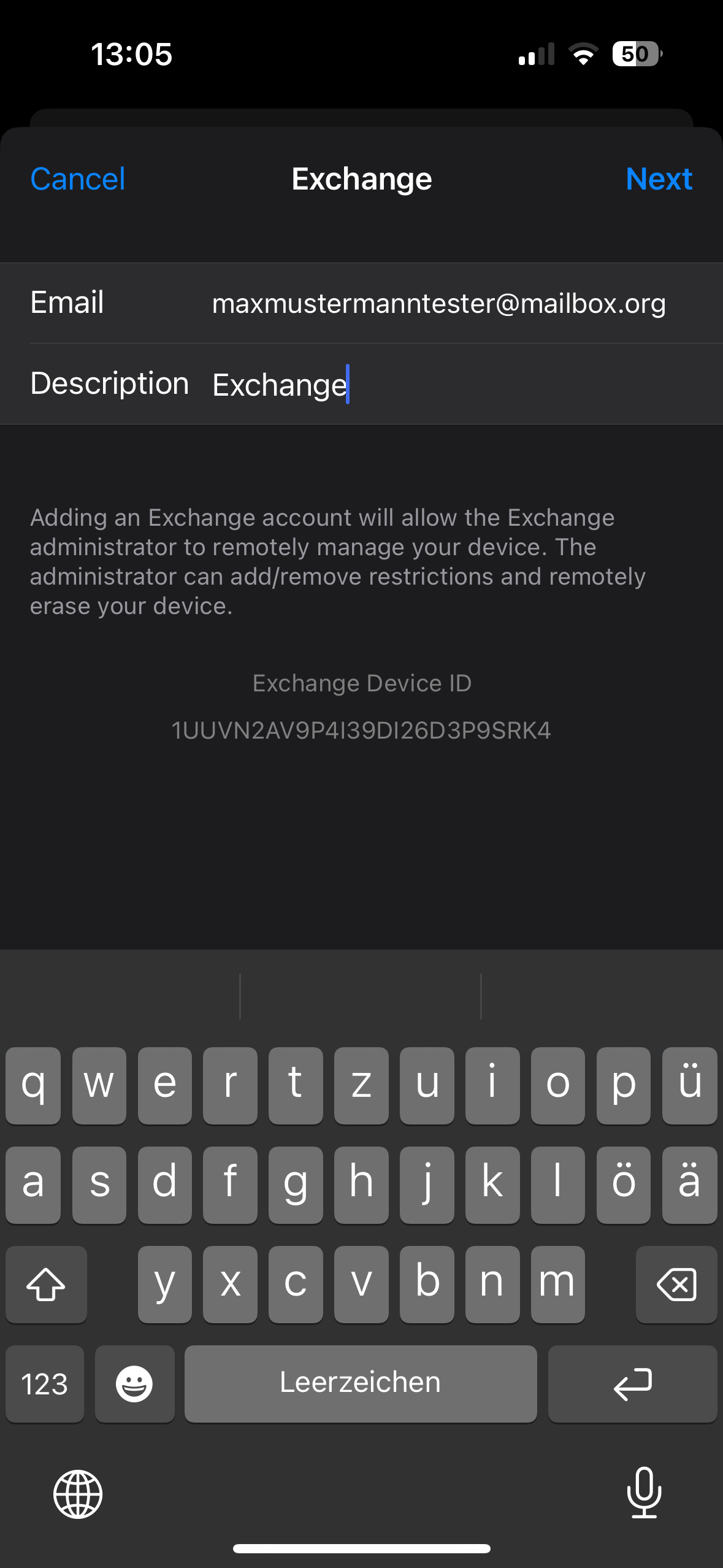
Manual setup on iOS devices - Enter the following access data:
- Email: Your main mailbox address (e.g.,
firstname.lastname@mailbox.org) - Description: Any name you prefer (e.g., mailbox)
- Email: Your main mailbox address (e.g.,
- Tap Next.
- If more information is required, enter the following:
- Email address: You full mailbox address
- User name: Part before the
@in your email address - Password: Your mailbox password
- Domain:
mailbox.org - Server:
app.mailbox.org
- Tap Next.
- Select which data to synchronise (e.g., Mail, Contacts, Calendar).
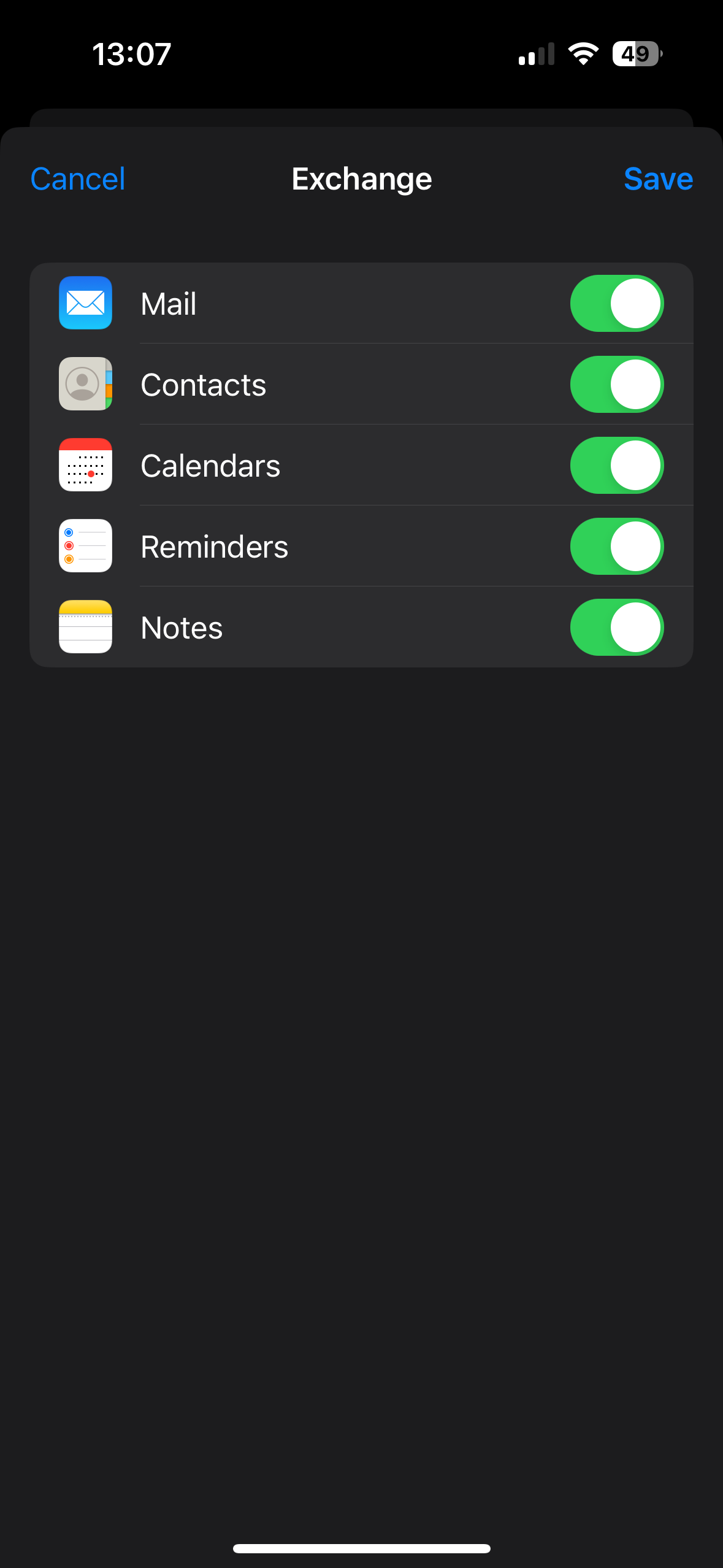
Manual setup on iOS devices - Confirm the synchronisation.
Your account is now configured and synchronises the selected data with mailbox via Exchange ActiveSync.
Extending synchronisation period for emails
By default, iOS only synchronises emails from the past few days. To change the email synchronisation period:
- Open your mailbox account via Settings > Mail > Accounts.
- Tap Sync Mail.
- Select e.g., 1 Month.
For older emails, please access your mailbox using IMAP.
Enabling push notifications for subfolders
Background
If you use filters or Mail Extensions on your mailbox account to automatically move incoming emails to specific subfolders, you may not receive push notifications for these folders on your iPhone or iPad. By default, iOS only supports push notifications for the inbox, so new emails in subfolders are not automatically recognised as relevant for push notifications.
You can manually enable push notifications for additional folders in the iOS settings.
Step-by-step guide: Push notifications for subfolders
- Open Settings on your iOS device.
- Navigate to Passwords & Accounts (or Mail > Accounts depending on your iOS version).
- Select your mailbox Exchange account.
- Tap on Fetch/New Data.
- Scroll to the folder overview and check all folders for which you want push notifications.
The selected folders will be included in push synchronisation.
Please note that synchronisation issues may arise and that mailbox is unable to provide support for third-party software.
Limitations and alternatives
| Limitation | Alternative |
|---|---|
| No support for shared calendars or contacts | Use CalDAV/CardDAV |
| Emails only sync up to 1 month | Use IMAP |
| Issues with large attachments (> 5 MB) may occur | Use IMAP or the webmailer |
Recommendation: Use open standards
To ensure better compatibility and greater flexibility, we recommend using open protocols:
- IMAP for emails
- CalDAV for calendars
- CardDAV for contacts
These protocols are standardised and are fully supported on most devices. They therefore enable more reliable synchronisation.
You can find setup instructions in the following articles:


