
Managing email aliases
Email aliases allow you to create additional email addresses with minimal effort. This can help protect your primary address from spam or misuse. Similar to disposable addresses, email aliases let you create permanent, separate email addresses for specific use cases.
This article explains how to create and delete an alias.
For more background information and practical examples, please see the article Email aliases at mailbox.
Creating an alias
You can add a new alias via the menu All settings > Email addresses > Email aliases.
Optionally, you can assign a short note to each alias. This will help you keep track of things when you use lots of aliases for different purposes.
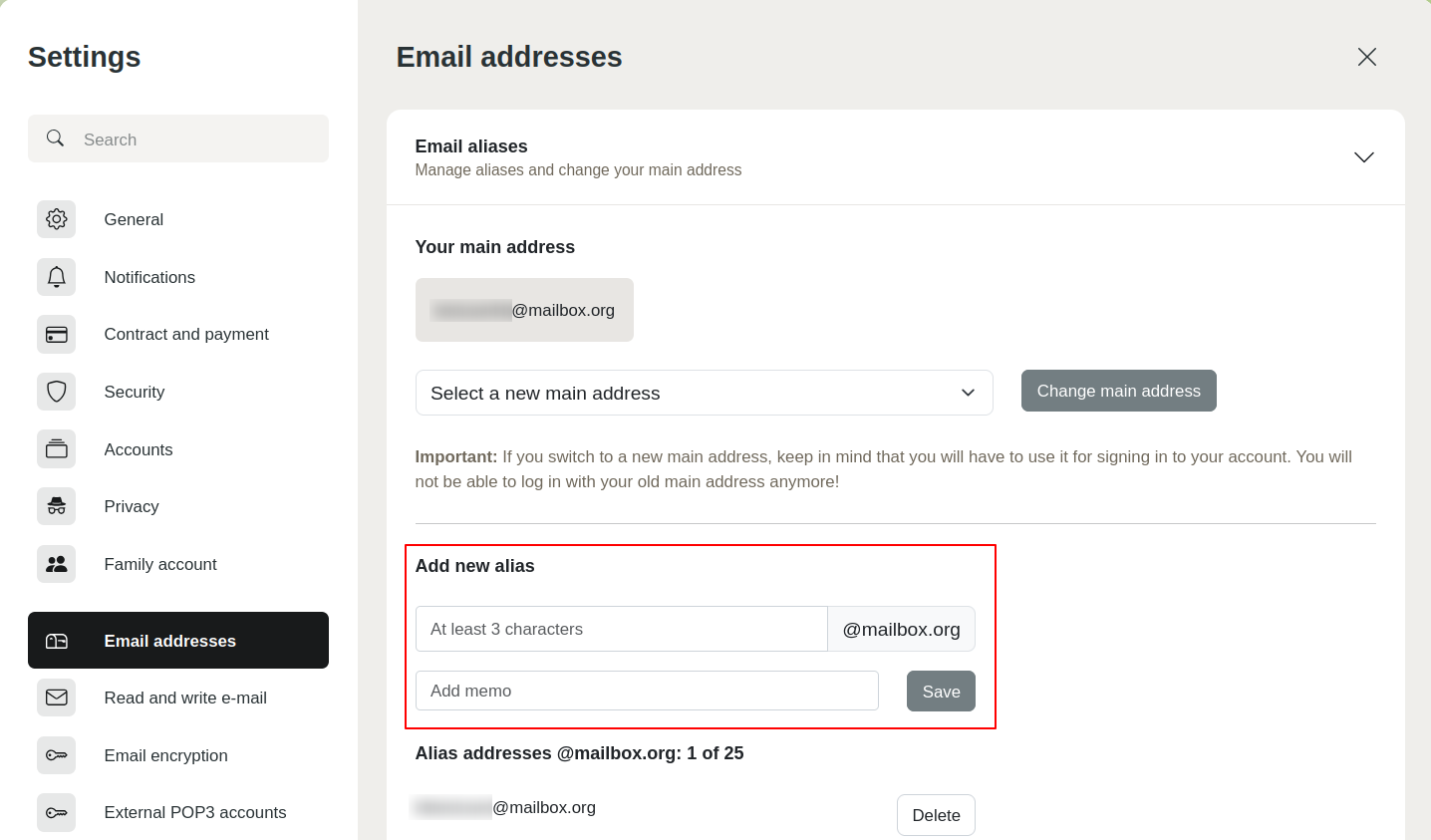
Adding an alias
Which aliases are permitted?
In principle, you are free to choose your own alias. Please note the following guidelines:
- No terms commonly used in phishing and fraud attempts
- No expressions that contradict our values or good taste
- No offensive or politically incorrect expressions
- No umlauts
- No special characters
- No capital letters
- Minimum number of characters: 3
Deleting an alias
Via the menu All settings > Email addresses > Email aliases, you can delete an alias if you no longer want to use it.
When you delete an alias, it is automatically blocked for a certain period to prevent third parties from registering a previously used alias and potentially (accidentally or maliciously) gaining access to someone else's emails.
During this blocking period, you can also lift the block at any time under All settings > Email aliases > Deleted aliases > Unblock deleted aliases to make the alias available for re-registration.
Alias cannot be deleted?
An alias that cannot be deleted is usually still set as the default sender address under All settings > Read and write e-mail > Email aliases – remove it there and try again.


