
Colored email flags for Thunderbird
In the mailbox Suite, you can mark your emails with coloured flags (also known as labels or keywords). These flags usually only work within the mailbox Suite and are not displayed correctly by other email programmes.
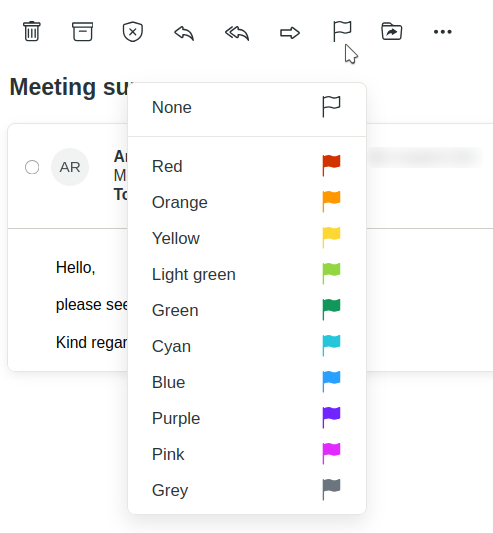
Highlighting an email in colour
The Thunderbird email programme offers a solution for this. To set this up, you will need a basic understanding of how to work with Thunderbird’s configuration files. If you are unsure, please do not make these changes.
We do not guarantee the changes made and do not offer any support for them. All changes are made at your own risk.
Setting up mailbox flags in Thunderbird
-
Quit Thunderbird, otherwise your changes will be overwritten the next time you close it.
-
Open the profile directory of Thunderbird. This directory is usually located in the .thunderbird folder. If in doubt, use your operating system’s search function. On Linux, you will normally find it in your user’s home directory.
-
The profile directory ends with .default. In this subfolder you will find the file prefs.js.
WarningMake a backup of the configuration file before making any changes to it.
-
Open this file prefs.js with a text editor of your choice and add the following lines at the end:
user_pref("mailnews.tags.$cl_1.color", "#CC0000");
user_pref("mailnews.tags.$cl_1.tag", "Red");
user_pref("mailnews.tags.$cl_10.color", "#FFFF00");
user_pref("mailnews.tags.$cl_10.tag", "Yellow");
user_pref("mailnews.tags.$cl_2.color", "#3333FF");
user_pref("mailnews.tags.$cl_2.tag", "Blue");
user_pref("mailnews.tags.$cl_3.color", "#006600");
user_pref("mailnews.tags.$cl_3.tag", "Green");
user_pref("mailnews.tags.$cl_4.color", "#999999");
user_pref("mailnews.tags.$cl_4.tag", "Gray");
user_pref("mailnews.tags.$cl_5.color", "#6600CC");
user_pref("mailnews.tags.$cl_5.tag", "Purple");
user_pref("mailnews.tags.$cl_6.color", "#33CC00");
user_pref("mailnews.tags.$cl_6.tag", "Light green");
user_pref("mailnews.tags.$cl_7.color", "#FF9900");
user_pref("mailnews.tags.$cl_7.tag", "Orange");
user_pref("mailnews.tags.$cl_8.color", "#CC33CC");
user_pref("mailnews.tags.$cl_8.tag", "Pink");
user_pref("mailnews.tags.$cl_9.color", "#33CCFF");
user_pref("mailnews.tags.$cl_9.tag", "Light blue"); -
Save the file and restart Thunderbird.
From now on, emails marked with a coloured flag in mailbox will also be displayed in colour in Thunderbird.
You can then view and delete the flags in Thunderbird as well. You will find the relevant menu under the following path:
Edit > Settings > General > Tags
This customisation has been tested with Mozilla Thunderbird version 140.12.0 on Linux.
Further information about flags
The IMAP protocol defines the following flags, which are supported by almost all email programmes and can therefore be considered standard:
- Email has been replied to
- Email has been marked for deletion
- Email is a draft
- Email has been marked as important
- Email has been read
- Email has been received since the last time you logged in
In addition, many IMAP servers allow so-called user-defined flags (or keywords). Each email programme can determine for itself how it uses these additional flags. Some programmes use colours, whilst others assign labels.
There are no uniform standards here, which is why additional markings generally only work within the same software and not across different email programmes.
In theory, however, any email programme could display all flags – even if only as text.
Comparison of email programmes
Only Mozilla Thunderbird Desktop is flexible enough to display custom flags from other email programmes. Other email programmes have limitations:
- Android Thunderbird Mobile: does not support extended flags and is not customisable
- Evolution: supports extended flags, but customisation is only possible within Evolution
- iOS Mail app: supports extended flags, cannot be customised
- macOS Mail app: supports extended flags, customisation is only possible within the email app
- Outlook: supports extended flags, customisation is only possible within Outlook


