
Setting up an external email address as the sender in mailbox (Mail Relay)
With mailbox, you can set up an external email address as the sender in your inbox. This allows you to send emails with an alternative sender address without having to connect your entire inbox via IMAP.
It is not possible to receive emails from the external address in your inbox using this method.
How to set up an external email address as the sender in your inbox (Mail Relay):
-
Log in to your mailbox account.
-
Click on the gear icon in the top right-hand corner, then click on All settings.
-
In the settings, click on Email addresses and open the Alternative senders section.
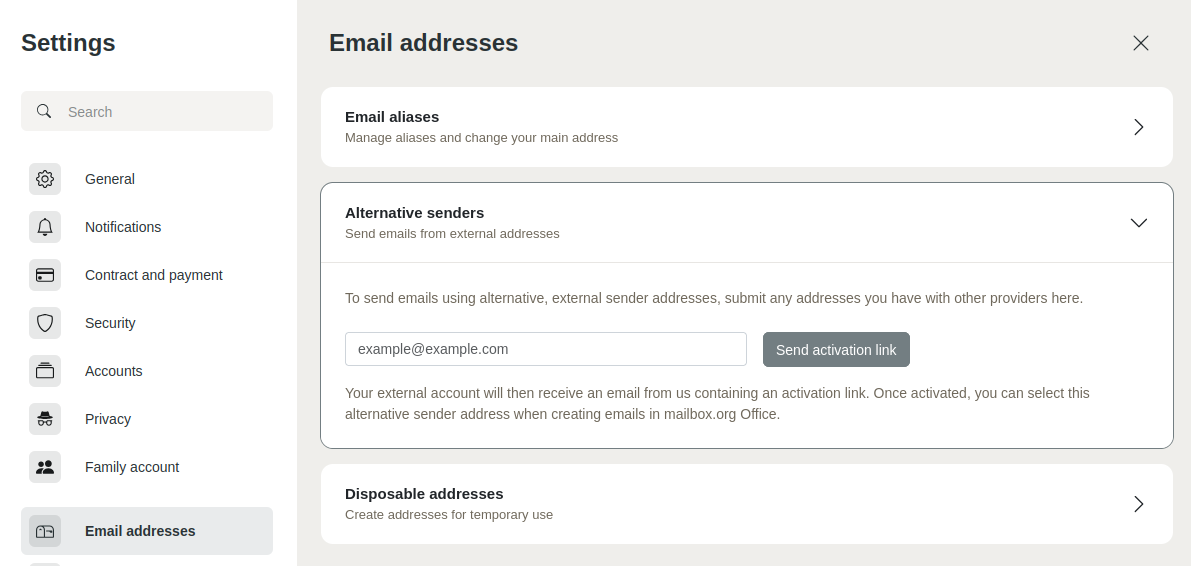
Adding an external email address as an alternative sender -
Enter the external email address you wish to use as the sender.
-
Click on Send activation link.
-
Open the inbox of the external email address.
-
Click on the activation link sent to you within 15 minutes.
NoteFor security reasons, the activation link is only valid for 15 minutes. Once this time has elapsed, you will need to request a new link.
Once you have successfully confirmed the address, you can select the external email address as the sender in the From field when composing new emails in the mailbox webmail client.
Please note that messages sent from the external address will only be stored in the Sent folder of your mailbox.
Potential delivery issues with Mail Relay
If you have set up an email address as an alternative sender, emails sent using the external inbox address may regularly be rejected. This is because the domain of the sender address and the sending server do not match. Consequently, SPF and DKIM checks will fail.
As more and more major email providers are checking these details for plausibility, you must expect undeliverable messages when using this method.
You should therefore only use this method in exceptional cases, such as for occasional sending via an external address where full technical control (e.g. DNS entries) is not possible.
To avoid delivery issues, use the full integration of your external inbox.
Removing alternative senders
To remove an alternative sender:
- Click on the gear icon in the top right-hand corner and select All settings.
- In the settings, navigate to Email addresses.
- Open the Alternative senders section.
- Under Existing alternative senders, click X (Delete) next to the relevant inbox.
The email address will be removed as an alternative sender. Messages that have already been sent will remain.
Recommendation: Fully integrate an external email address
If you wish to fully integrate the external email address (for sending and receiving), you can integrate the inbox into mailbox as follows:
- Open your inbox in the mailbox webmail client.
- Click the New email button and then Add email account.
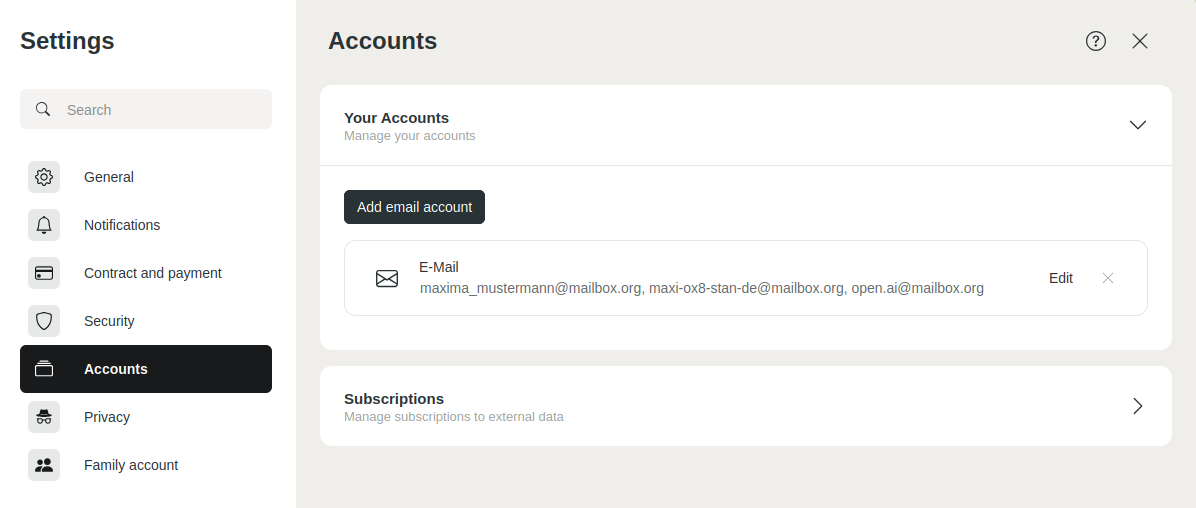
Adding an external email account - In the Add email account dialogue box, enter the email address and password for your external email account. All other settings should be detected automatically.
- Click on Add.
If the setup was successful, you will now see your external account in the folder overview on the left-hand side.
When composing a new email, the address of the external inbox will be displayed in the From field for you to select. By default, sent messages and the inbox are only displayed in this inbox, not in the parent inbox.
You cannot set up an email address integrated in this way as an alternative sender.
If you set up your inbox on external devices, accounts integrated in this way will not be synchronised.
Removing an external inbox
To remove an external inbox from the mailbox webmail client:
- Click the gear icon in the top right-hand corner and select All settings.
- In the settings, navigate to Accounts.
- In the Your Accounts section, click X (Delete) next to the desired inbox.
Removing an external email account via the mailbox settings


