
Inbox categories at mailbox
You can display the emails in your inbox sorted by specific categories. mailbox offers five filter categories: General, Social, and Purchases, which have fixed names, as well as Newsletters and Favorites, whose names you can customise.
Inbox categories are filter categories for your inbox folder which can be trained for incoming emails. They differ from the categories that you can freely define in the toolbar under Categories and assign to individual emails, regardless of the folder in which the emails are located.
Enabling inbox categories
-
In the mailbox Suite, open the E-mail section.
-
Click the gear icon in the top right-hand corner to open the quick settings.
-
In the quick settings, scroll down to the menu item Inbox categories and open it.
In the Configure categories window, you can customise and enable the filter categories for your inbox folder.
-
Click Activate categories.
From now on, you will see the categories above the message list of your inbox in the mailbox Suite: General, Social, Purchases, Favorites, and Newsletters.
Configuring inbox categories
- In the mailbox Suite, open the E-mail section.
- Click the gear icon in the top right-hand corner to open the quick settings.
- In the quick settings, scroll down to the menu item Inbox categories and open it.
- In the Configure categories window, you can use the check boxes to show or hide individual categories. You can rename the Newsletter and Favorites categories if required.
The General category cannot be deactivated, as it contains all emails that are not sorted into any other inbox category.
Training inbox categories
The Social and Purchases categories contain predefined filters. However, these can continue to “learn”. You can also train the Newsletters and Favorites categories individually.
To adjust these filters, simply drag an email from the General list to the desired category (drag and drop). You will then be asked whether you would like to display all emails from this sender in your inbox under this category. Any future emails from this sender will then be automatically assigned to this category.
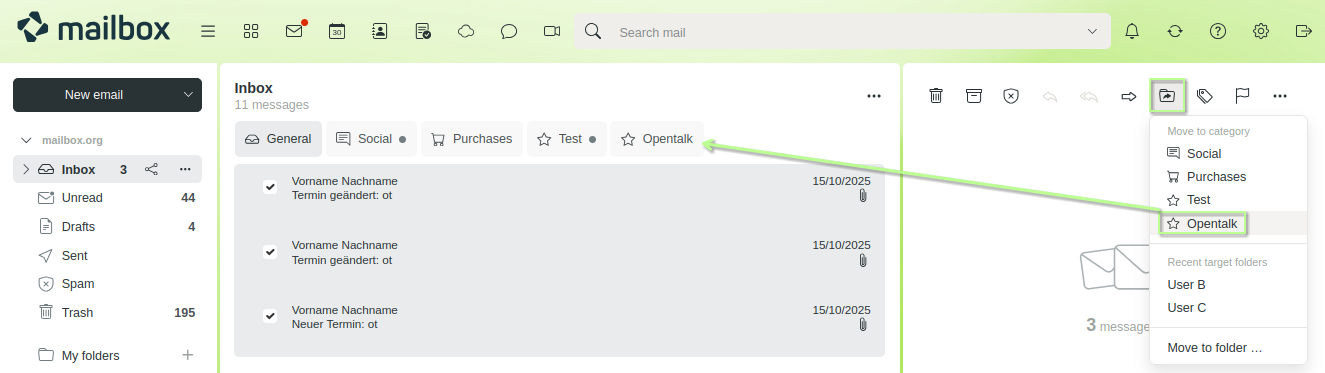
Moving emails into the appropriate inbox category
Training a category by moving emails only works if the inbox is the source folder. If an email is in a different folder, move it to the inbox first in order to train an inbox category using that email.


