
Setting up mailbox in the iOS Mail app
This article explains how to set up your mailbox email account on devices running iOS (iPad, iPhone):
-
Open the Settings on your device and navigate to the following path:
- Apps > Mail > Mail Accounts > Add Account
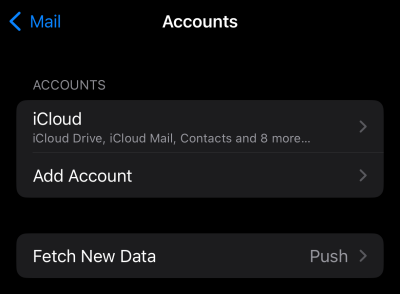
Add account -
Under Add Account, tap Other.
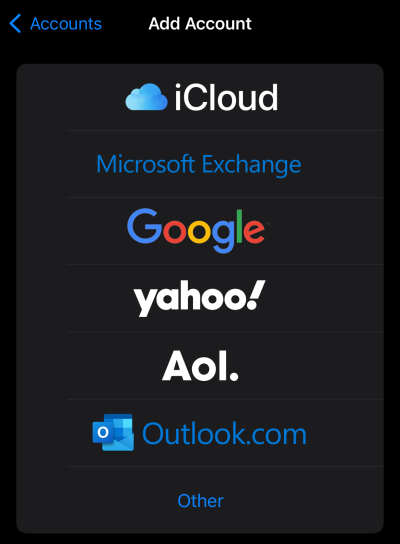
Add other account -
Tap Mail Account.
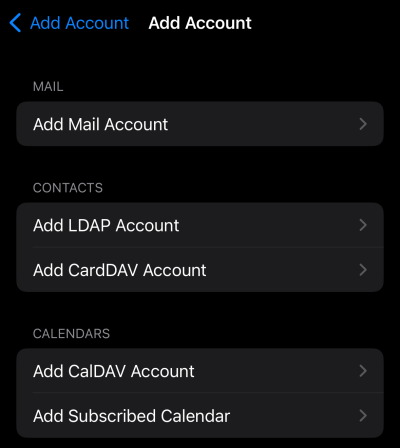
Add mail account -
Enter the general details of your mailbox account and then tap Next.
Field Entry Name Your name Email Your mailbox email address Password Your mailbox password or, if two-factor authentication is enabled, your email app password Description Optional (e.g., "mailbox") 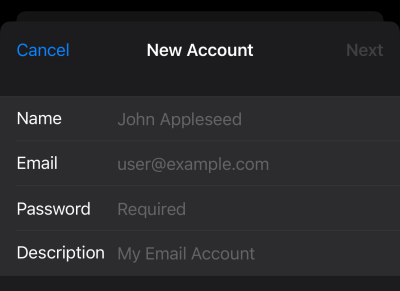
Add personal data -
The server settings (IMAP and SMTP) are usually configured automatically. If the automatic setup does not work, please enter the following details:
Incoming emails (IMAP)
Setting Value Server imap.mailbox.org Username Your full email address Password Your mailbox password or, if two-factor authentication is enabled, your email app password Port 993 Encryption SSL Authentication Normal password Outgoing emails (SMTP)
NoteThe configuration for outgoing emails is mandatory.
Setting Value Server smtp.mailbox.org Username Your full email address Password Your mailbox password or, if two-factor authentication is enabled, your email app password Port 587 Encryption SSL Authentication Normal password 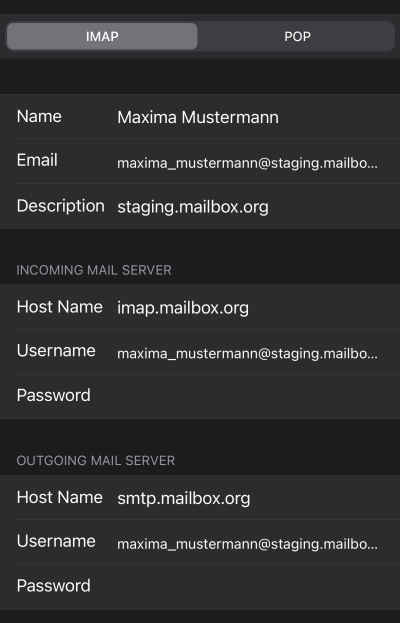
Enter server data manually -
Tap Next and then Save.
Once set up, your mailbox email account will appear in the device’s system settings and will be ready to use straight away.


