
Integrating external email accounts
Integrating external email accounts in mailbox Office
In mailbox Office, you can integrate external email accounts from other providers such as GMX, web.de, or mail.de.
Benefits of integrating external accounts
The integration of external accounts offers you several advantages:
- You can read the emails of the integrated accounts directly in the web client.
- You can send emails with the sender address of the integrated account directly from the web client.
- You have the option to manage all your email accounts centrally and in one place via the mailbox web client.
- With the Unified Mail function, you can even use shared folders for multiple email accounts, such as a central inbox or a shared folder for sent messages.
Settings with the external provider
For some providers, it is necessary to make certain settings to enable the integration. The provider must allow access via IMAP or POP3 as well as SMTP (for sending emails).
Please consult the documentation or support of your respective provider.
Different types of integrating an external mailbox
Mail client function
mailbox Office functions as an email client and displays the messages of the external provider separately. That means you have an additional, separate mailbox under the mailbox inbox.
When composing a new email, the external mailbox will be available for selection in the From field. Sent messages and the inbox are, by default, only displayed in this mailbox, not in the primary mailbox inbox.
Both external and mailbox inboxes can be integrated here, which can be used by multiple people simultaneously. Business customers, for example, can conveniently integrate team mailboxes such as marketing@custom-domain.com. For most users, this option is the best choice.
Click the drop-down menu on the New email button and select Add email account.
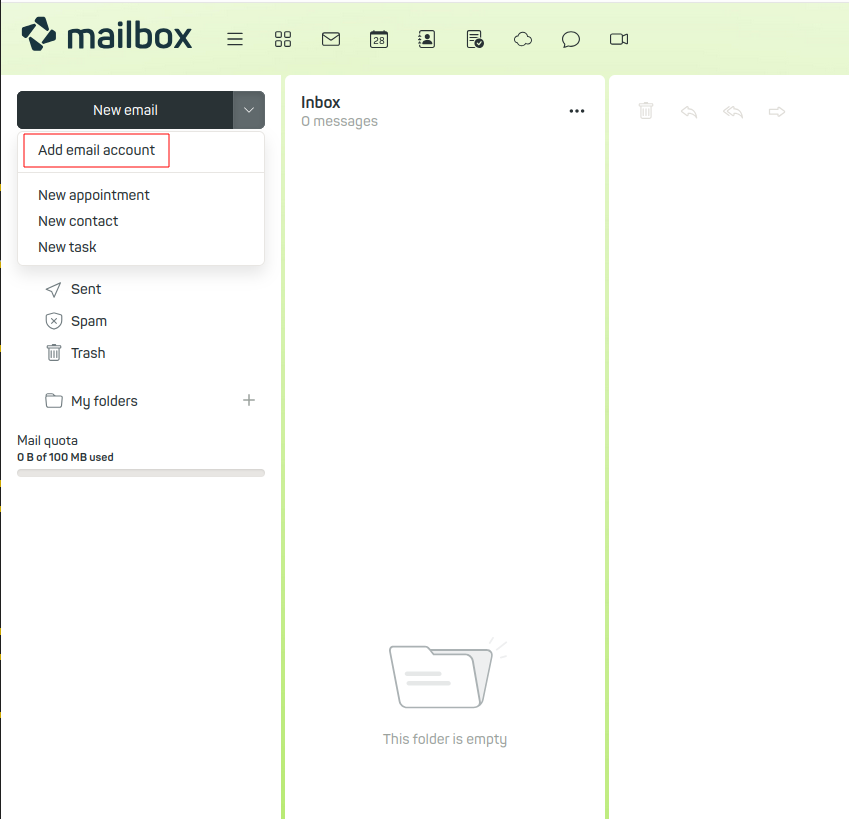
Adding an external email account
Removing an integrated mailbox
How to remove an external mailbox:
- Click the gear icon on the top right and select All settings.
- In the settings, navigate to Accounts.
- In the Your Accounts section, click X (Delete) next to the mailbox you wish to remove.
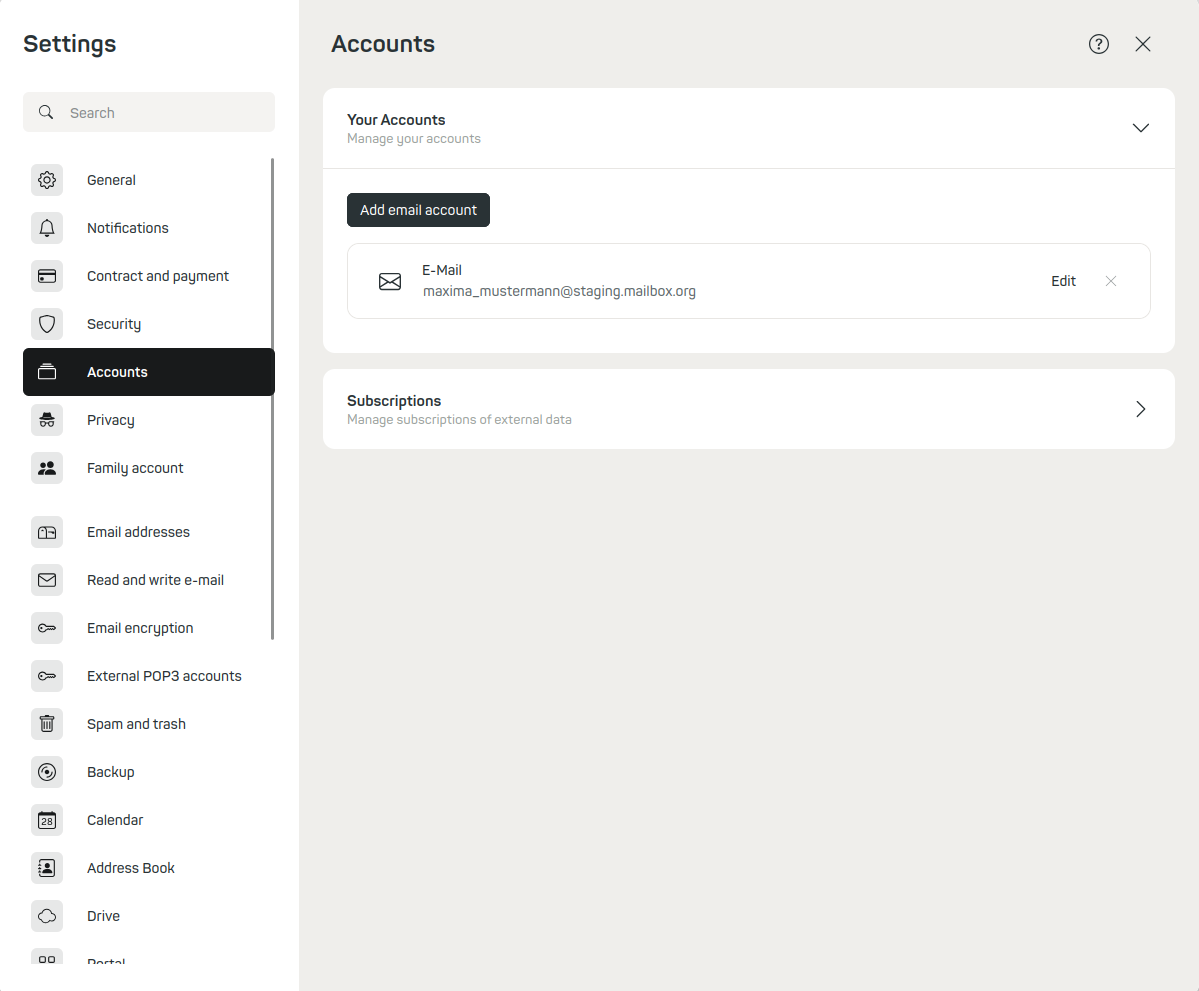
Removing an external email account integrated as an email client
POP3 mailbox (fetch only)
If you use the POP3 function, all emails are fetched from the external provider and, by default, deleted there. The emails are then only stored in your mailbox inbox. Here you can also apply filter rules and use mailbox encryption.
Sending with the address of the external mailbox is not possible. Email retrieval takes place approximately every 30 minutes but may take longer in individual cases due to load balancing.
Retrieval from external POP3 accounts is only available for the Standard and Premium plans.
Setting up a POP3 mailbox
How to set up a POP3 mailbox:
- Click on the gear icon in the top right-hand corner and select All settings
- In the settings, navigate to External POP3 accounts.
- In the Fetching external POP3 accounts section, enter your external provider’s email address, e.g.
marcus.example@external.com. - Click Determine server settings.
- Check the detected server settings and make any necessary changes.
- Enter your password for the external account.
- Click Add.
For further information on using mailbox as a POP3 client, please refer to the article Email configuration.
Removing a POP3 mailbox
To remove a POP3 mailbox, proceed as follows:
Locate the corresponding mailbox under External POP3 accounts and click X (Delete). Already retrieved messages will, of course, remain available to you.
Mail relay function (full integration)
With this option, you integrate an external mailbox via IMAP and SMTP. This allows you to select the external mailbox in the From field when composing a new email.
When setting up, you will receive a confirmation email in the external mailbox. By confirming, you prove that you actually have access to this mailbox. Afterwards, you can send emails with the address of the external mailbox via the mailbox servers (Mail Relay).
Receiving emails of the external address in the mailbox inbox is not possible this way. Sent messages of the external address end up exclusively in the Sent Objects folder of the mailbox inbox.
This option is only recommended if you do not intend to send to professional email providers or business addresses.
Setting up Mail Relay
Proceed as follows for setting up Mail Relay:
-
Click the gear icon on the top right and select All settings.
-
In the settings, navigate to Email addresses.
-
In the Alternative senders section, enter the email address of your external provider, e.g.
marcus.example@external.com.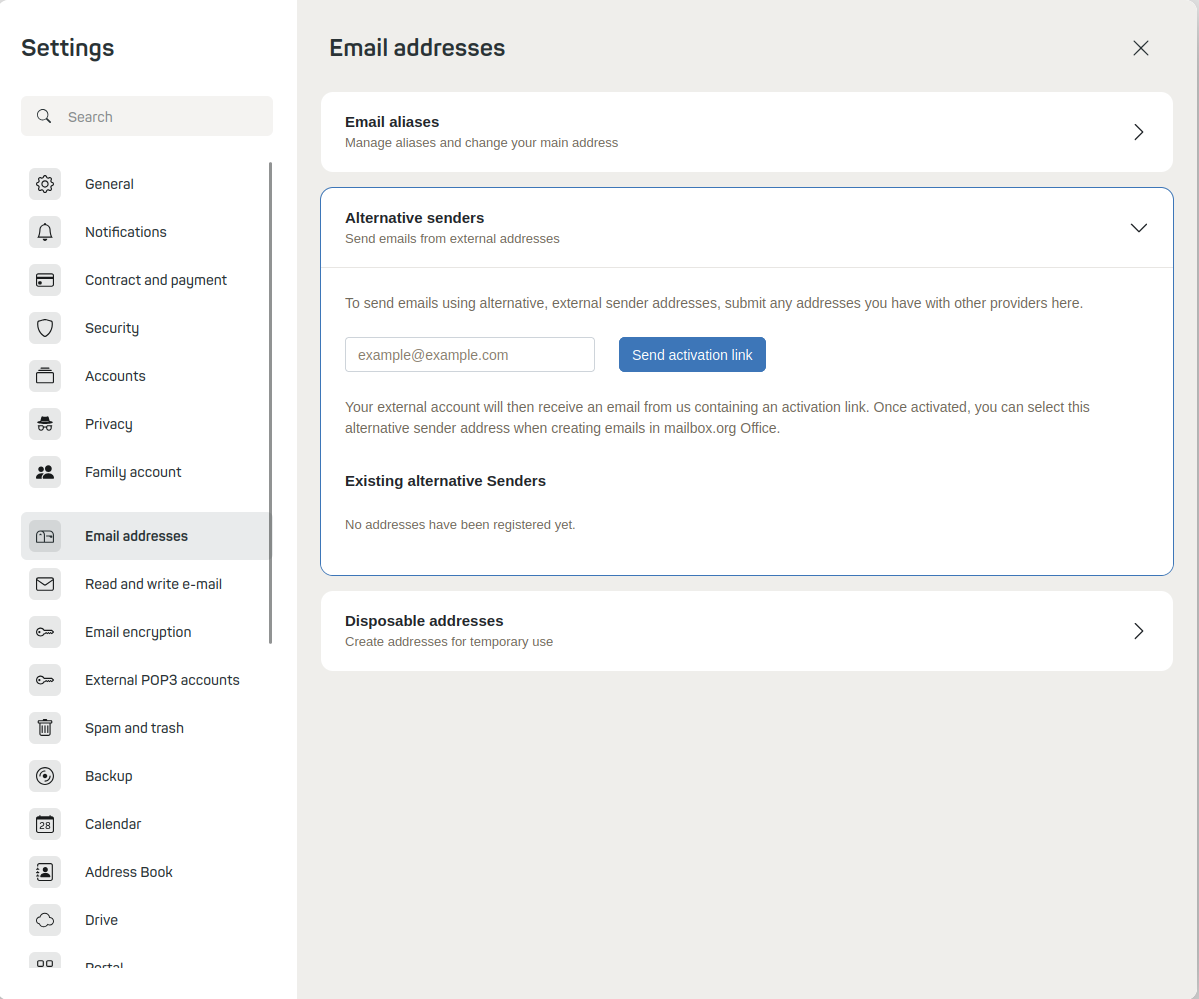
Adding an alternative sender -
Click Send activation link. The activation link will be sent to your external email address. It is valid for 15 minutes.
-
Click on the activation link.
You can now use your external email address as the sender when composing emails in mailbox Office.
Removing a Mail Relay mailbox
To remove a Mail Relay mailbox:
- Click the gear icon on the top right and select All settings.
- In the settings, navigate to Email addresses.
- In the Alternative senders section, under Existing alternative senders, click X (Delete) next to the relevant mailbox.
The email address will be removed as an alternative sender. Messages that have already been sent will remain.
Notes on Mail Relay
With Mail Relay, emails sent with the address of the external mailbox may regularly be rejected. The reason is that the domain of the address and the sending server do not match (DKIM error).
As more and more major email providers check this information for plausibility, you should expect undeliverable messages when using this method.
Unified Mail
The Unified Mail function offers you the advantage that, when integrating multiple mailboxes via the mail client method, the Sent Objects and Inbox folders of all mailboxes are combined. This keeps your mailbox Office clear and organised.
Setting up Unified Mail
How to set up Unified Mail:
- Click the gear icon on the top right and select All settings
- In the settings, navigate to Accounts.
- In the Your Accounts section, click Edit next to your external mailbox.
- Activate the check box next to Use unified mail for this account.
- To ensure a consistent folder structure for the integrated inboxes, define uniform folder names under Standard folders.
- Click Save.
- Apply these settings to all your mailboxes, including your mailbox account.
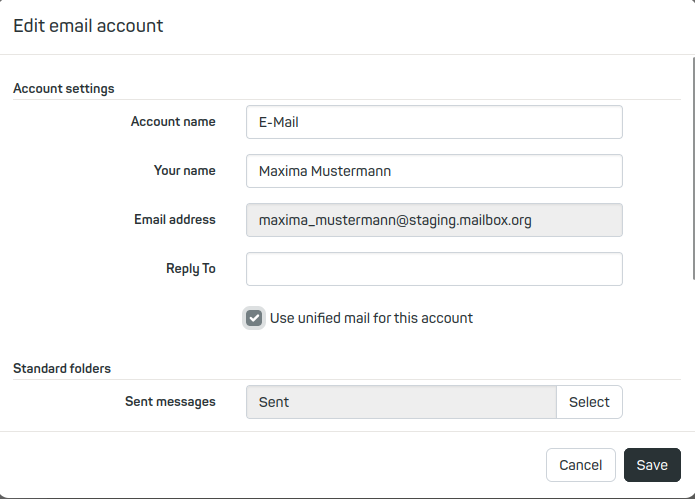
Setting up Unified Mail
Important note on integrating Outlook webmailer
Please note that Outlook Webmailer currently cannot be integrated into the mailbox webmailer.
The reason is that Microsoft uses the OAuth2/Modern Auth method for the authentication of Outlook Webmailer, which is not yet supported by mailbox.
This restriction only applies to integrating Outlook Webmailer into the mailbox webmailer. The use of Outlook as a standalone email client, for example on your PC, is still fully possible.


