
Forgotten password
Resetting your password at mailbox
In order to regain access to your mailbox in case of emergency, it is absolutely necessary that you store a verification option in the settings. Without this information, a password reset is not possible.
As a provider of anonymous mailboxes, we have no personal data about you except for the information you voluntarily provide. We therefore cannot distinguish whether you have entered your real name or a pseudonym in your account.
To ensure that only you as the rightful owner can reset the password, we require an alternative verification method. Otherwise, any third party could contact us and illegitimately request a password reset.
For verification purposes, you can provide the following details:
- Alternative email address
- Mobile phone number
- Telephone password
Save verification details
If you have not saved any details for password reset, we cannot verify your identity and therefore cannot reset your password. This is for the security of all users.
You can enter this information immediately after setting up your account. A dialogue box will then appear, allowing you to enter a mobile phone number or an alternative email address to secure your login:
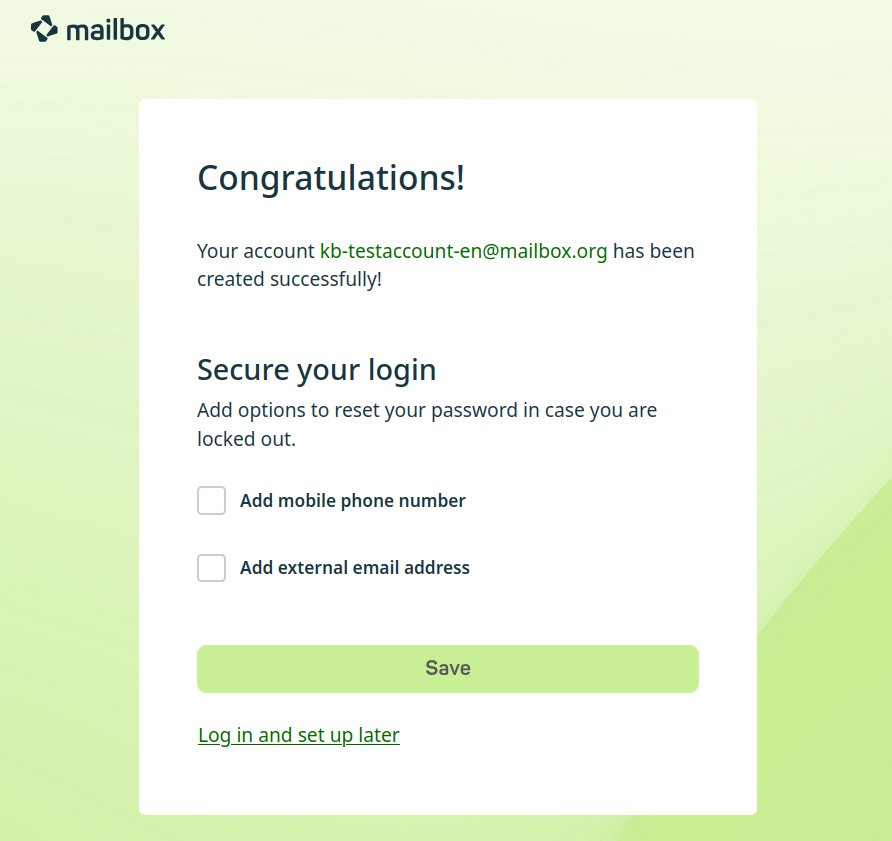
“Secure login” dialogue box after setting up a new account
Alternatively, you can add the verification details to your user account at any time. To do so, proceed as follows:
- Click the gear icon in the top right corner of mailbox Office.
- In the menu, click All settings.
- In the settings, navigate to Security > Login recovery.
- Enter your mobile number, an alternative email address or a password for phone support in the relevant text field.
- Confirm your entries by clicking Save.
Reset password
-
Open Password Recovery in a browser.
-
Enter the primary address of the inbox for which you wish to reset the password.
NoteYou can only log in using the current primary address of your inbox, not your alias.
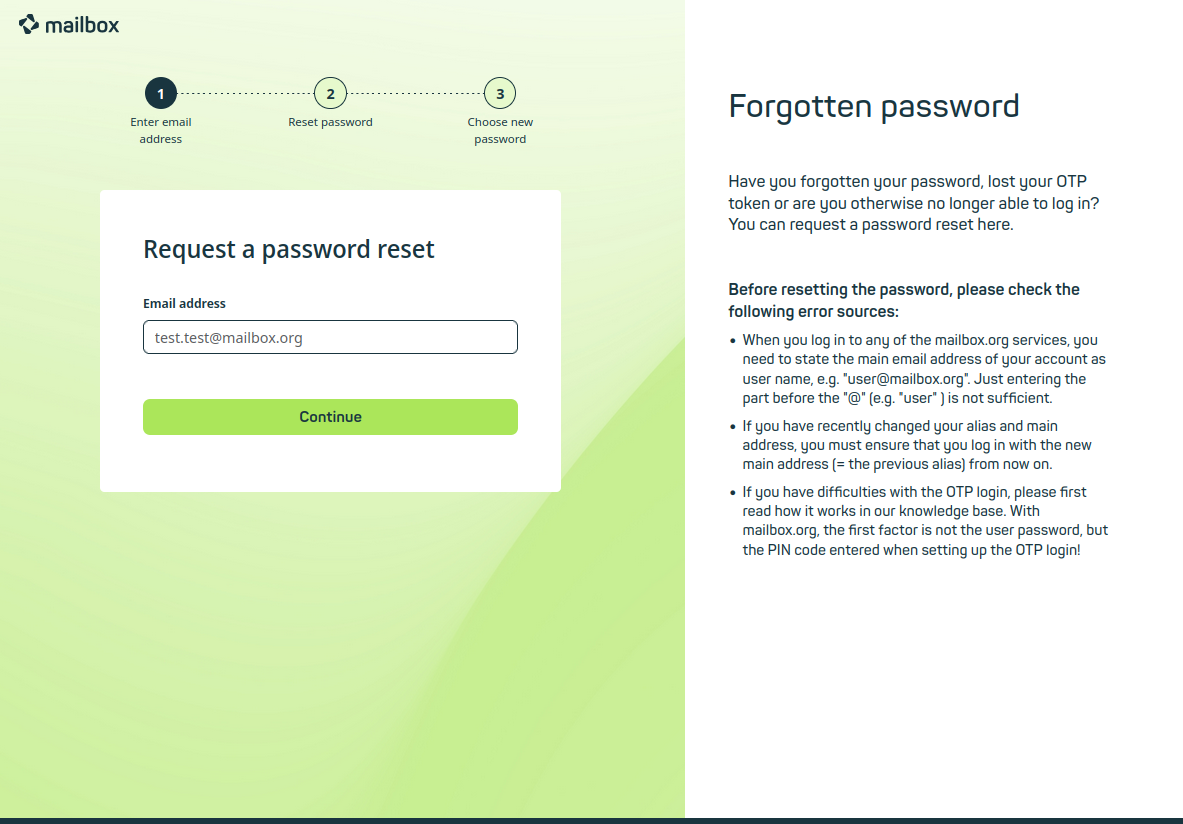
Password reset at mailbox. -
Click Continue.
Depending on the verification details you have provided, the following options will be displayed:
- Send an SMS with a reset code to the stored mobile number (format: +49 123 4567890)
- Send an email with a reset code to the stored alternative email address
- Reset by phone using a previously set telephone password (Mon–Fri, 9:00–18:00, please note time zones where applicable)
- Sending a reset code to your primary address at mailbox
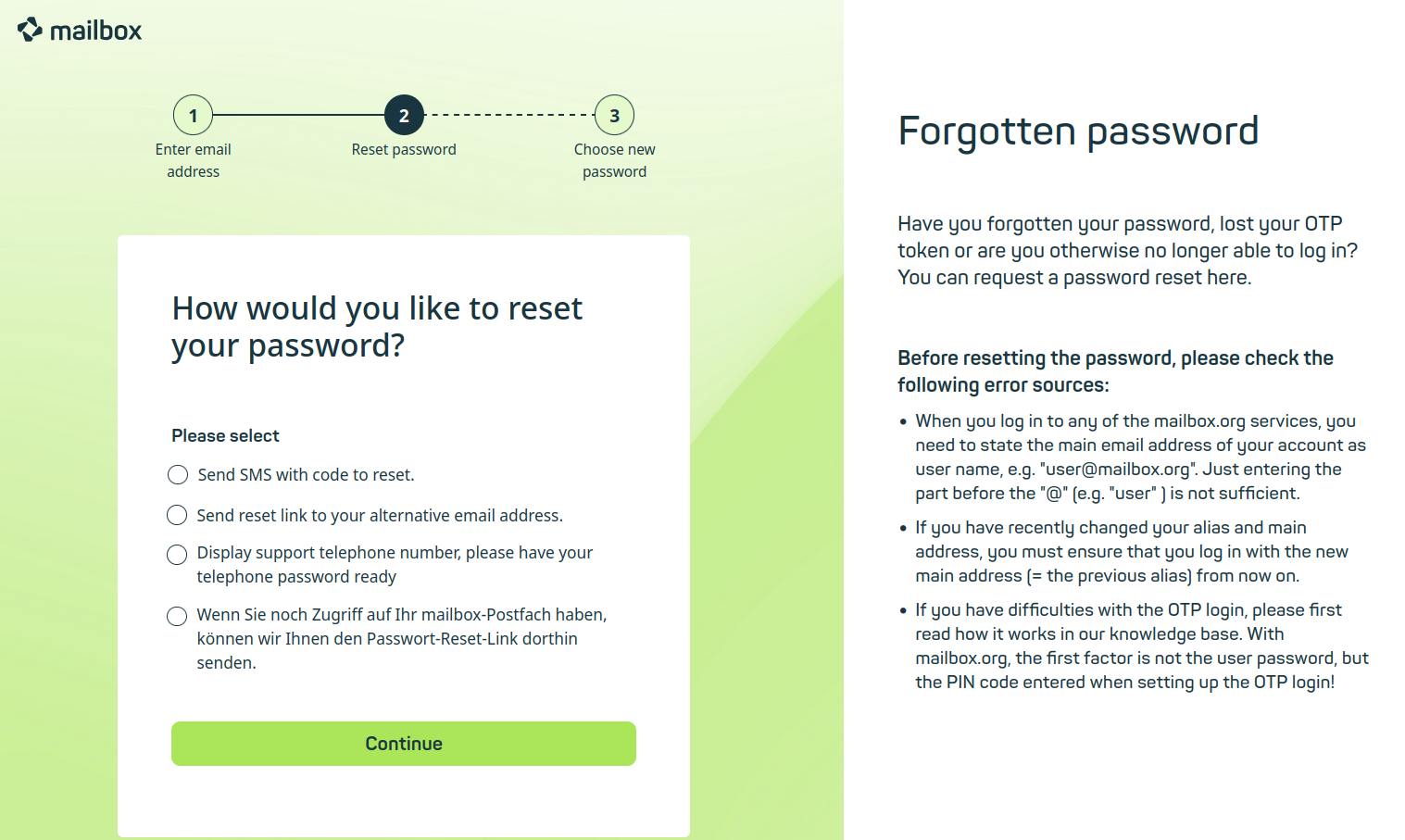
Available methods for resetting your password -
Select your preferred reset method.
Password reset via mobile number
- Select the Send SMS with code to reset radio button.
- Enter the stored mobile number.
- Click Continue. You will receive the reset code via SMS.
- Enter the reset code and set a new password.
- Click Send.
Password reset via email
- Select the Send reset link to your alternative email address radio button.
- Click Continue. You will receive the reset code at your registered alternative email address. Please check your provider’s spam folder if necessary.
- Enter the reset code and set a new password.
- Click Send.
Password reset via phone password
- Select the Display support telephone number, please have your telephone password ready radio button.
- Click Continue.
- Dial the number displayed and verify your identity by entering your phone password.
Note
Please note: No further support is available via this telephone number.
- Set a new password.
- Click Send.
Your password has been successfully changed.
Resetting your password will also disable two-factor authentication. You will need to set this up again afterwards, as described in the following article: Set up two-factor authentication in mailbox
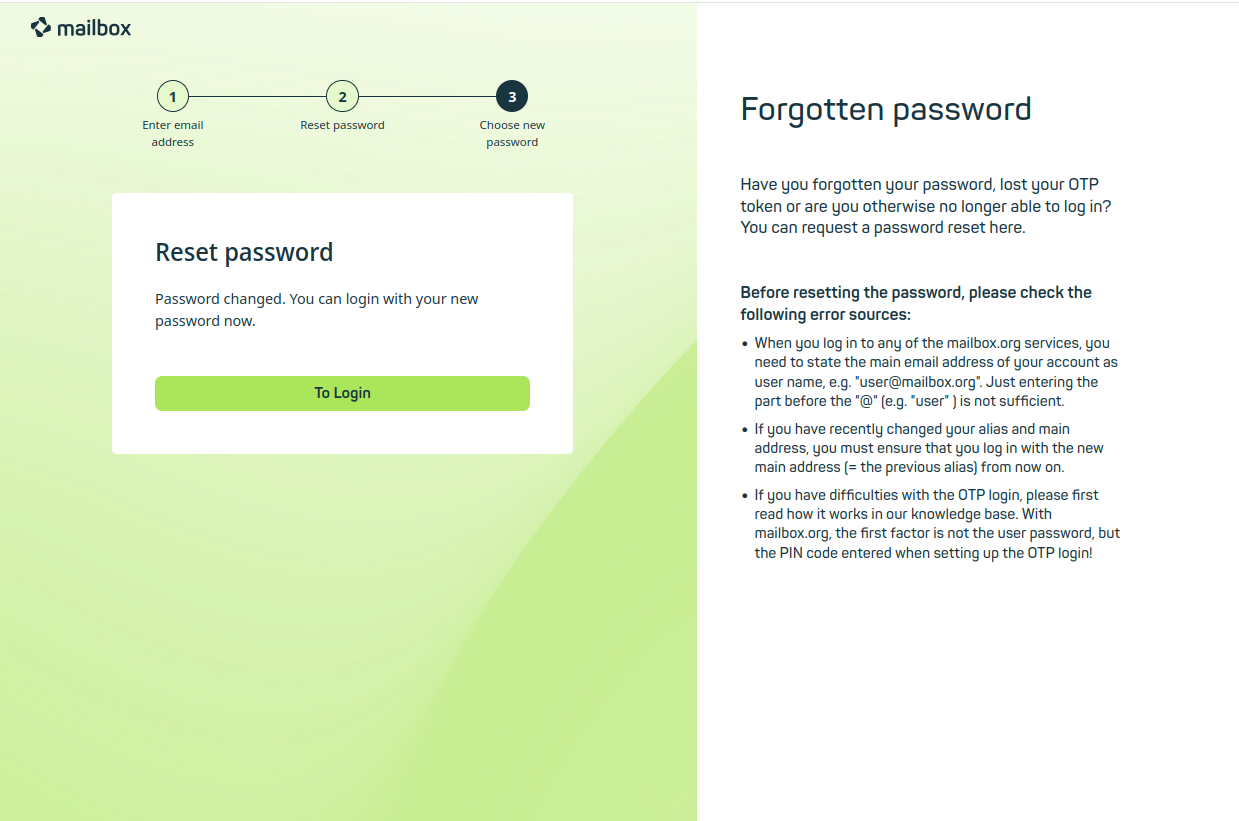
Password successfully changed


