
Setting up two-factor authentication in mailbox
When using two-factor authentication (2FA) for your account, you need to create and use a corresponding application password to access your calendar, contacts, or Drive data with external apps. Without two-factor authentication (2FA), application passwords are optional.
With two-factor authentication (2FA), mailbox offers you an enhanced way to reliably secure access to your mailbox. 2FA protects your data in addition to your password. Depending on the setup, you can choose between two variants: two-factor authentication using the TOTP method (Time-based One-Time Password) and the OTP method, which at mailbox is known as Login 2.0 (One-Time Password).
Why use two-factor authentication
Two-factor authentication significantly increases the security of your mailbox. In addition to your password, you need a second factor – such as a time-based one-time code (TOTP) generated on a separate device. This prevents access even if your password falls into the wrong hands.
Time-based one-time password: Login via TOTP
TOTP-based two-factor authentication offers a simple way to secure your account with a second factor – without additional hardware, directly via an app on your smartphone. TOTP-capable authenticator apps include e.g., Google Authenticator, Bitwarden, or FreeOTP.
If you have enabled two-factor authentication (2FA) and lose access to your authenticator app, only the administrator can reset your password.
Examples for compatible authenticator apps
| Platform | App | Description |
|---|---|---|
| Android | FreeOTP+ | Open source, lightweight, compatible with TOTP/HOTP |
| Android and iOS | FreeOTP | Open source app by Red Hat |
| Android and iOS | Bitwarden | Password manager with integrated OTP generator |
| iOS | Apple Passwords (iCloud Keys) | Integrated in iOS/macOS, automatically creates TOTP codes |
Setting up 2FA for mailbox
- In mailbox Office, click the gear icon and open All settings > Security > Two-factor authentication.
- Enter a device name.
- Scan the displayed QR code with your authenticator app.
- Enter the 6-digit code generated by the app in the TOTP code text box.
- Click Check code and activate TOTP.
After successful setup, both your password and the current code from the app will be required for login.
Once you have enabled two-factor authentication, you must set up so-called application passwords for CalDAV/CardDAV.
Illustrated instructions
Step 1: Enter a device name
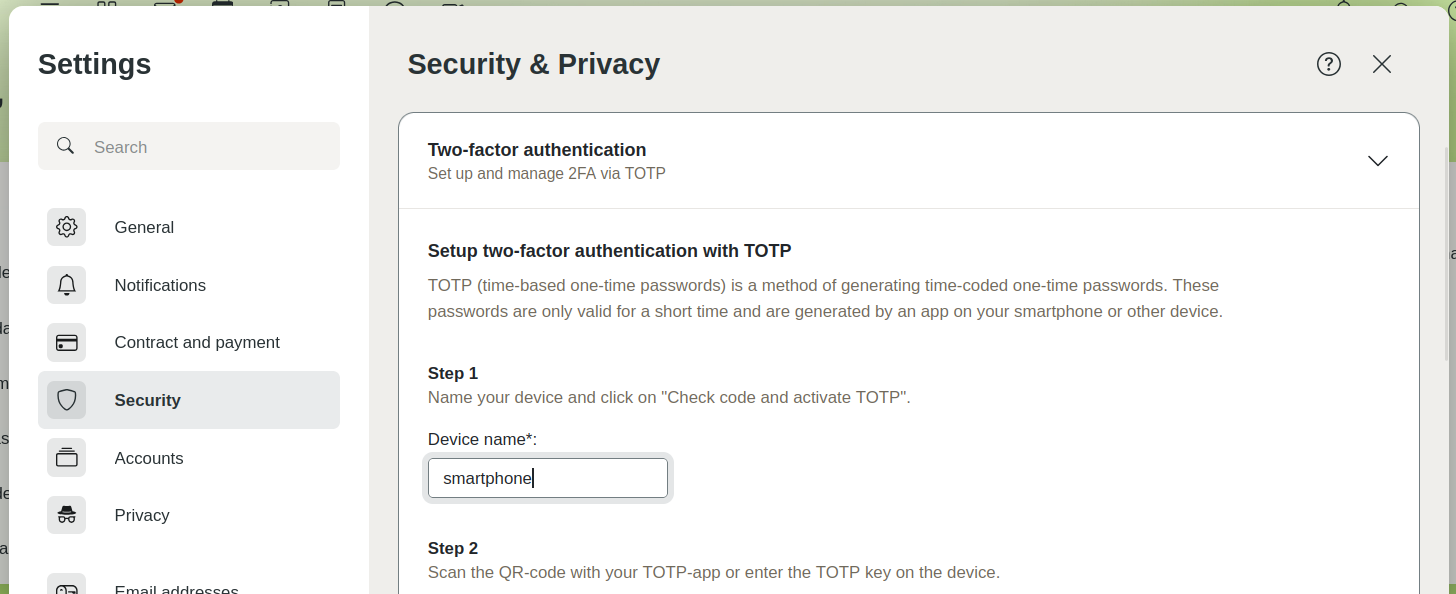
Enter a device name.
Step 2: Scan QR code with authenticator app
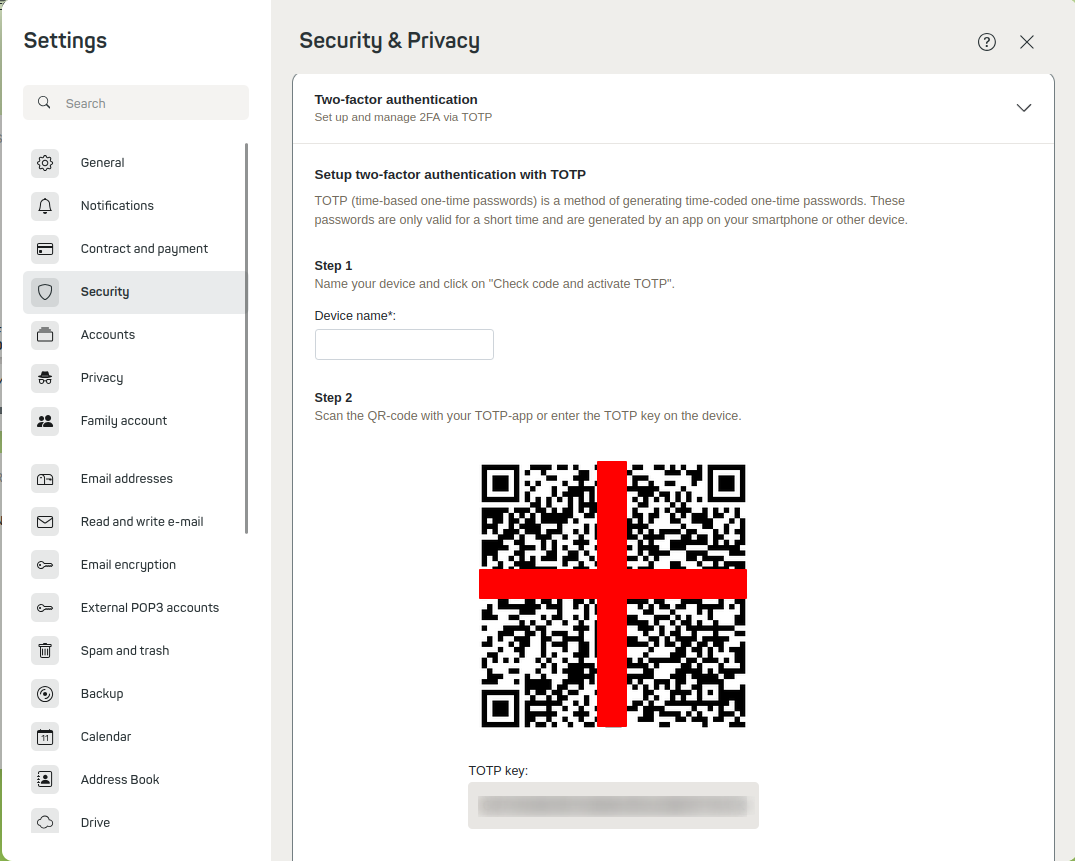
Scan the QR code with your authenticator app.
Step 3: Enter TOTP code
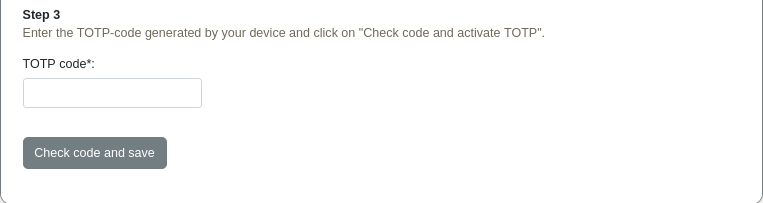
Enter the generated TOTP code for verification. The next time you log in via the web client, you will also be asked to enter the TOTP code.
Step 4: Done
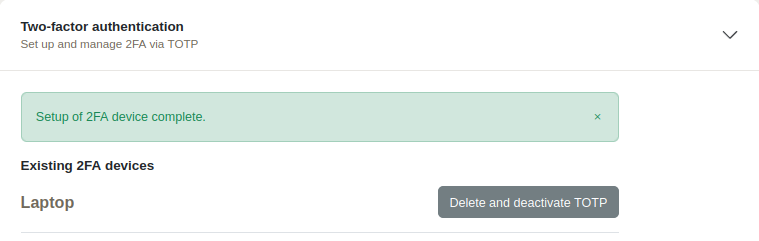
You have successfully set up 2FA.


