
Merging accounts
This article explains how to transfer an existing mailbox email address to a Family account with mailbox.
Please note the following points:
- For technical reasons, it is currently not possible to automatically transfer data from existing accounts. However, you can transfer data manually at any time by creating a backup and then importing it.
- Shared content such as calendars or file shares will initially no longer be accessible after the switch. You will need to restore them from the backup and share them again.
Each individual account within a Family account is subject to a fee – this applies to the administrator and the accounts of the respective members.
1. Create a backup
Back up your personal data (e.g. emails, files, calendars) in case you need them later in the Family account.
You can find information on this in the article Backing up and restoring data.
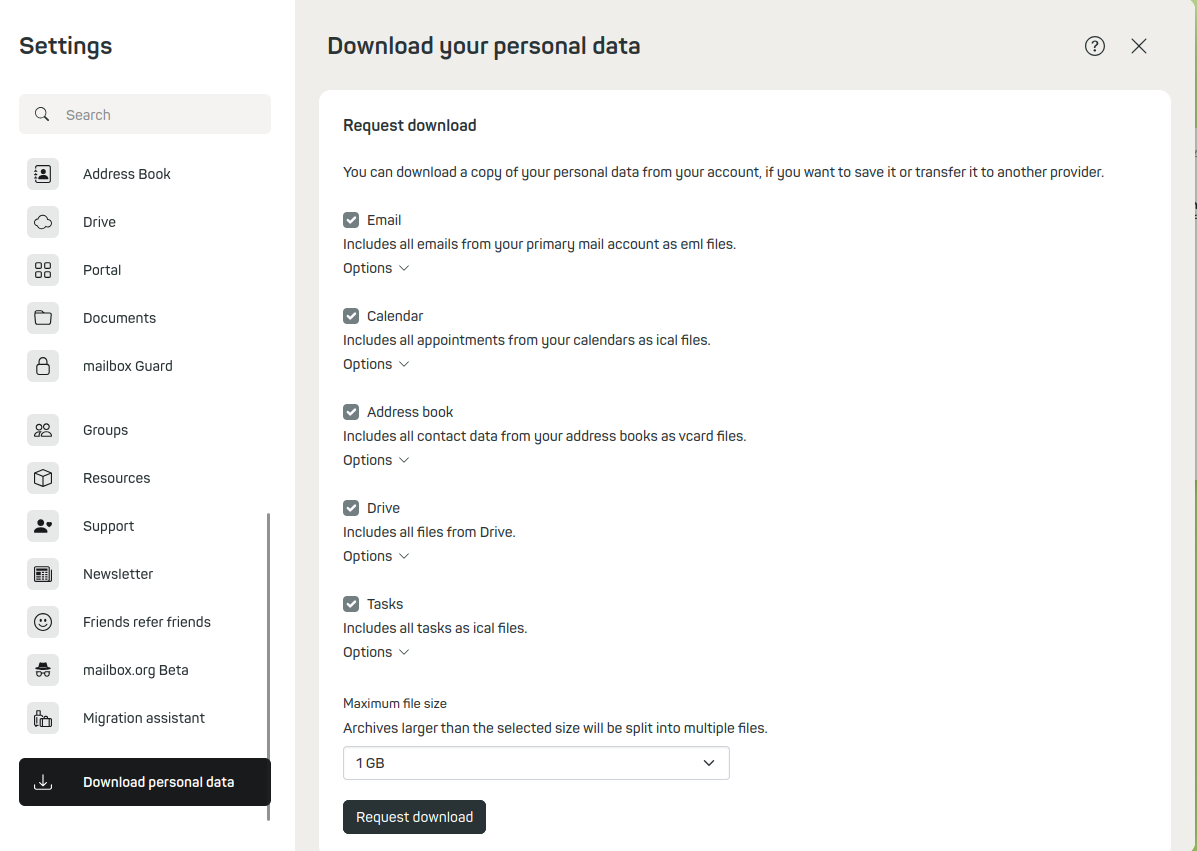
Data backup with mailbox
2. Change your primary email address
-
Create a new alias and set it as the new primary address for your account under All settings > Email addresses > Email aliases (for details, see Choosing a new main address).
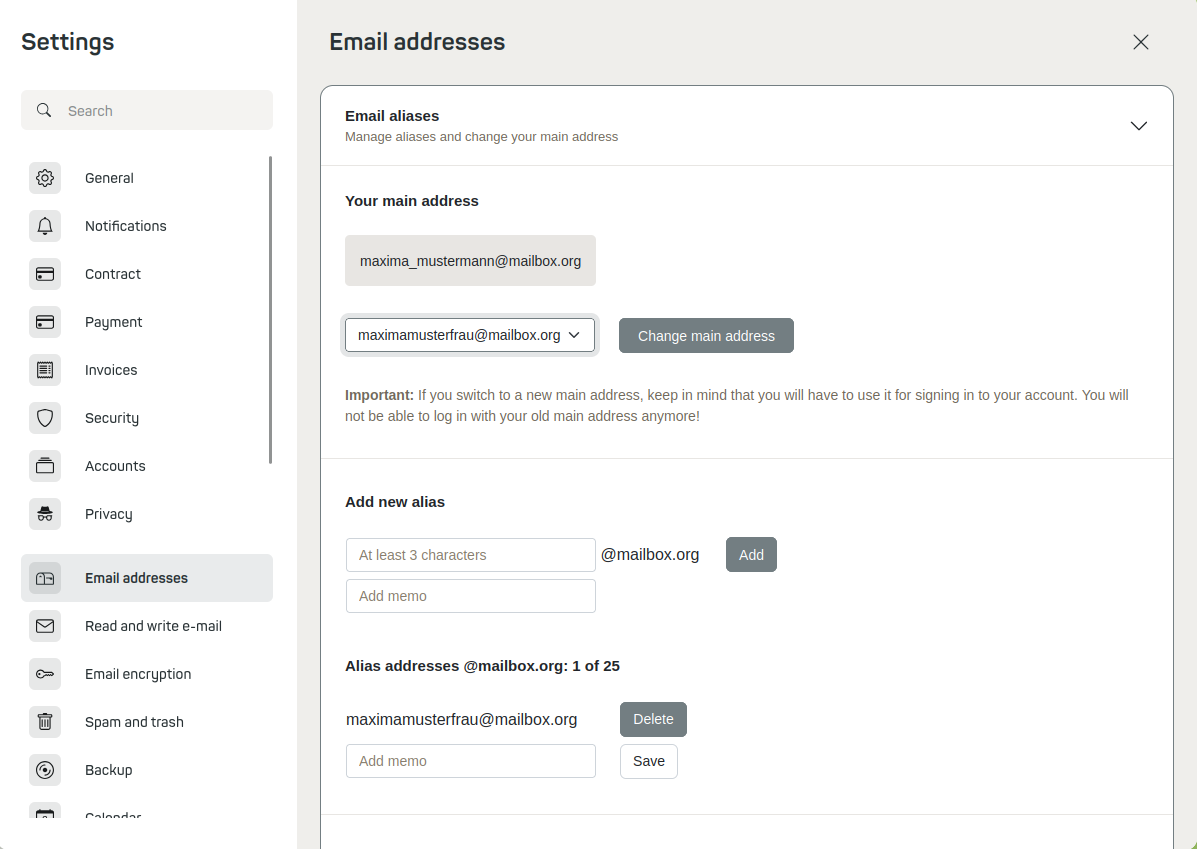
Add a new alias and make it the new primary address for the account.Your former primary address will become an alias.
-
Log out of the mailbox webmailer and log back in using the new primary email address.
-
Remove the original email address (your previous primary address) from the list of your aliases. To do this, go to All settings > Email addresses > Email aliases, select the old address and click Delete.
-
Unlock the deleted alias by clicking the Unlock deleted aliases button (see also When is a deleted address available again?).
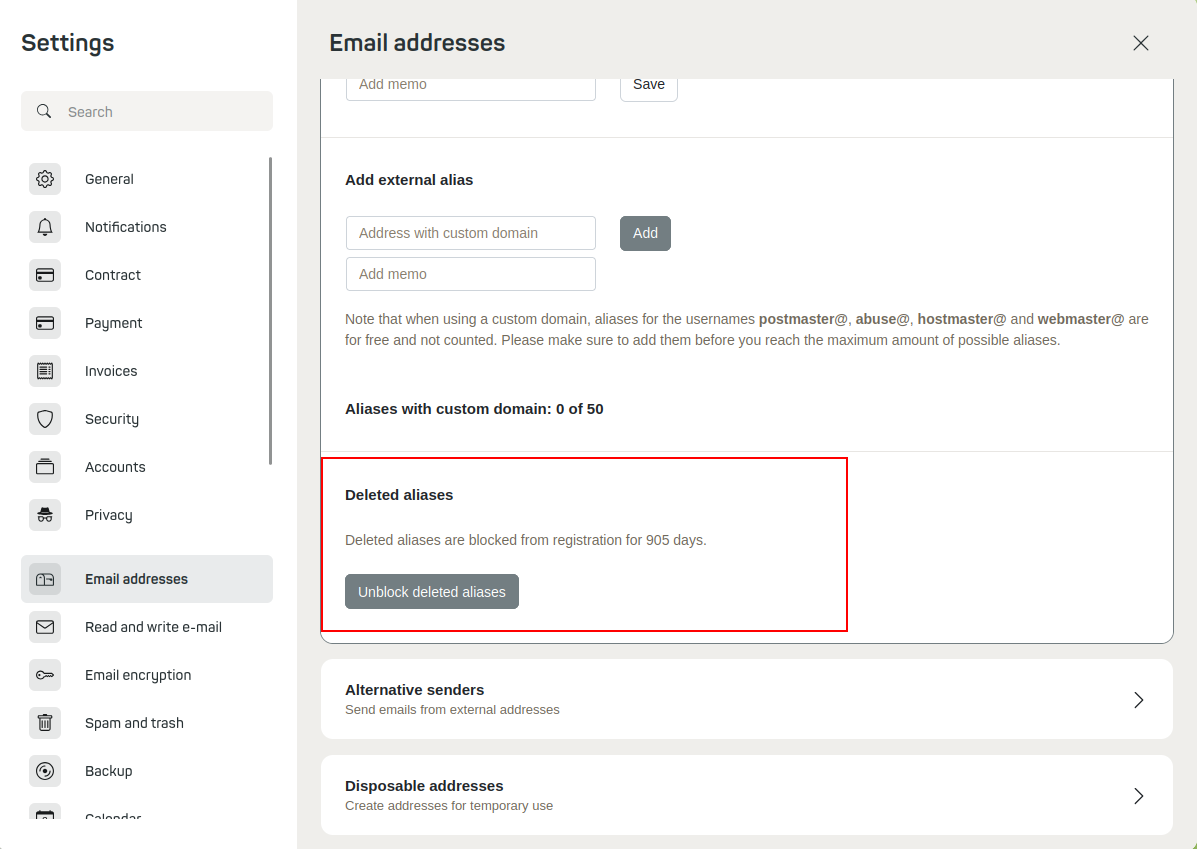
Unlock deleted aliasesThis makes the alias available again immediately – the originally scheduled lock-out period is lifted.
You can now use your former primary address to set up a member account within the Family account or create a completely new, independent account.
You can also use the same procedure to transfer old aliases to your new primary address. Simply delete them from your old account and create them again in your new account.
The alias released by deletion is now available to anyone. Re-assign it to your account immediately before another user ‘snatches’ the alias.
3. Set up the address in the Family account
Set up the released email address as a new member address in the desired Family account.
You can find details on this in the article Creating a Family account.
If the transferred account still has a credit balance, our Support will be happy to transfer this to your Family account. This is only possible for full months and only if the member accounts are billed separately.
If you no longer require the newly created primary email address, you can either wait for the account to be automatically deleted or cancel it manually.


