
Sharing address books in Family accounts
Sharing in mailbox
Every share, that is everything that can be shared, is organised as a folder in mailbox. Sharing address books, calendars, tasks, and file folders therefore always follows the same pattern.
Using shared address books in the Family account
The functions described in this article are available in all plans except the Light plan. If a Family account has at least two members, you can collaborate on and view calendars, contacts in the address book, tasks and files within this group.
Although all members of the Family account are already listed in the global address book, it may still be useful to set up a separate, shared address book for the Family account.
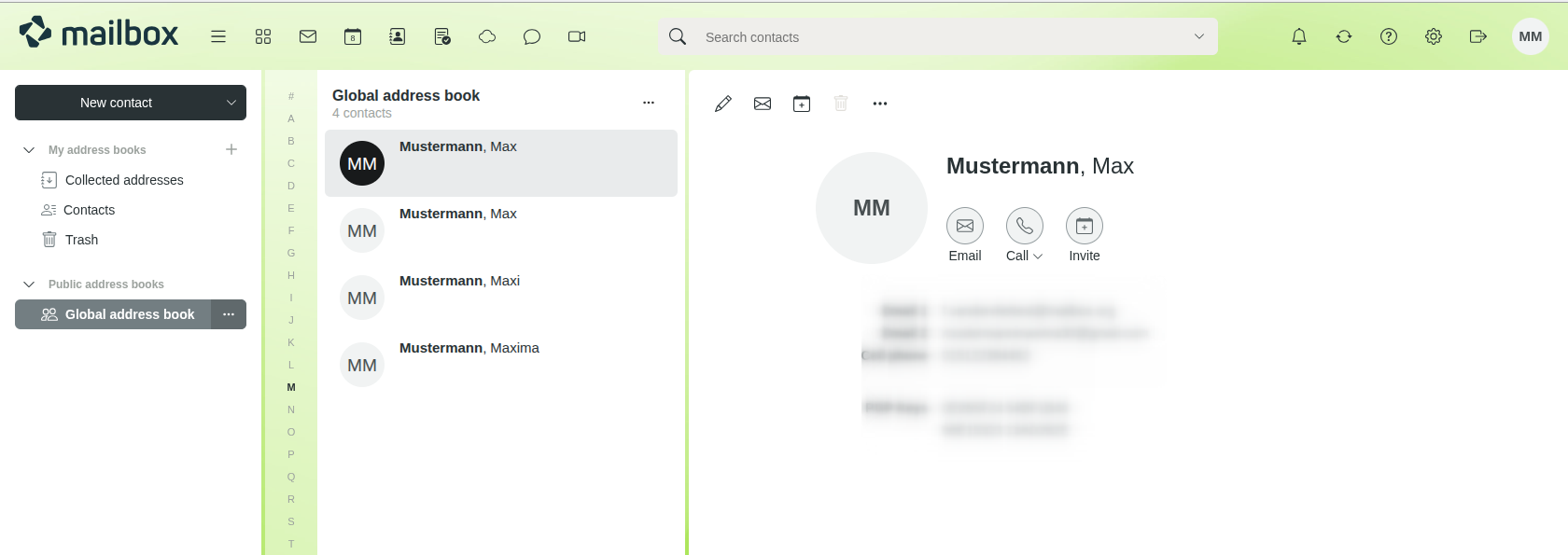
Global address book for a Family account with multiple members
Creating an address book in the Family account
To share an address book within a Family account, a member of the Family account must first create a new address book.
To create an address book in the Family account:
- Open the Address Book section in mailbox Office.
- Next to My address books, click the + icon and then click Add new address book.
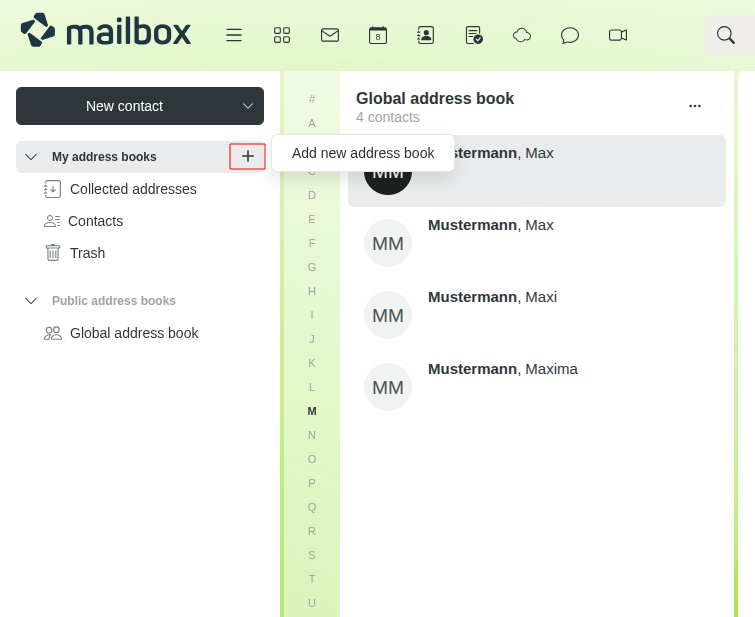
Add new address book - Enter a suitable name for the address book.
- Click Add.
Sharing the address book
To share the newly created address book with other members of the Family account:
-
Open the address book’s context menu by clicking the ... icon and select the Share / Permissions option.
-
Decide which people should have access to the address book and what permissions they should be granted:
The following roles and permissions are available:
- Author: Read, write and delete permissions
- Reviewer: Read and write permissions
- Viewer: Read-only permissions
-
Under Details, you can further restrict or extend the default permissions.
-
Optionally, compose an invitation message.
-
Click Save.
The shared address book is marked with a corresponding share icon in the owner’s view.
Using a shared address book
For members of the Family account, the shared address book appears in mailbox Office under Address Book > Shared address books.
Depending on their permissions, they can edit or delete contacts, or add new ones.
Adding guests
The owner can also share an address book with other users who are not members of the Family account. They appear as Guest in the address book permissions dialogue.
Invited guests can only open the shared address book via the personal invitation link they received by email. The address book is not automatically integrated into their own address book overview.
Guests who access a shared address book via a public link have read-only access.


