
Backing up and restoring data
mailbox offers various ways to reliably back up your data such as emails, calendars, contacts, and tasks, and to restore them if needed. An automatic email backup service is exclusively available free of charge for customers with Premium and Standard plans. In addition, you can also manually export all content. This article shows you both methods.
Automatic email backup at mailbox
As a user of a Premium or Standard plan, you benefit from an automatic backup service for emails. A backup of your email data is created daily and stored for up to seven days. You can activate or manage this service in the mailbox settings under the following path:
All Settings > Backup
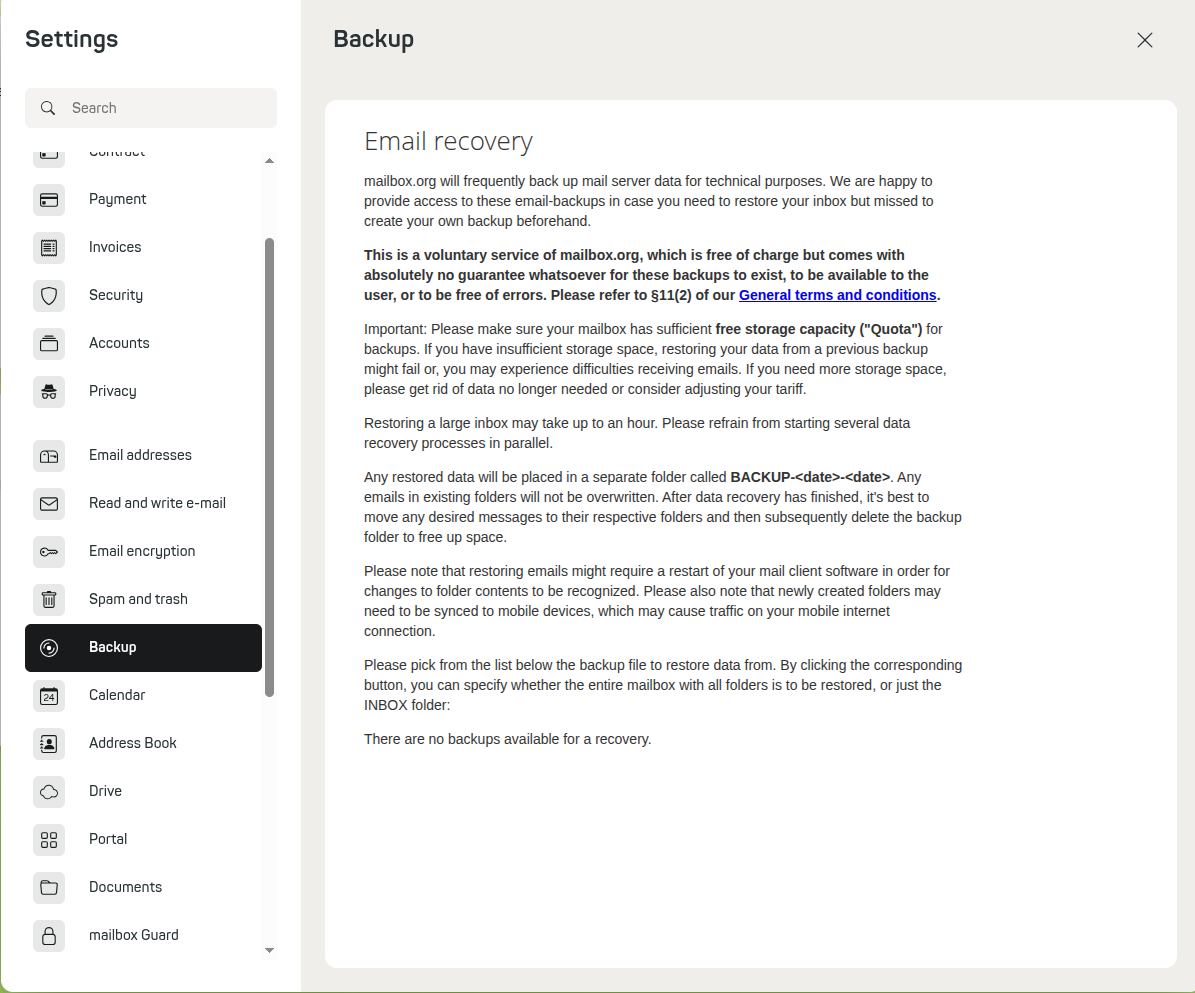
mailbox email backup service
Important notes on costs and terms and conditions
This backup service is free of charge for the mentioned plans. If you use the Light plan, the automatic email backup is subject to a fee.
Please also note that there is no legal entitlement to the existence, availability, or error-free operation of this service. Details can be found in §11 (2) of our terms and conditions.
Manual backup of emails
In addition to the automatic backup, you can manually back up your emails at any time. This is done by exporting one or more emails in the .eml format.
To do this, open your inbox, select the desired messages, and then select the option Save as file in the context menu (More actions). The selected emails will then be saved as a .zip archive on your computer, with each email individually in .eml format.
How to select all emails in a folder
To select all messages within a folder at once, first click on the first email, then hold the Shift key and click on the last visible email. All messages in between will also be selected and can be exported together.
Manual backup of calendars, tasks, and contacts
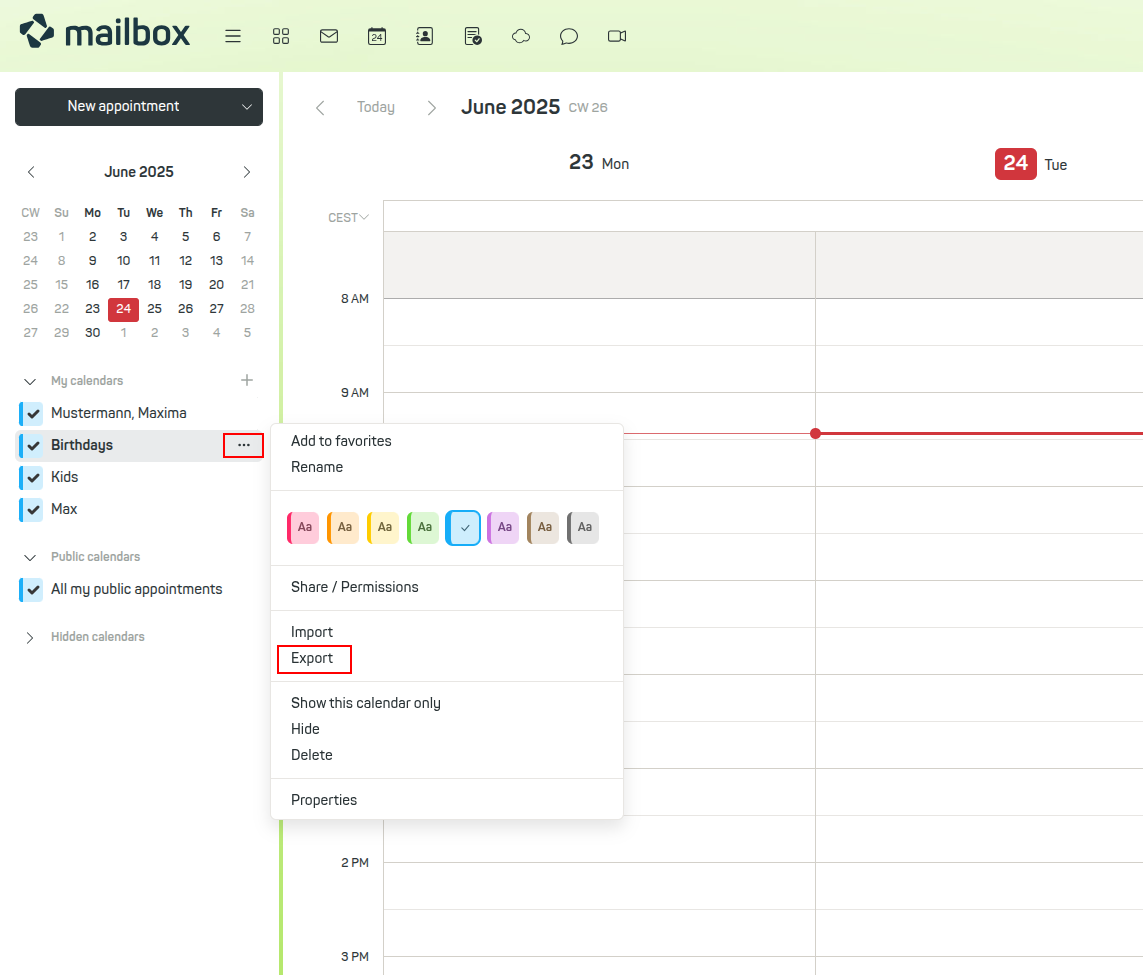
You can also specifically export your calendar data, task lists, and contacts. This works by opening the context menu (...) of the respective calendar, task area, or address book in the corresponding section. In this context menu, you will find the option Export.
After clicking it, the respective content is downloaded in .ics format (for calendars and tasks) or as a vCard file (for contacts) and saved on your computer. This way, you always have a local backup copy at hand.
Select the emails to back up, then open the context menu and click “Save as file”.
Restoring (importing) data
Emails in .eml format can be dragged and dropped directly into a folder in your mailbox (e.g., the inbox). The messages then appear in the selected view.
Calendar data in .ics format is imported via the respective calendar menu. Click the context menu and select Import to upload a previously saved .ics file.
It is recommended to create new, empty calendars or address books before importing. This avoids duplicate entries or accidentally overwriting existing data. If duplicates occur, they must otherwise be removed manually.
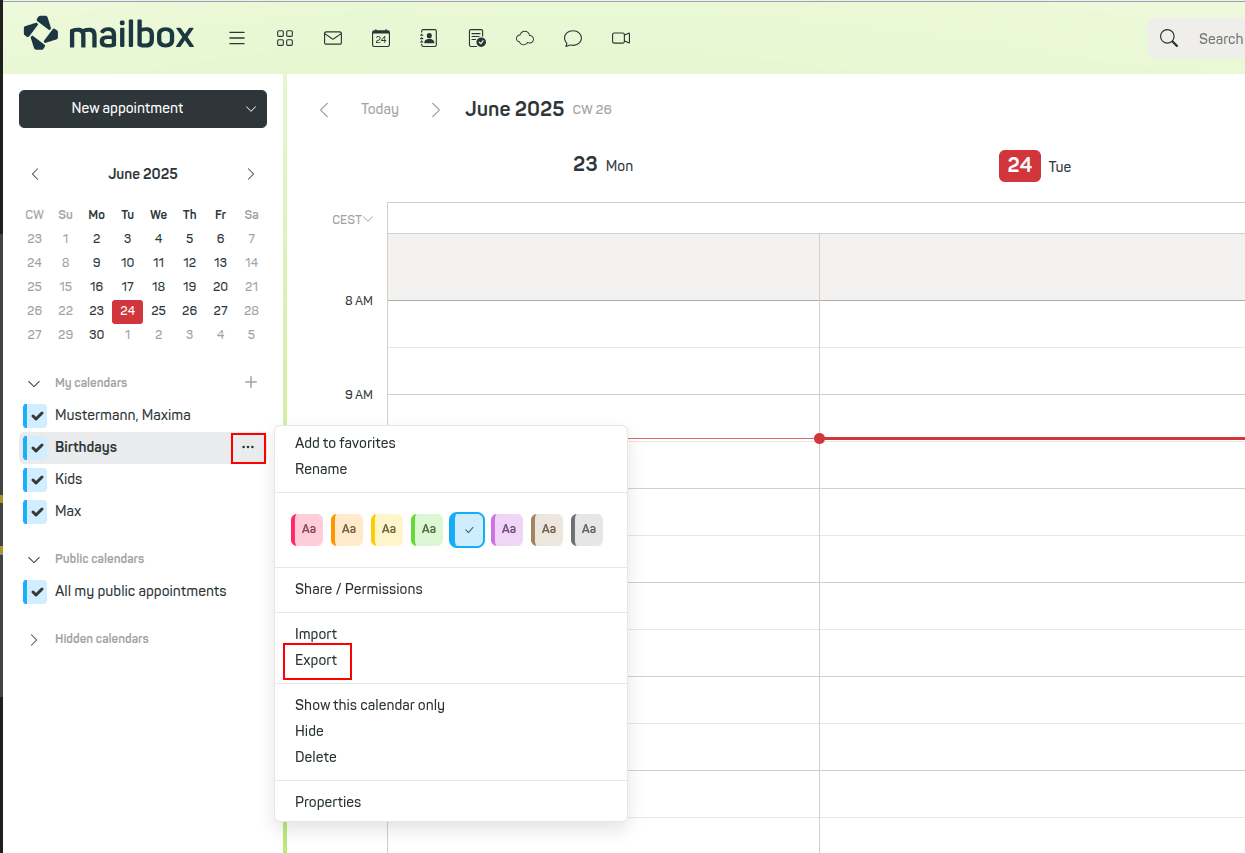
Select the desired calendar, click the context menu, and then click “Import”.
Data synchronisation
For synchronising your data with other devices and applications (e.g., calendars and contacts), mailbox offers various interfaces. You can find an overview of the recommended methods in the article Data interfaces.
Storage space
If you need more storage for your data, you can purchase additional storage in mailbox Office under the following path:
All settings > Contract and payment > Contract > Get additional storage
For more details, please refer to the article Adjust storage space for emails and cloud.


