
mailbox settings
Accessing the settings
The mailbox settings are located in the top right of mailbox Suite: Click the gear icon and then All settings.
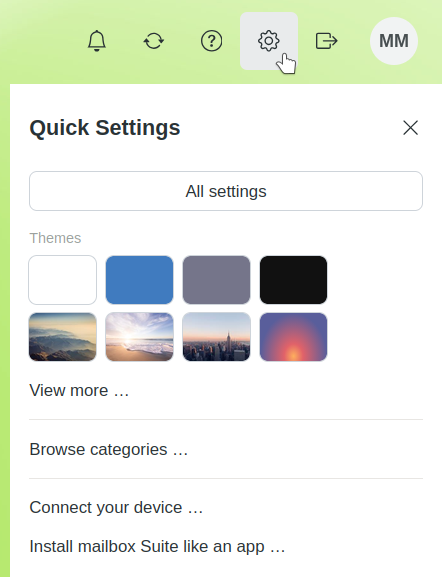
Settings in the mailbox Suite
In the mobile view, open the settings via the main menu icon (≡) or tap your profile icon in the top-right corner.
Overview of all settings
In the settings dialogue, you will find all the options for managing your mailbox Suite:
- Add personal data
- View information about your contract and plan
- Configure security settings
- Configure email, calendar, contacts, and cloud storage
- Manage filters, signatures, and forwarding
- Add your custom domain
- General settings for mailbox Office, Meet, and Notes
Configuring the quick launch bar
The quick launch bar is located at the top left of the mailbox Suite after logging in.
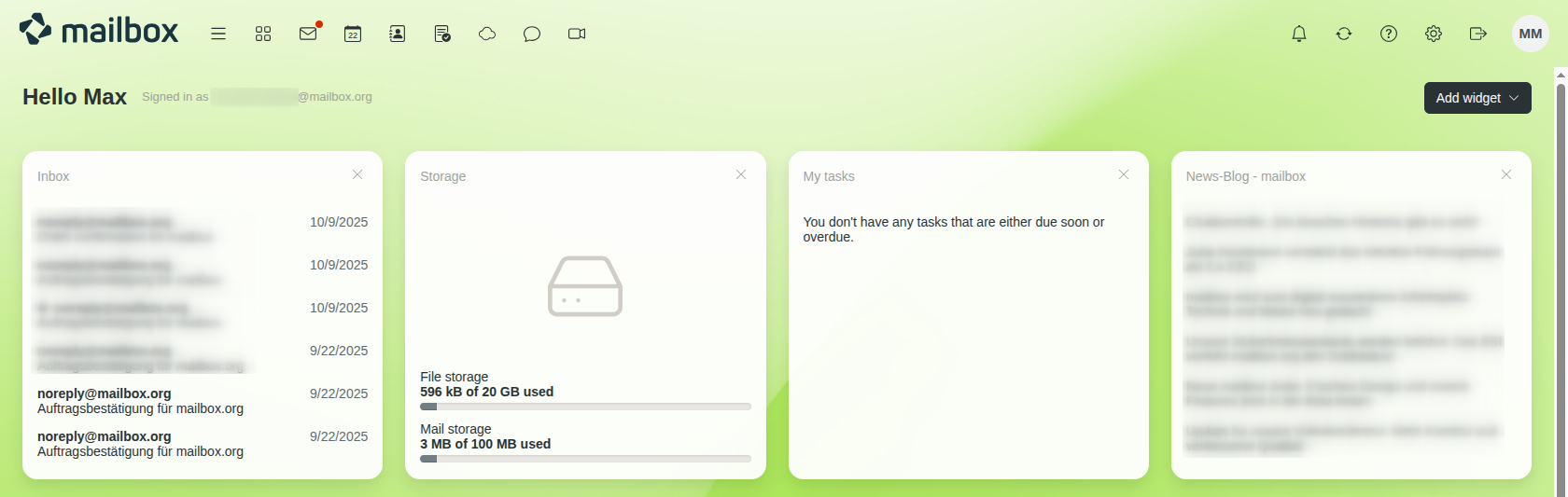
Quick launch bar in the mailbox Suite
What can be configured?
You can freely decide which icons are displayed in the quick launch bar and hide any icons you do not want to see.
In addition, you can define a default start page for mailbox Suite. This page will be displayed directly after logging in (for example, Drive or your mailbox inbox).
You can customise these settings by clicking the gear icon on the top right and navigating to All settings > General > Apps.
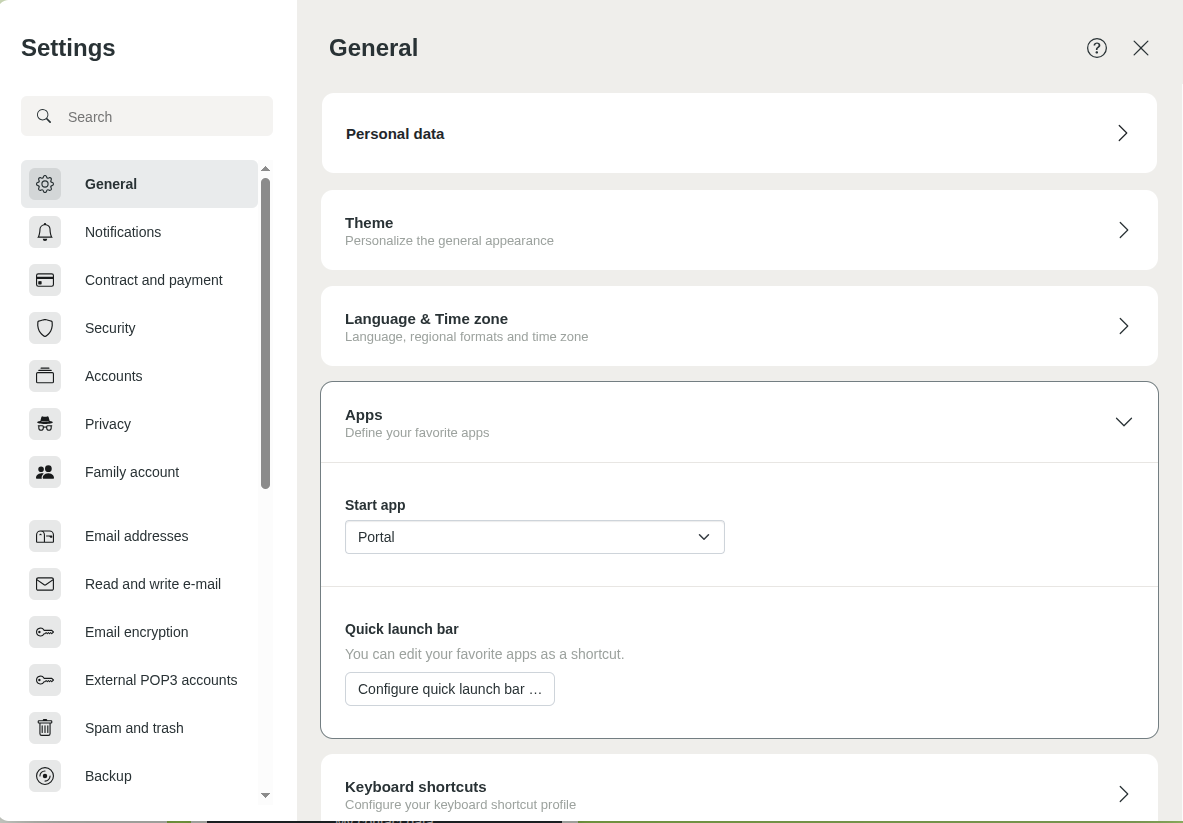
Menu item “Apps” in the mailbox settings
How do I customise the quick launch bar?
- Click the gear icon on the top right and select All settings.
- In the settings, navigate to General > Apps.
- Click the Configure quick launch bar button.
- Select the desired position for each icon. To keep a position in the quick launch bar empty, select None.
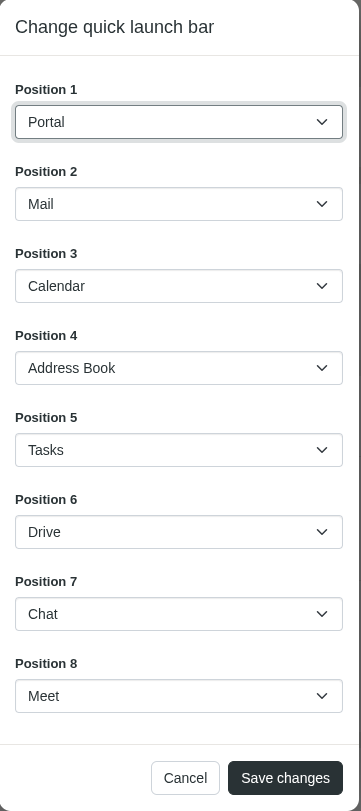
Changing the quick launch bar - Click Save changes.
Signing out of the mailbox Suite
You will find the button to sign out of mailbox Suite to the left of your profile icon, as well as in the menu below your profile icon.
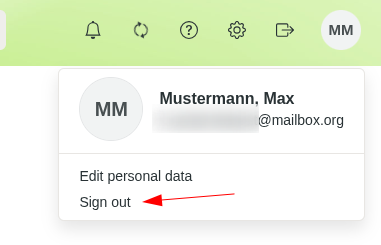
Signout button in the mailbox Suite


