
Migrating to mailbox
To transfer your emails, folders, contacts, etc. from your previous email provider to mailbox, you have several options available.
Using the Audriga migration service
In cooperation with our partner company Audriga, mailbox offers a migration service to transfer your mailboxes.
The Audriga service is available with the Premium and Standard plans and is free of charge for all private customers. GMail users may need to perform some preliminary configuration in order to use this service. For more information, please refer to the documentation provided by Audriga, our migration partner.
The menu item All Settings > Migration Assistant provides background information and includes the button Start migration with Audriga, which initiates the data transfer process.
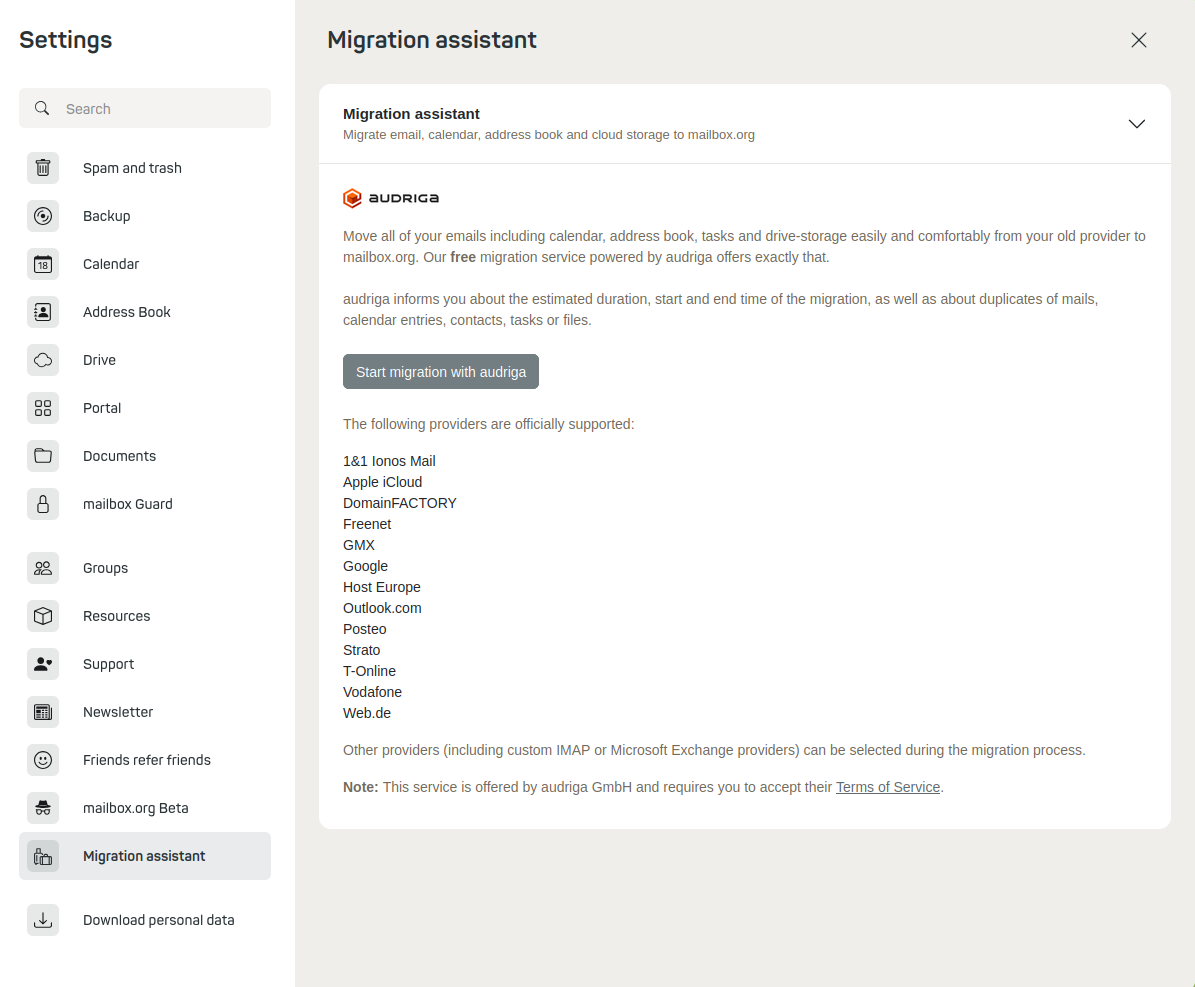
Start migration with Audriga
Audriga allows the migration of IMAP and POP3 mailboxes from almost all common email providers, as well as mailboxes, contacts, tasks, and calendars from Open-Xchange accounts hosted by other providers.
Additional providers (including your own IMAP or Microsoft Exchange servers) can be selected during the migration process.
As of June 2026, the following providers are officially supported:
IONOS Mail, DomainFACTORY, Freenet, GMX, Gmail, Outlook.com, Strato, T-Online Mail, Yahoo! Mail, and Web.de.
Migrating manually
If you do not wish to use the Audriga migration service, you can also transfer your data to mailbox manually. However, this requires a few more manual steps, and there are multiple options available.
Please test the import methods described below and verify the result. In particular, importing calendars or address books often proves problematic. Data imported into the main address book or main calendar can only be removed manually and individually (per entry), which is time-consuming. Therefore, you should first use a test address book or test calendar, which can easily be deleted in one step if something goes wrong.
Integrating external accounts
To access your emails in mailbox Office, you can link your external mailbox directly to our web client. There, you can also move emails between different accounts. Follow this guide: Integrating external email accounts.
Transferring emails manually
Alternatively, set up your mailbox account in your local email client as an additional account. You will still keep your main account.
Once both accounts are set up, you can copy or move emails and folders between them.
Not all email clients support moving entire folder structures. It's safer to copy folders rather than move them. Some clients require you to manually recreate the folder structure on the destination account. You can drag and drop emails or folders from your old account into the corresponding folders of your mailbox account.
The transfer can take some time depending on the amount and size of the emails, as well as the speed of your network and device.
Importing calendar events and contacts
You can import calendar events and contacts via file upload:
- Open your mailbox account in the web client and select the appropriate tab (Calendar or Address Book).
- Choose the desired calendar or address book, then click the context menu (...) next to its name.
- In the context menu, select Import. If the Import option does not appear, mailbox cannot perform the import due to technical limitations.
Subscribing to external calendars is not possible via the web client. This feature is only available on mobile devices or desktop clients.


