
Marking emails for deletion in the Mail Archive
The owner of a mailbox with Mail Archive enabled can ask the Data Officer to delete individual emails. This allows messages that are not subject to the GoBD, such as spam, to be removed from the Mail Archive.
To request the deletion of an email from the Mail Archive:
- In the mailbox webmail client, click the Mail Archive icon in the toolbar at the top.
- Select the email you want to request for deletion.
- Click Delete.
- Enter a reason for the deletion request.
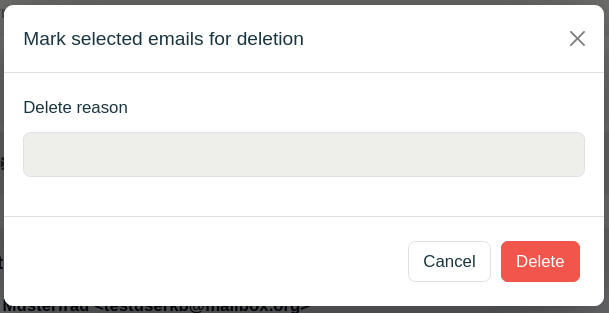
Entering a reason for the deletion request - Confirm by clicking Delete.
The Data Officer receives the deletion request and can approve or reject it after reviewing it.
The email remains visible in the Mail Archive until the deletion request is approved.
Requesting the deletion of multiple emails
To mark multiple emails for deletion at once:
- Hold down the Ctrl key and click the emails you want to delete.
The selected emails are highlighted in light blue.
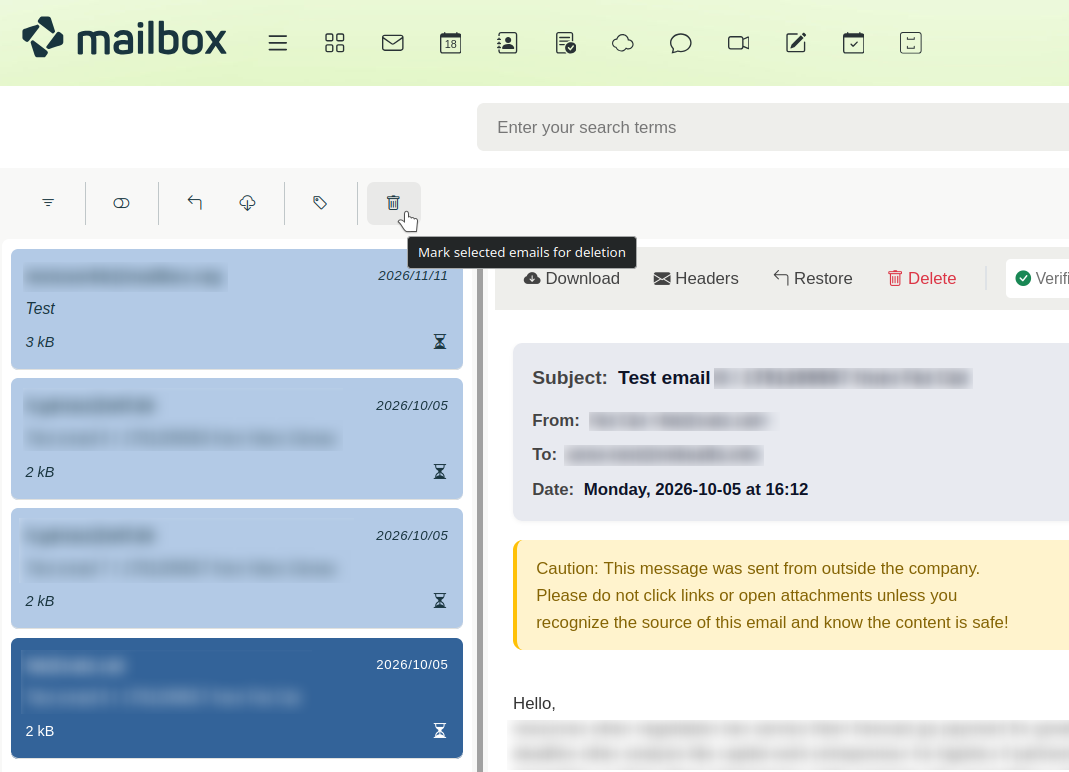
Requesting the deletion of multiple emails - Click the bin icon above the list.
- Enter a reason for the deletion request.
- Confirm by clicking Delete.


