
Managing deletion requests (Data Officer)
As a Data Officer, you review emails in the Mail Archive that users have requested to be deleted.
To review deletion requests in the Mail Archive:
- Sign in to the mailbox webmail client using your Data Officer credentials.
You will be taken directly to the list of emails marked for deletion.
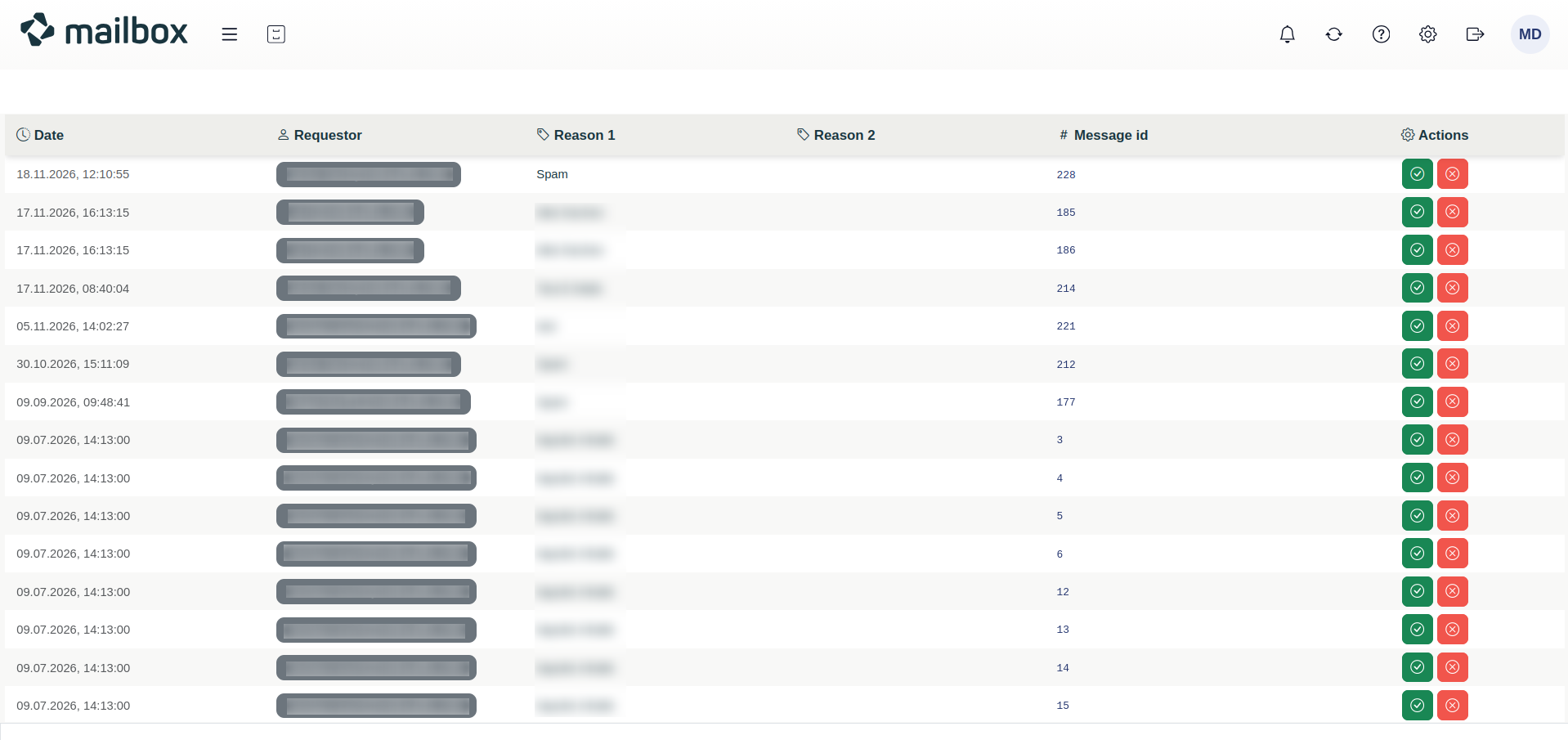
Managing deletion requests - Click a message ID to view the email’s content and other details.
- To approve the deletion, click the green tick in the email’s row.
Confirm the deletion in the dialogue by clicking Remove.
To reject the deletion, click the red X in the email’s row. Enter a reason for rejecting the request.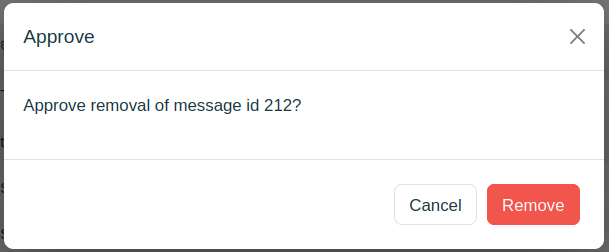
Approving deletion requests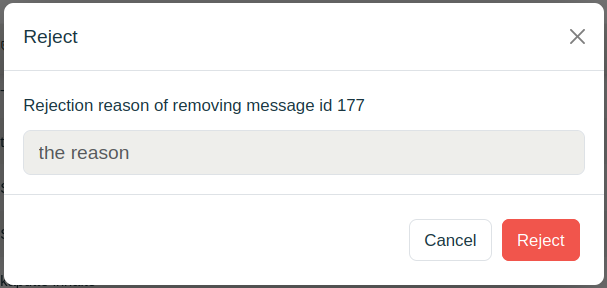
Rejecting deletion requests
Once deleted, the email is permanently removed from the Mail Archive and is no longer visible to the user who requested its deletion. Each deletion is recorded in the audit trail.
Note
The deleted email may still appear in the Mail Archive temporarily. Refresh the page by pressing the F5 key, or wait a few minutes for the archive to update.
If you reject an email deletion request, the requester will not be notified. The reason is stored in the audit trail for audit purposes only and can only be viewed there by the Auditor.


