
Activating mailbox Guard
Activating the mailbox Guard
Activating the Guard automatically generates a PGP key pair for you, which mailbox stores securely. A PGP key pair consists of a public key (for encryption) and a private key (for decryption). The Guard protects access to your private key with a separate password.
In the key management section (under All settings > mailbox Guard > Your keys), you can download the keys (or key pairs) created on our server and – if available – import them into your local PGP installation or your local email client. This allows you to use the same PGP keys in both the web client and your email client, and access emails encrypted with them.
If you want to learn more about PGP, we recommend the following links as a starting point:
- PGP on Wikipedia: https://en.wikipedia.org/wiki/Pretty_Good_Privacy
- A somewhat older but still accurate introduction by Netzpolitik.org (in German)
- Through the guided tour in the mailbox Office itself, or by referring to the documentation on Guard, which can be found in the help section.
Requirements for the mailbox Guard
- Active mailbox account
- Access to the web client at https://app.mailbox.org
- (Optional) An existing PGP key pair
Activating the mailbox Guard – Step-by-step
The mailbox Guard allows you to encrypt your emails securely directly in the web client – without additional software. Thanks to the server-side PGP integration, messages can be encrypted and decrypted conveniently.
We recommend setting the Guard password query to Ask each time under All settings > mailbox Guard > mailbox Guard Default Settings > Remember password default. For more details, please refer to this section.
Step 1: Open the web client
- Log in to your mailbox account.
- Click the gear icon in the top right to open All settings.
Step 2: Activate mailbox Guard
- In the settings, click on Email encryption.
- Open the PGP in webmailer section.
- Under Simple and easy with mailbox Guard, click the activate now button.
- Refresh the mailbox Suite by pressing F5 and wait a moment.
You will now find the mailbox Guard menu item in the settings.
Step 3: Start mailbox Guard
- Navigate to mailbox Guard in the settings.
- Under Configuration, click Start.
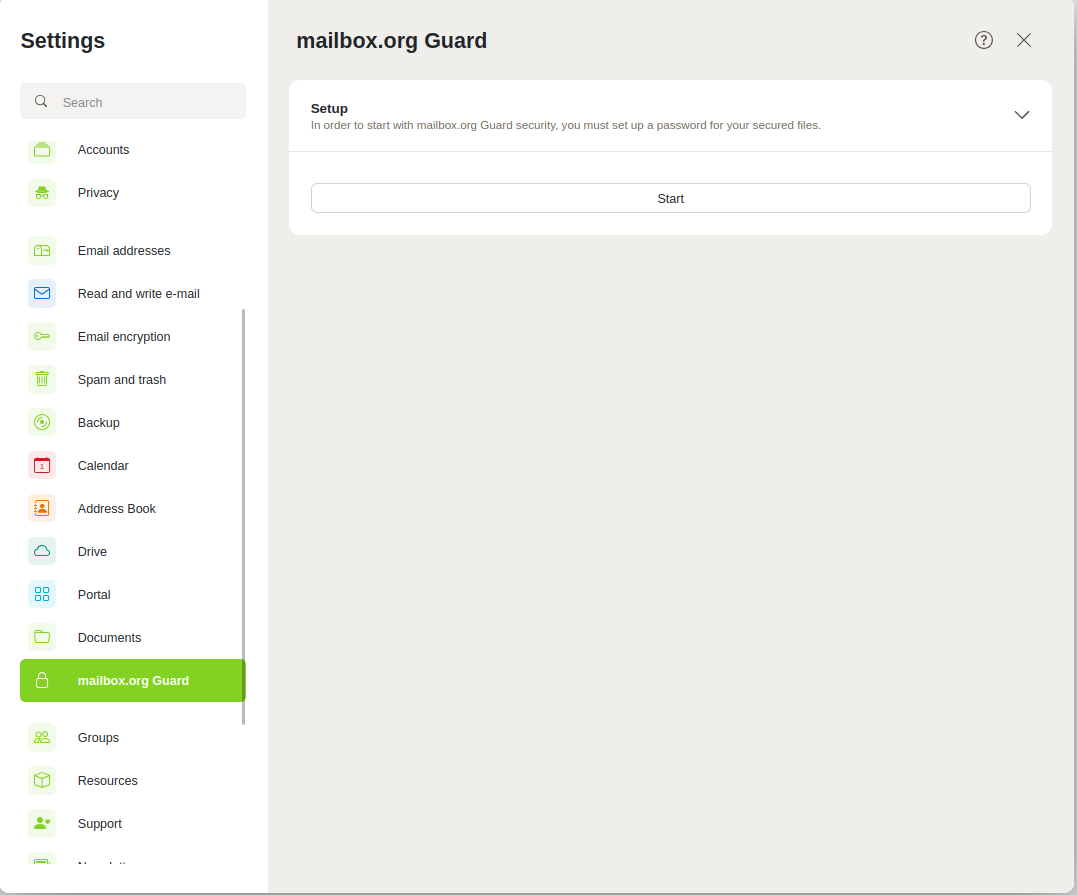
Start the mailbox Guard
You will now see a pop-up window welcoming you to the Guard and guiding you through the initialisation with a setup wizard. Click on Start and enter a password in the following dialog.
After setting up the Guard, you will be presented with an overview of the Guard settings.
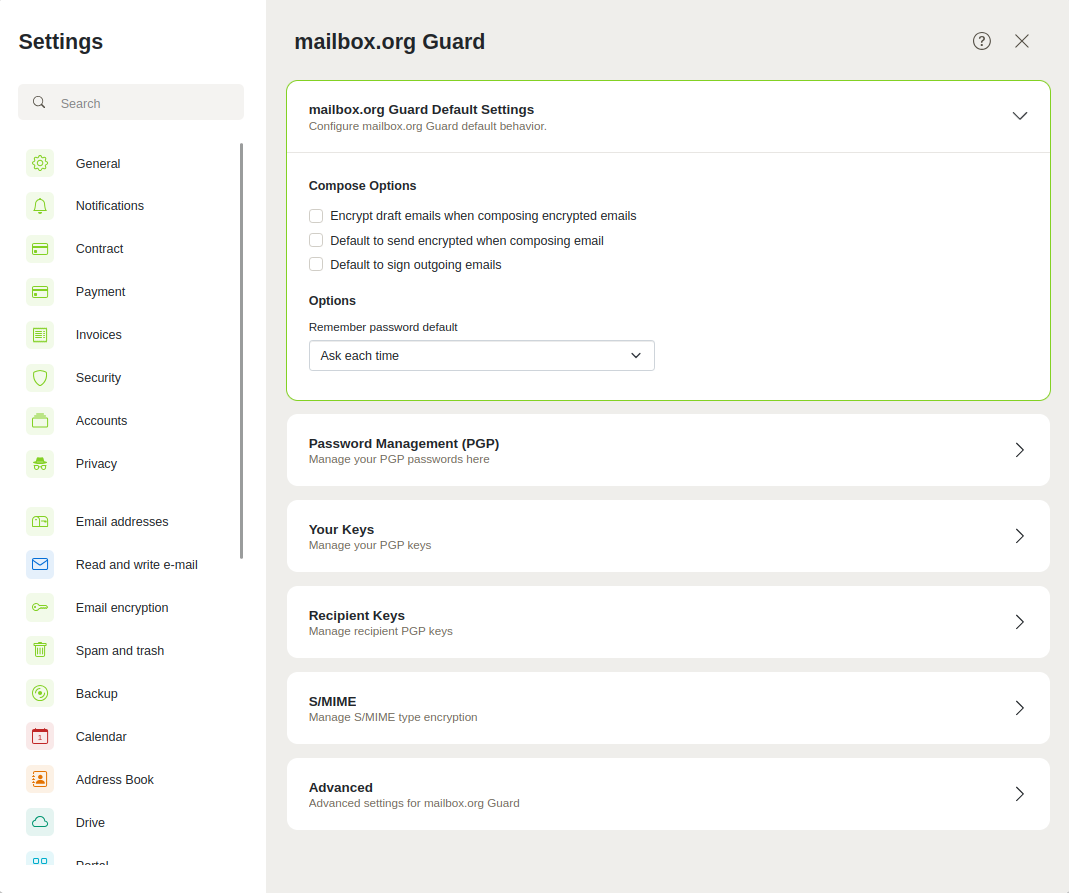
mailbox Guard Default settings
mailbox Guard – default options
In the mailbox Guard Default Settings section, you define how the web client behaves when composing and sending encrypted emails.
Composition options
-
Encrypt draft email messages when composing encrypted email messages
Saves drafts of encrypted messages already encrypted on the server.
→ Recommended for maximum security with sensitive content. -
Default to send encrypted when composing email
Automatically enables encryption when possible (e.g., when a valid public key of the recipient is available).
→ Convenient for users who regularly use PGP. -
Default to sign outgoing email messages
Automatically signs emails with your private key.
→ Allows recipients to verify the authenticity of the message.
Options
- Remember password default
Defines if and when the password for the private key is requested:- Ask each time: Highest security – password is required every time it is accessed.
- Session: More convenient – no re-entry needed during a session.
- Duration in minutes/hours: Only suitable if the device is fully protected.
These settings can be adjusted at any time and apply by default to all new messages.
Step 4: Set up key pair
In the mailbox Guard settings, you will find the menu item Your keys.
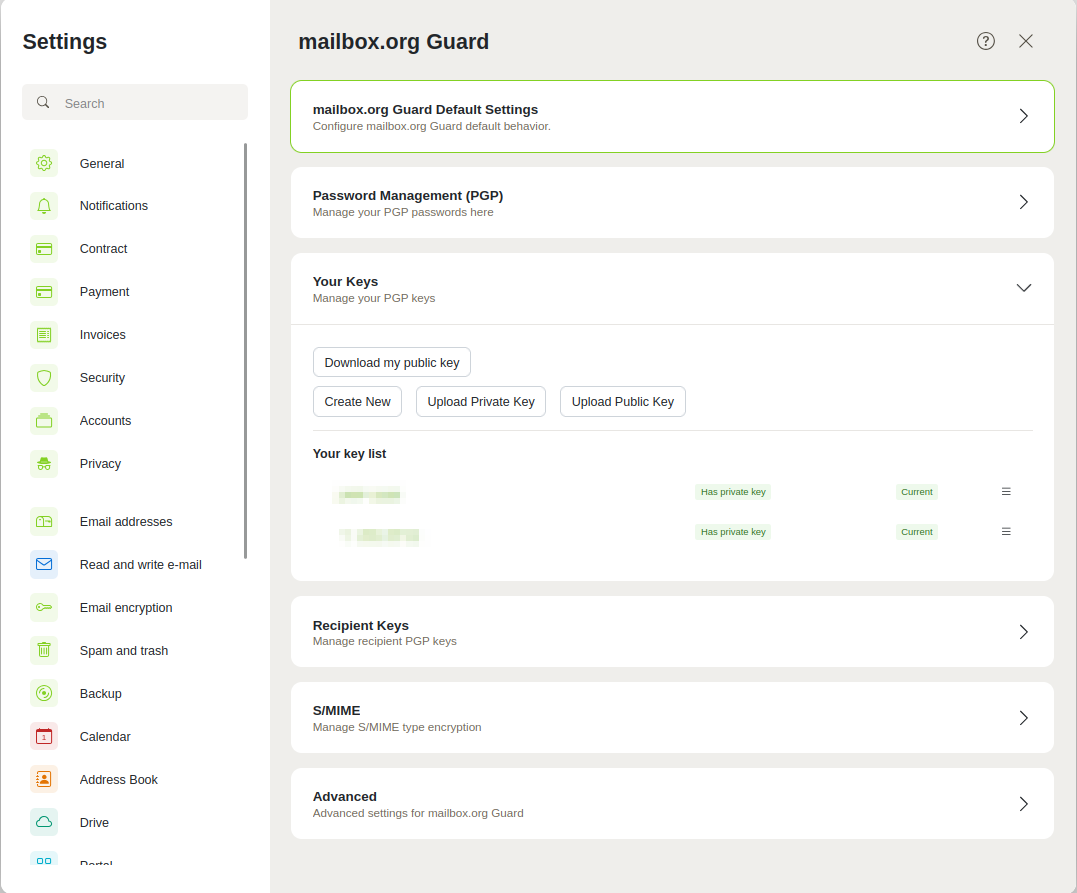
Your personal key list
Create a new key pair
- Click the Create new button under the menu item Your keys.
- Assign a secure password for the private key.
- Confirm the creation.
- The key pair is stored on the server and is ready for immediate use.
Import existing key pair
- You can choose to upload a private key and/or a public key.
- Enter the corresponding password.
- Confirm the import.
The private key is stored encrypted and can only be decrypted with your password.
Step 5: Encrypting and decrypting emails
After activating the mailbox Guard, an integrated PGP function is available in the web client:
- A lock icon appears when composing a message.
- If recipients have a valid public key, encryption is automatic.
- Received encrypted messages are decrypted on the server, provided you possess the private key.
Deactivating and resetting the Guard
If you want to deactivate the Guard, please create a support ticket at Support with the subject “Please deactivate Guard”.
Resetting the Guard deletes all stored key pairs on our servers. Without PGP keys (and access to them via the PGP password), you will no longer be able to open emails or files encrypted with this key. Please therefore make a backup of the keys (see also article Forgotten Guard password).
Important notes about the Guard password
Keep your password and private key in a secure place – ideally offline and encrypted.
The Guard password protects access exclusively to your private PGP key. Please note the following:
-
The password is not stored by mailbox and cannot be recovered.
-
Losing the password means permanent loss of access to encrypted emails.
-
Be sure to back up the created key pair after setup (export and local storage) to avoid data loss.
-
We recommend setting the Guard password query to ask each time under All settings > mailbox Guard > mailbox Guard default settings > Remember password default.
-
The reason for this is that the Guard session duration does not match the Open-Xchange session duration. Unfortunately, there is currently no way to link these two sessions so that one can terminate the other. We have submitted a feature request to Open-Xchange to link the two sessions, so that you will be logged out of Guard as soon as you log out of the mailbox web client.
General important notes
- The Guard can be deactivated or the key pair replaced at any time.
- mailbox has no access to your passwords or private keys.
For more information on managing PGP keys, see our article on Manage PGP keys with mailbox.


