
Temporary mailbox for external users
The temporary mailbox enables you to securely communicate by email with any contact worldwide. This ensures that your emails are not sent unencrypted and therefore cannot be read or altered in transit. If you send an encrypted email to your communication partner for the first time and the Guard cannot assign a PGP key to this email address, a temporary mailbox will be provided for the recipient – a helpful feature for secure communication with partners who cannot or do not want to use encryption.
To use the temporary mailbox, you need to have mailbox Guard activated (see the article Activating mailbox Guard).
General procedure
A padlock icon is displayed at the bottom of the email composition window. If the padlock is open, click on the icon to enable encryption.
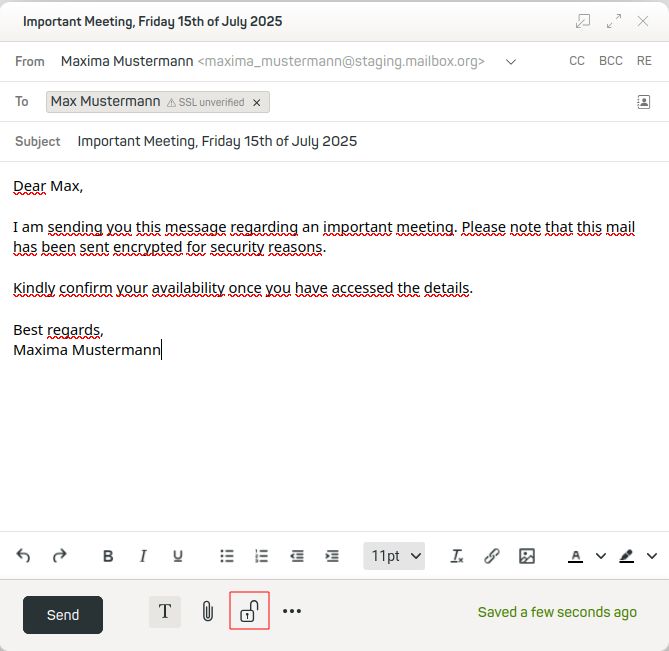
Encrypt your sent emails even to recipients without a public PGP key
If the Guard cannot find a suitable OpenPGP key for the recipient’s email address when creating an encrypted email, it will display this with a green guest icon in the address bar (between the recipient’s email address and the transport encryption check result). mailbox automatically creates a temporary mailbox for this recipient as soon as you send an encrypted email to this contact.
Once a temporary mailbox is created, all encrypted emails sent from a mailbox address to the respective address will be delivered to the temporary mailbox. In this temporary mailbox, your communication partner can read and reply to the encrypted email. Their replies will also be encrypted automatically. Emails sent from the temporary mailbox will be stored in the Sent folder.
Adding an additional message for the recipient
Once the email has been sent, the recipient will receive a link to the temporary mailbox. The contents of the original email can only be viewed in the temporary mailbox.
To make it easier for the recipient to recognise that the message is from you, include a personalised note for them. This note will be displayed in the email alongside the link.
You can add such a note after composing the email: Click on Send, and a dialogue box will open where you can enter your message:
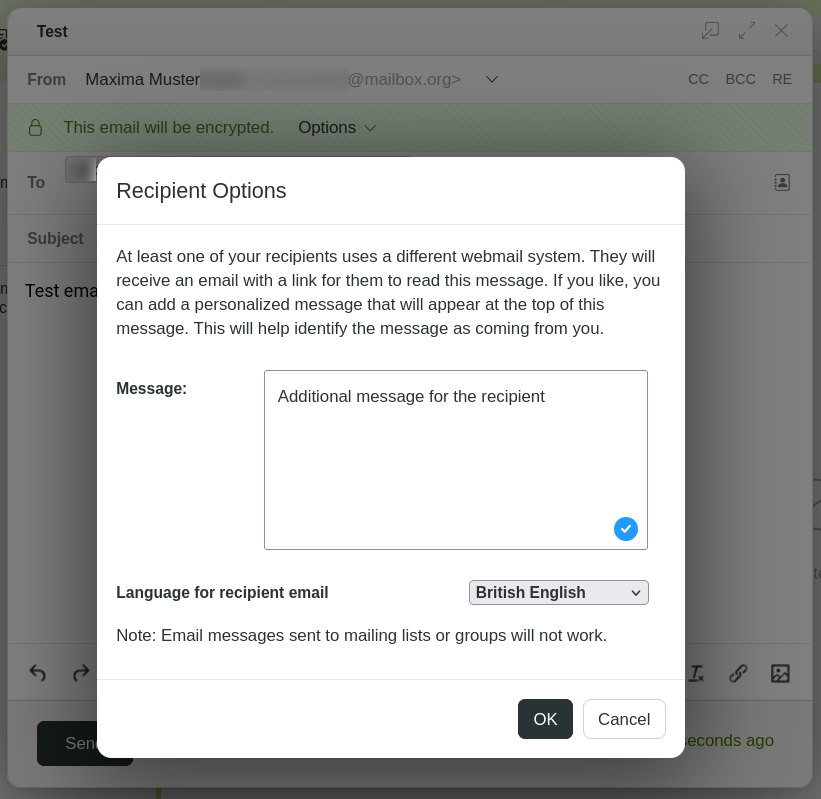
Enter a personal message
Setting up a PIN for the temporary mailbox
As the email containing the link to the temporary mailbox is sent in an unencrypted email, this email could, of course, be read by third parties and thus intercepted. We therefore recommend that you also secure access to the temporary mailbox with a PIN.
The PIN is generated automatically and displayed to you after you click on Send and enter a personal message:
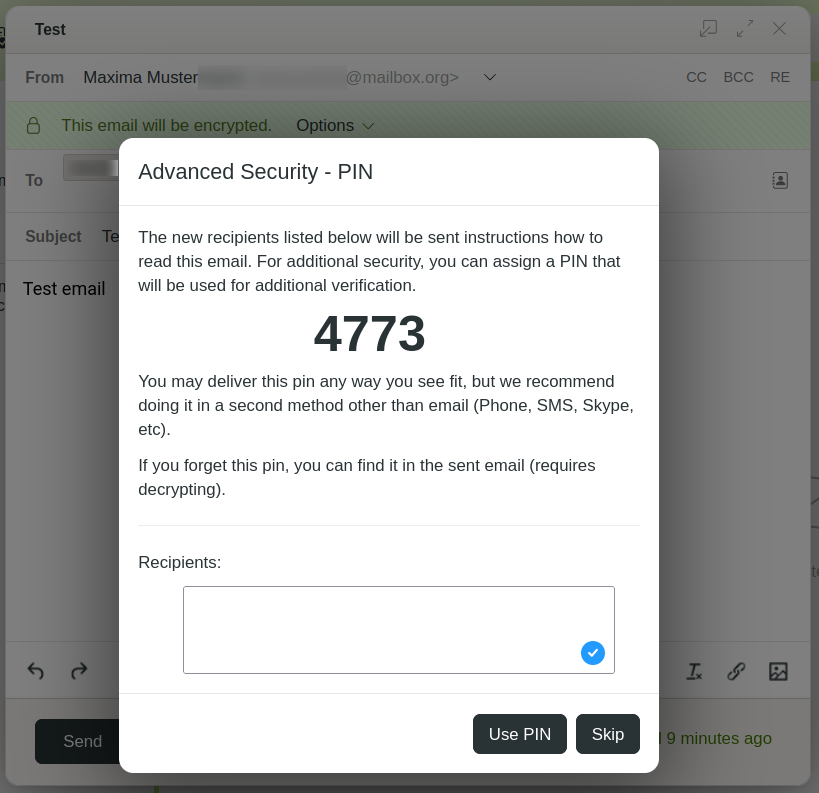
Make a note of the PIN and pass it on to the recipient
We recommend that you do not send the PIN to the recipient by email, but use a third, preferably secure method (e.g. in person, by telephone, or by post). The recipient will then need the link from the email and the PIN to log in to the temporary mailbox.
Procedure for the recipient
As soon as the recipient opens the link and verifies with the PIN, they must create a password for their temporary mailbox. This password cannot be changed later because this is the only way to ensure that no attacker could misuse a potential reset mechanism.
You may be asked to enter your password again later in the process.
The recipient can then read the encrypted message in their temporary mailbox.
Temporary mailboxes are deleted after 90 days of inactivity.
Displaying the PIN for the temporary mailbox again
As the sender, you can later display the PIN number again:
- Open the sent message in the Sent items folder.
- Click the Read email button.
- Enter your mailbox Guard password and click Confirm.
- Click on the context menu of the message, and select Check assigned PIN.
The PIN is displayed in a separate window:
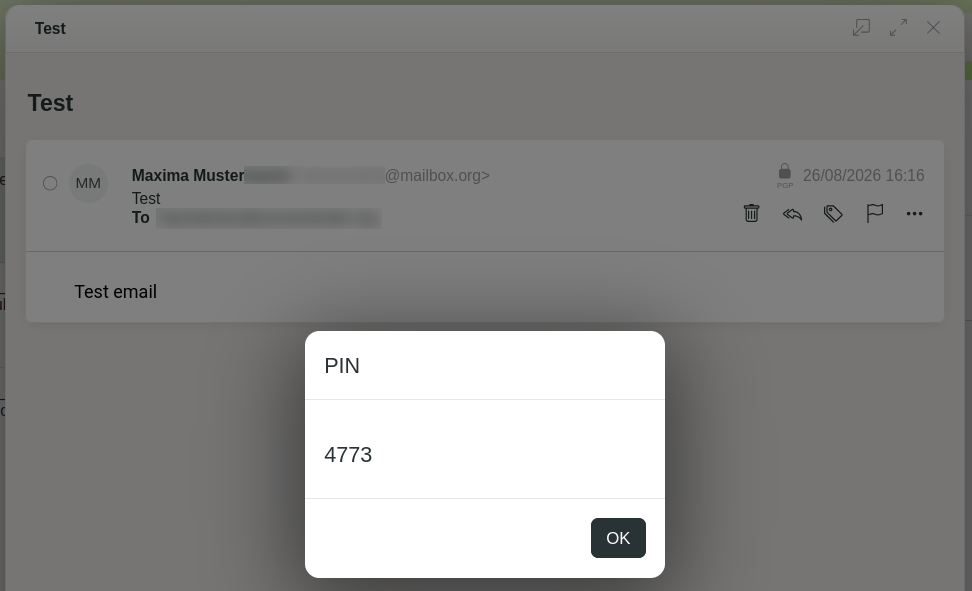
Display of the PIN for the temporary mailbox


