
Managing PGP keys with mailbox
::: Note
To use the features described in this article, you need to have the mailbox Guard activated.
:::
mailbox Guard provides management for your own PGP keys and the public PGP keys of your communication partners. In your mailbox Suite you can find this management under All settings > mailbox Guard.
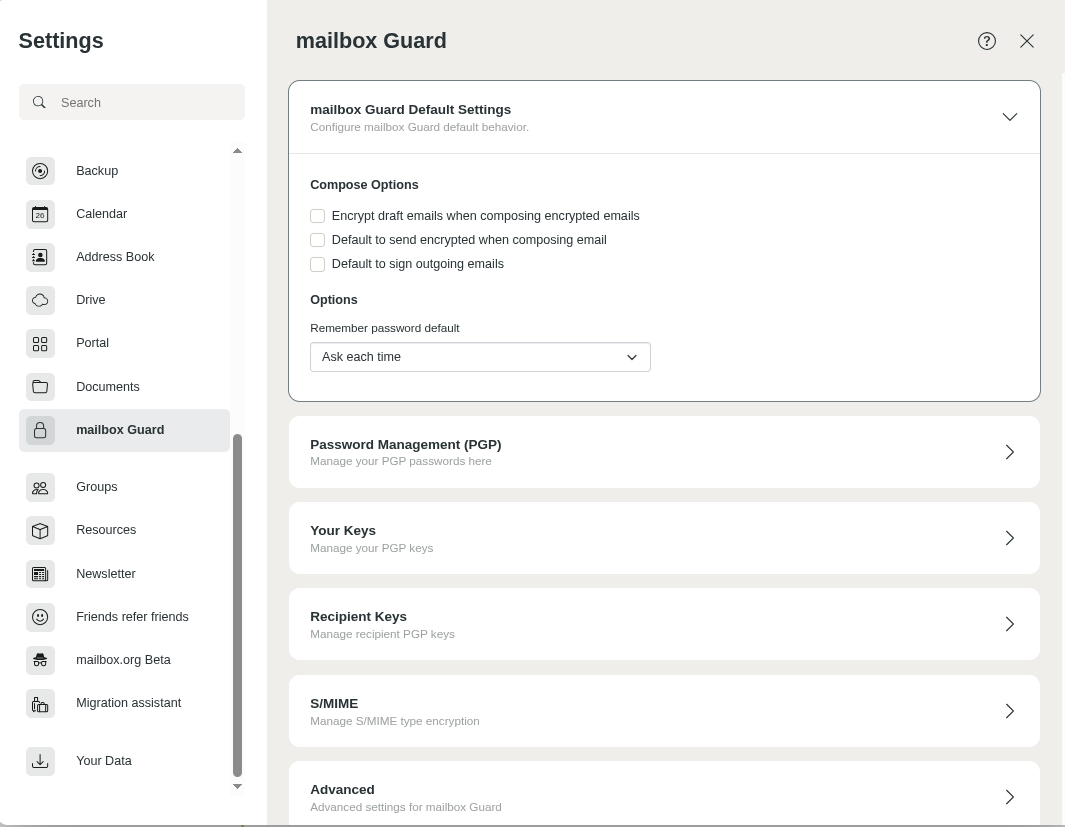
mailbox Guard default settings
When you activate Guard, two key pairs are automatically generated for your main address. This makes mailbox Guard fully functional right away. If you are interested in details, you can find the automatically generated two key pairs in the key management:
- The main key (the upper key in the section Your key list) is used to sign emails. It can also be used to certify or sign other PGP keys (Web of Trust) – but this function is currently not implemented in mailbox Guard.
- The subkey is used to encrypt and decrypt email communication and files in Drive.
In the key management, you can download the keys (or key pairs) generated on our server and – if available – import them into your local PGP installation or your local email client. This way, you can access encrypted emails both in the web client and in your local email client.
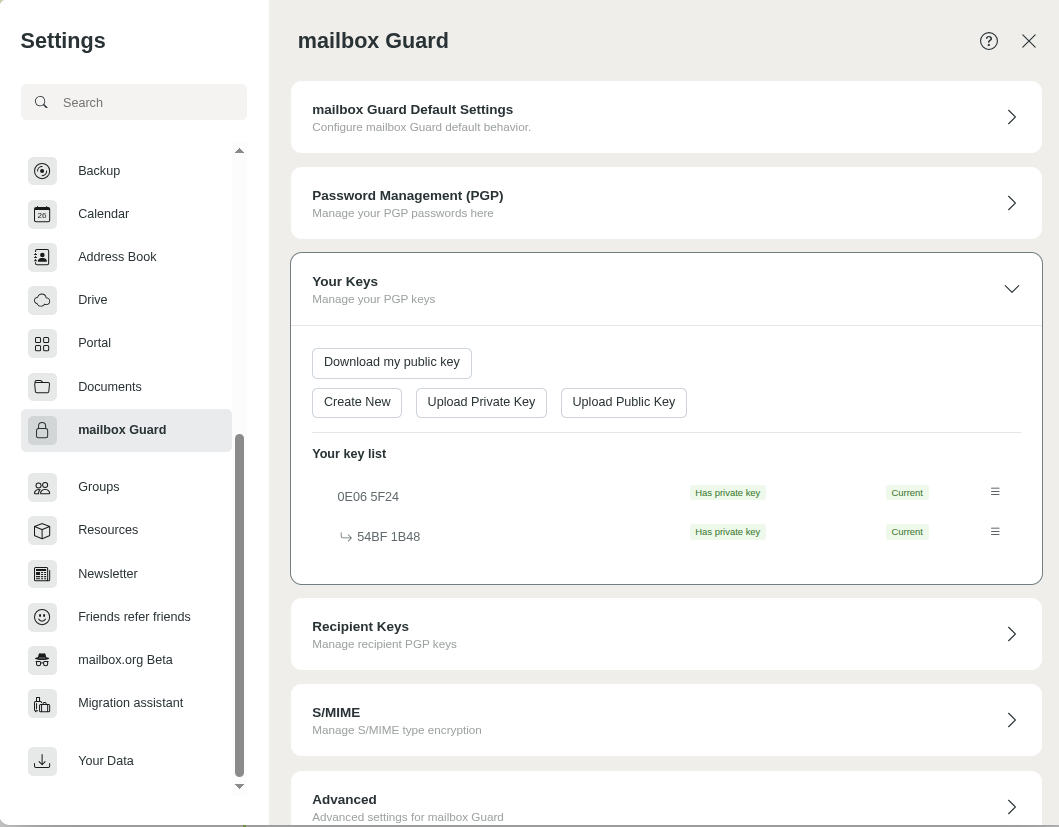
Key list
mailbox Guard is designed to work with your main email address. Use in combination with aliases is generally not intended.
Using your own keys
You can also replace the automatically generated keys with your own existing key pair. This key pair must contain at least your active mailbox email address as a UID. You can decide whether you only want to upload a public key (to make it available to other Guard users) or also store the private key on our server, which is required to read encrypted content in the web client.
Reading encrypted emails in the web client and opening encrypted files in Drive is only possible if the corresponding valid private key is available on the server.
Your private key
Emails that are encrypted by your communication partners with your public key and then transmitted to our servers can only be decrypted with the matching private key and the corresponding password. The same applies if you have activated the encrypted mailbox.
The team at mailbox has no replacement or secondary key. We cannot decrypt your encrypted emails even if you have stored your private key in Guard, since Guard is also protected by a password. We have no means of restoring the plaintext of your emails. If we could, encryption would be pointless and would not provide you with any security benefit.
Therefore, always keep a backup of your private key in a secure place, for example in an encrypted container file. For the corresponding passwords, we recommend a backup in an encrypted password database such as KeePass or KeePassX.
Public keys of communication partners
In the key management, you can also manage the keyring with the public keys of your communication partners. You can find the list under the following path:
All settings > mailbox Guard > Recipient keys
Recipient keys
By clicking on Upload recipient key, you can upload further public keys (e.g. as a .pgp or .asc file).
Uploading keys – maximum file size
You can upload public keys with a maximum size of 65k. This is sufficient for most keys. If the key contains photos or many signatures and is larger than 65k, error messages may occur during upload.
To reduce the size of a large key, you can import it into your local GnuPG key management and then export it for upload using the option --export-options export-minimal:
gpg2 --armor --export-options export-minimal --export <your-key-ID> > key4upload.asc
If you do not have a local installation of GnuPG or do not wish to use one, you will need to ask the person you are communicating with to provide such a minimal key.
Creating a Curve25519 key manually with GnuPG (Linux)
If you require a particularly high level of security, you can manually create your own ECC Curve25519 PGP key pair using GnuPG.
Requirements
- Installed
gpg2(GnuPG)
Step-by-step guide
Open a terminal and enter the following command:
gpg2 --expert --full-gen-key
You will then be asked:
Please select what kind of key you want: ... ECC and ECC ...
Then choose:
Please select which elliptic curve you want: Curve 25519 ...
The generated key pair can then be imported into the mailbox Guard.
Deleting an old key
If you have already encrypted emails or data with an inactive, old key, you will no longer be able to decrypt them once you delete that key. This also affects your inbox encryption, if enabled.
To delete an inactive key, click on the icon next to the key and then select the Delete option from the context menu. If this is a private key, you will be prompted to enter the Guard password.


