
FAQ about address books and calendars
What is the global address book?
The global address book contains your own contact details and, where applicable, the email addresses of the members of your family account. The entries in this address book are generated automatically and cannot be edited or shared. External contacts are not displayed here – these can be found under My address books.
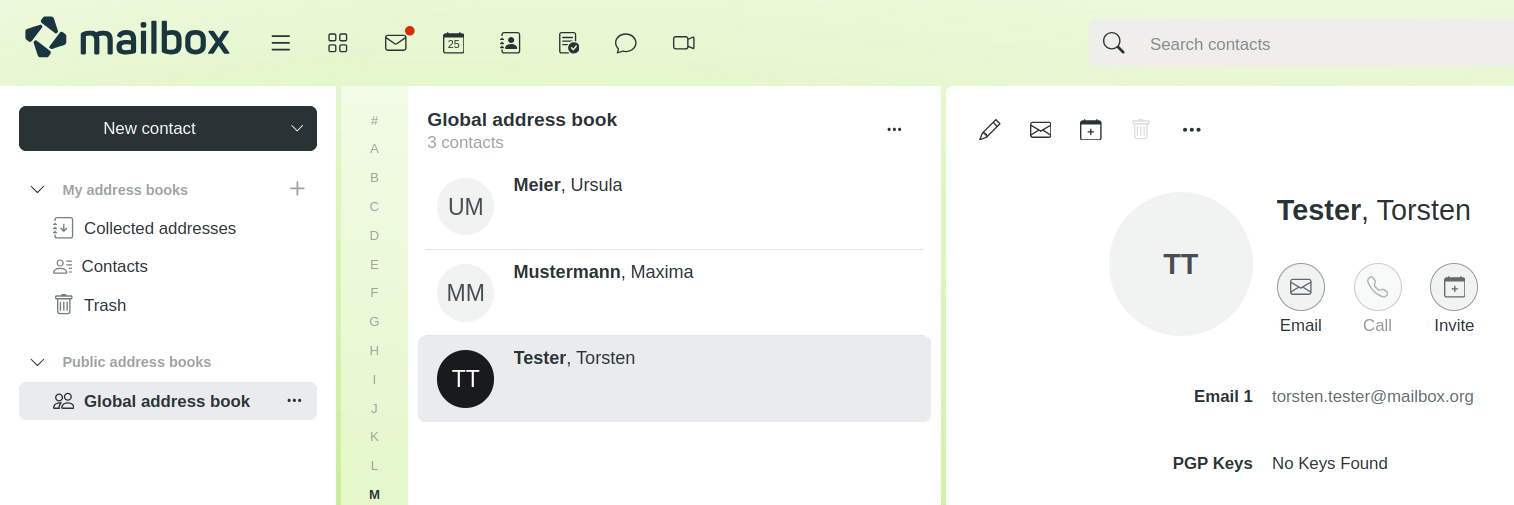
The global address book
How do I create a personal address book?
To share contacts with others or simply to keep better track of things, you can create personal address books.
- Open the address book in mailbox.
- Click the + icon next to My address books.
- Click Add new address book.
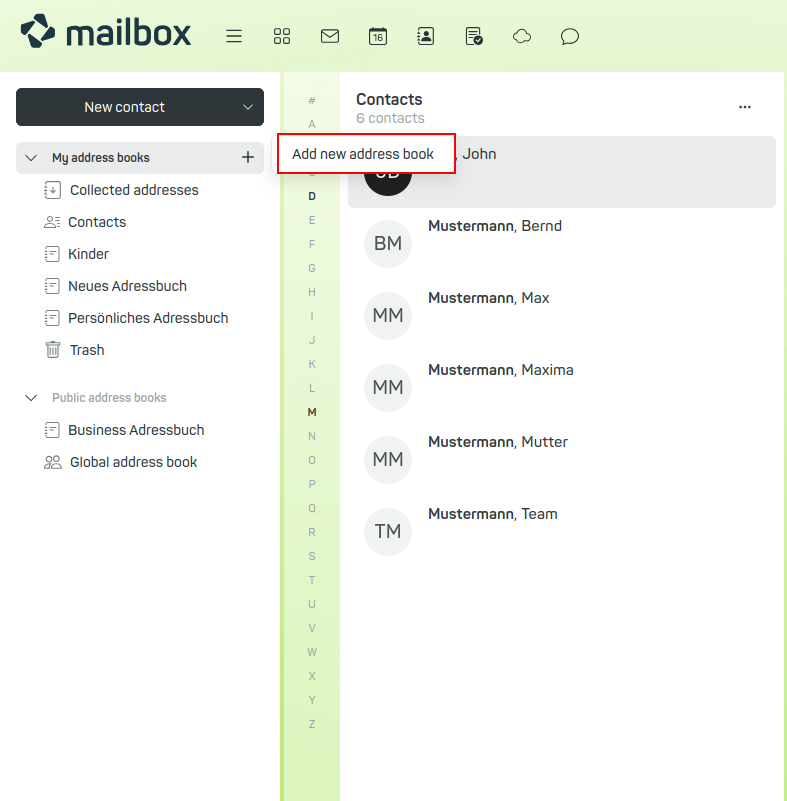
Add a new address book in mailbox - Enter a name for the address book.
- Click Add.
You can then add contacts to the new address book.
Why are phone numbers missing after CardDAV synchronisation?
Under certain circumstances, synchronising contact details via CardDAV may result in phone numbers being lost, or phone numbers may be synchronised incompletely or incorrectly.
Background
CardDAV is a protocol for synchronising contact data. However, the specific implementation of this standard varies between different manufacturers – for example, in terms of how many phone numbers are supported per contact or how mandatory fields are handled.
How it works on smartphones
If you enter phone numbers directly into your smartphone’s address book, you need to define a default number for each contact. Only then will the data be synchronised. This default number is retained with every synchronisation.
If you subsequently add further phone numbers to this contact, these are initially stored locally on the smartphone but are not synchronised with the server immediately.
Potential conflicts during synchronisation
If, in the next step, you add new phone numbers to the same contact via mailbox Suite, conflicts may arise. During the subsequent synchronisation, the local data record may be overwritten if the data on the server differs from that on the smartphone.
This may result in the loss of locally stored phone numbers that have not yet been synchronised.
Recommendation
- Ensure that contacts are synchronised and up to date on all devices before making any changes.
- Avoid editing a contact on multiple devices simultaneously.
- Check regularly that all phone numbers have been correctly synchronised – particularly after making changes via the web interface or on your smartphone.
Are calendar and address book encrypted?
Calendar and address book are currently not encrypted.
This has several reasons:
-
Encryption in this area is always technically incomplete:
In order for the web client to display the corresponding data, it must be available unencrypted at the same time. A user therefore cannot rely on their provider not also being able to access this data. -
Existing features prevent such encryption:
At mailbox, many accounts are connected as Family accounts or Business accounts. One of the advantages is the ability to share calendars and address books with each other. However, these feature would not be possible if the data were encrypted in such a way that only the original owner could access it. -
Planned features would be prevented:
In the long term, we have some ideas for additional features for calendar and contacts (for example, reminder services), which would not work if these areas were encrypted.
In principle, it would be possible to implement encryption for calendar and address book as well, if many exceptions and changes were programmed into the existing server software, for example, deactivating numerous special features in order to enable encryption. At the moment, we rather focus on other ideas and concepts that sustainably improve the security of all users.
Why aren’t calendars and address books end-to-end encrypted?
With mailbox, many accounts are linked together as family or business accounts. In such setups, sharing calendars and address books is a key part of collaboration.
These features require the server to access the data in order to display it to other authorised users. However, if the calendar and contact data were end-to-end encrypted – i.e. encrypted in such a way that only the original owner has access – such sharing would no longer be technically possible.
The transmission of the data is, of course, encrypted, so that third parties cannot view the communication.
How do I set different colours for calendars?
With mailbox, you can assign different colours to your calendars to categorise events by colour – for example, to distinguish between personal appointments, team meetings or project deadlines.
- Open the calendar view.
- Select the desired calendar.
- Open the context menu by clicking on “...” to the right of the calendar title.
- Select a colour to customise the calendar.
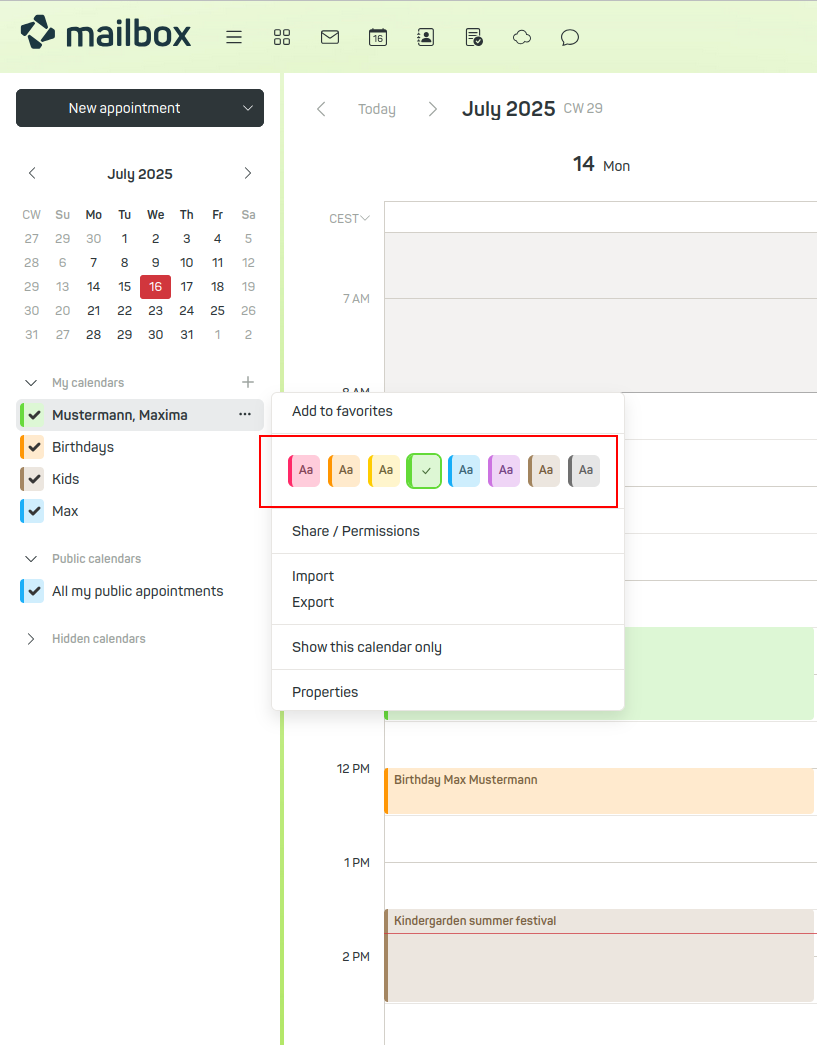
Assigning calendar colours
In the appointment overview, the entries for each calendar are now displayed in different colours.
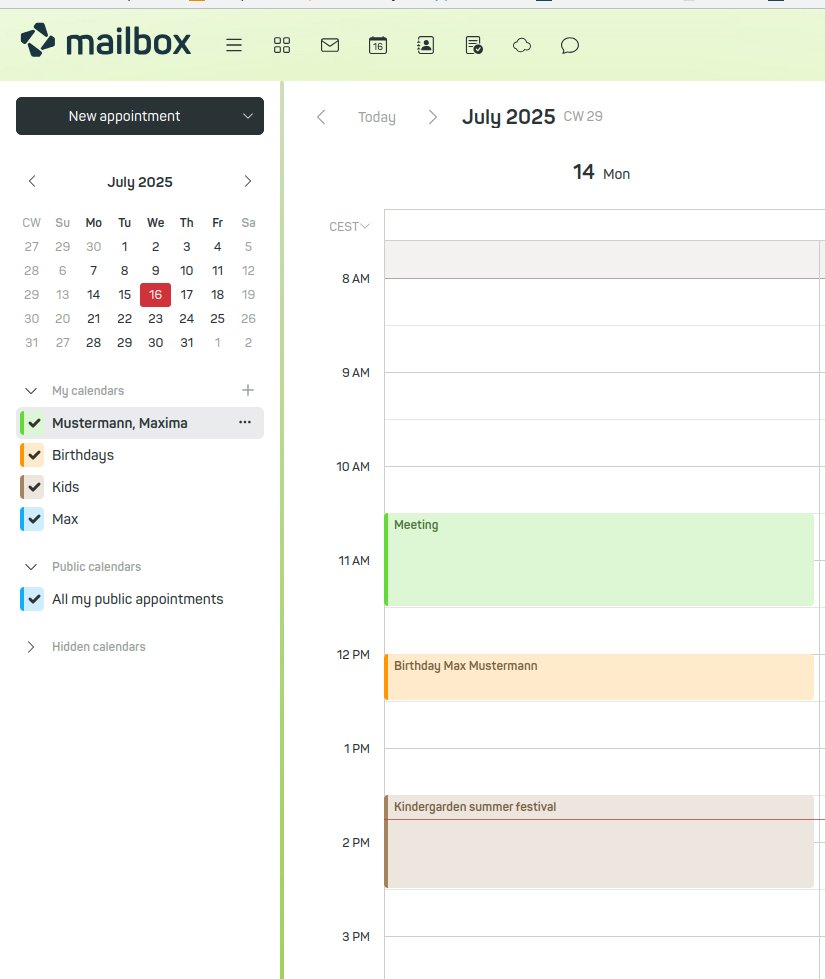
Calendar view
How can I share a calendar?
You can share a calendar via a public iCal link so that others can subscribe to and view it. The iCal link allows read-only access – the calendar cannot be edited.
Access to a shared calendar is anonymous via a public link. Only use this feature if you agree to public sharing.
-
In mailbox, open the calendar you wish to share.
-
In the context menu, click the icon to the right of the calendar title and then click Share/Permissions.
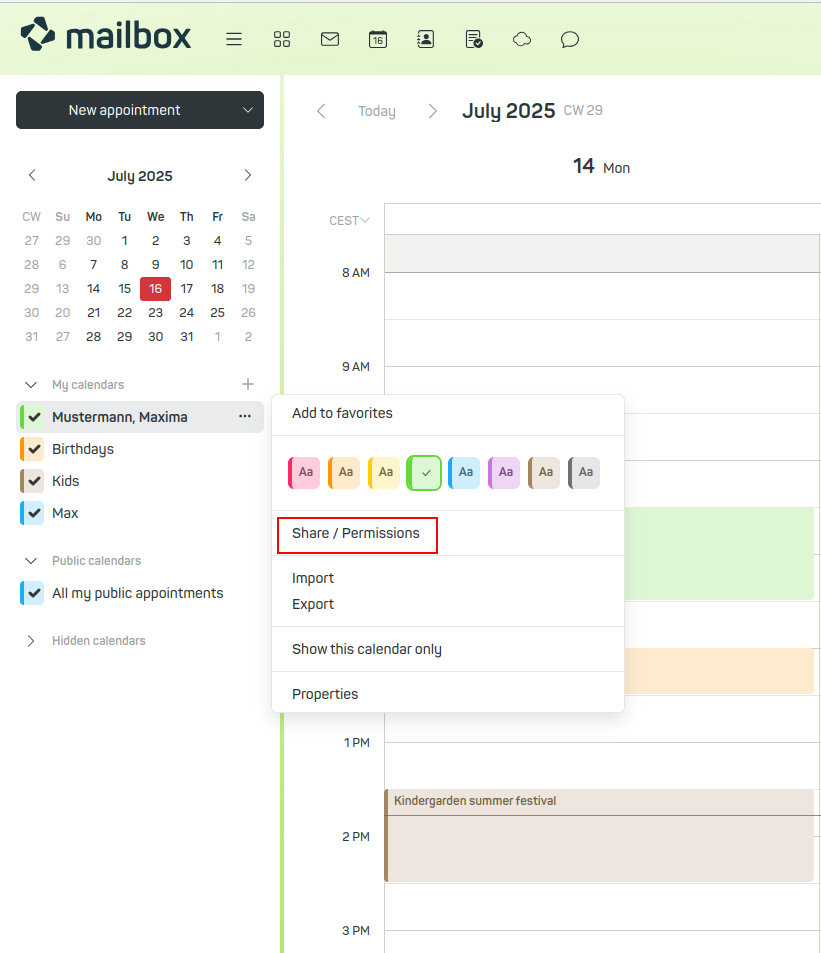
Create a share link to share a calendar -
Copy the generated share link.
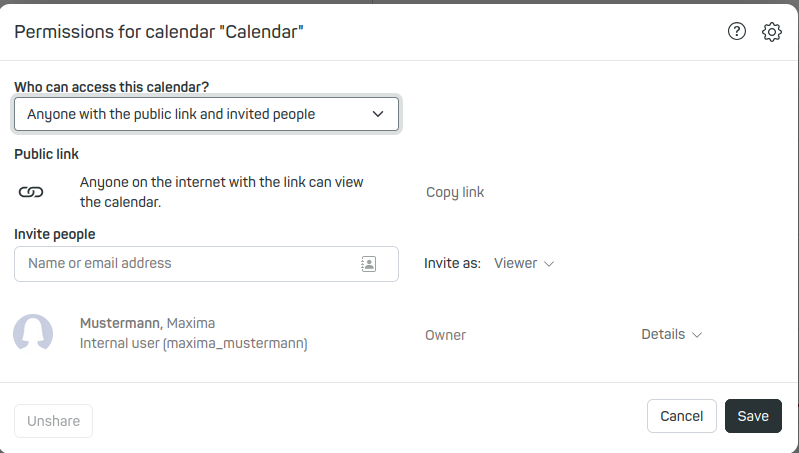
Copy share link to share a calendar -
Add
?ical=trueto the link.Example:
https://share.mailbox.org/ajax/share/05fb71770e8eba4659a842ce8eba484dbe3410ea31b86831/1/2/YMQ?ical=true -
Share this link with others.
For further information, please refer to the instructions in the mailbox user interface.


