
Moving your calendar from Posteo to mailbox
When moving from Posteo to mailbox, you may also want to transfer your calendar. This article describes a workaround for transferring your calendar.
Exporting the calendar from Posteo
You can export your calendar from Posteo via a URL (.ics link). Here’s how to create an .ics link for your calendar in Posteo:
- Log in to Posteo.
- Click Settings.
- Select Calendar.
- Grant permission to share the calendar.
- Copy the calendar’s URL.
Adding the shared calendar in mailbox
Log in to mailbox and subscribe to the calendar:
- Click on the arrow icon next to the New appointment button.
- Click Import from URL (iCal).
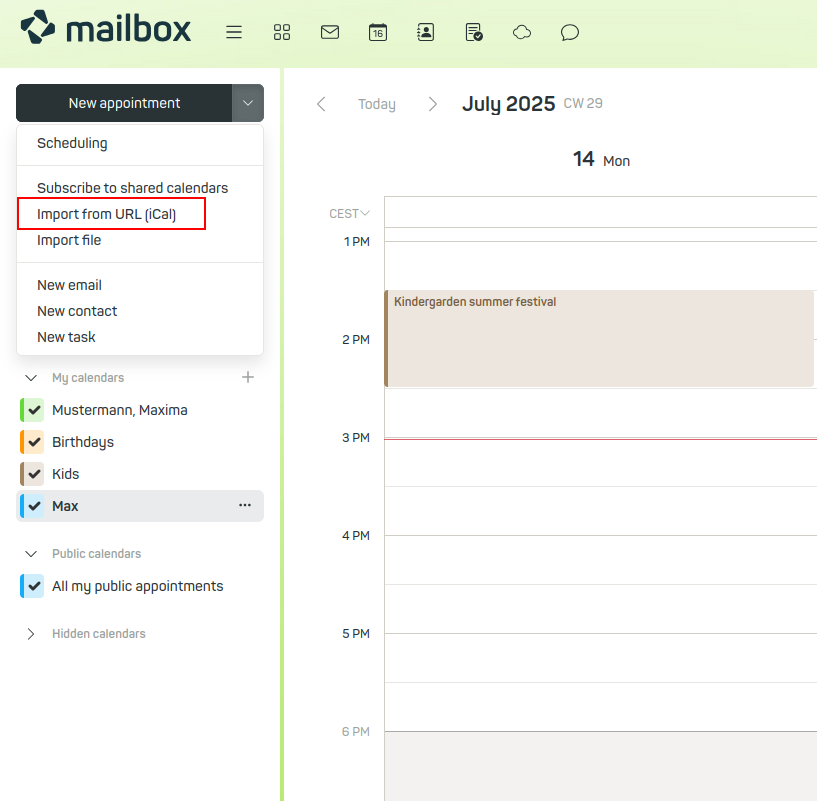
Import calendar into mailbox - In the Subscribe to iCal feed dialogue box, paste the URL copied from Posteo.
- Click Subscribe.
The calendar will be displayed under My calendars.
Export a subscribed calendar
- Click the ... icon next to the subscribed calendar.
- Click Export.
- If necessary, specify a save location.
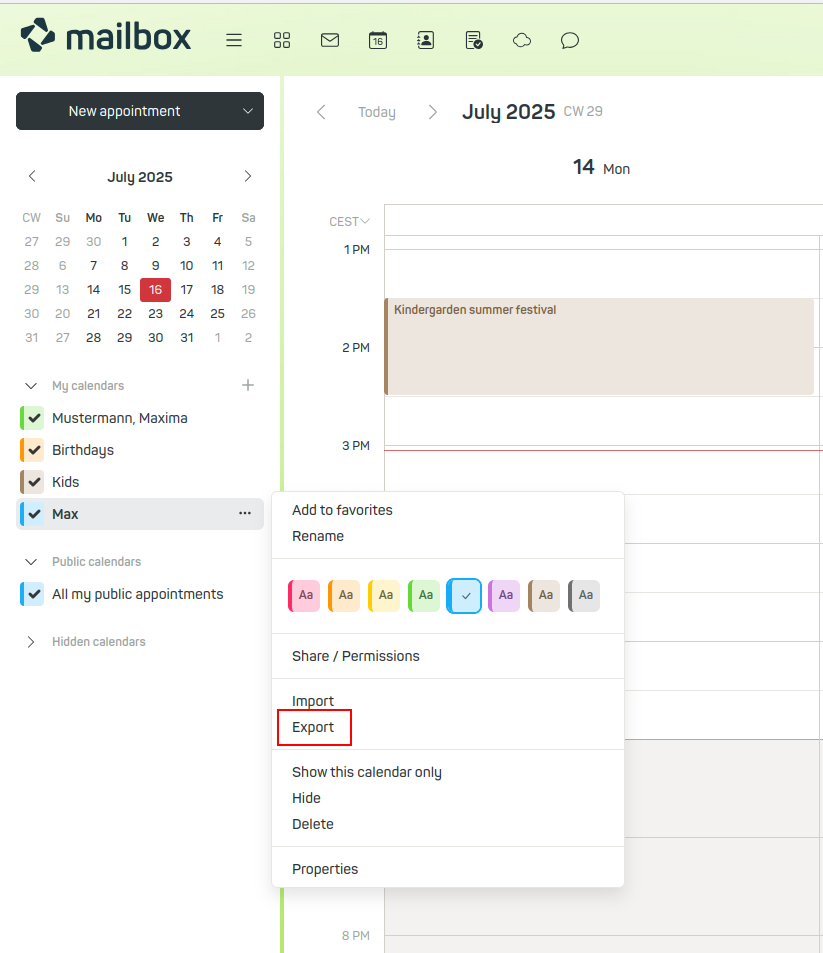
Export calendar
Import calendar file you have created
Now import the file you just exported back into the calendar.
- Click on the arrow icon next to the New appointment button.
- Click Import file.
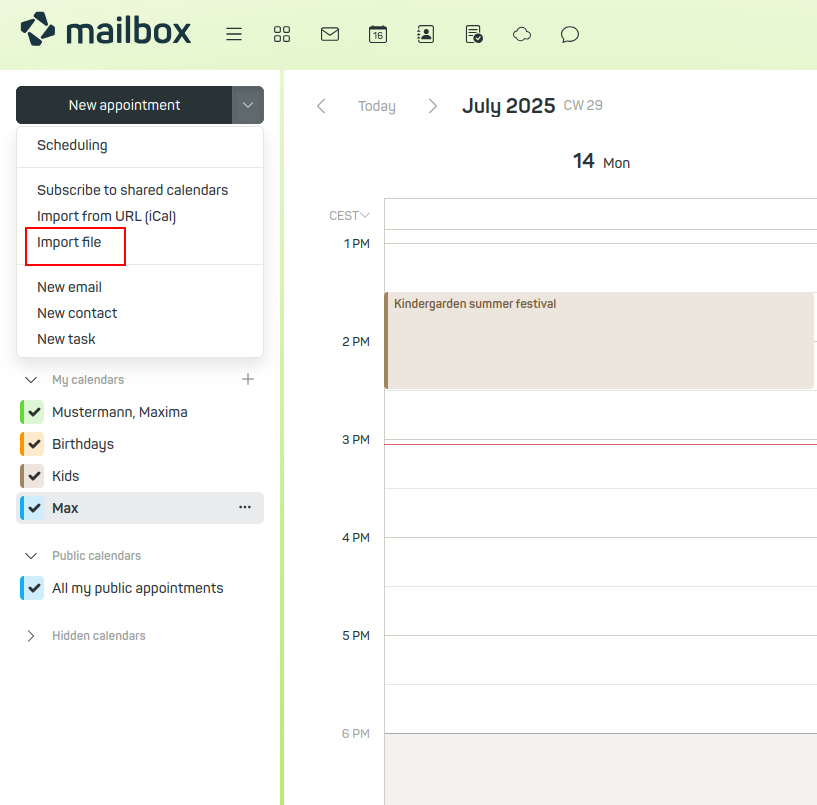
Import calendar file - In the Import from file dialogue, enter a name for the calendar, e.g. “Posteo Calendar”.
- Click the Upload file button.
- Locate the file you saved earlier.
- Confirm by clicking Open.
- Click Import.
You have now imported the Posteo calendar. Check that everything is displayed correctly.
If not, you can repeat the process. Before importing, activate the checkbox Ignore existing appointments.
The procedure described also works in the same way for moving from GMX to mailbox.


