
Using mailbox in the Tor Browser
To support the anonymous use of the internet and, in particular, to protect our customers against data retention, we operate our own Tor exit node in our data center. This Tor node is designed to provide the highest possible security for users of the Tor anonymisation service (“The Onion Routing”) among our customers.
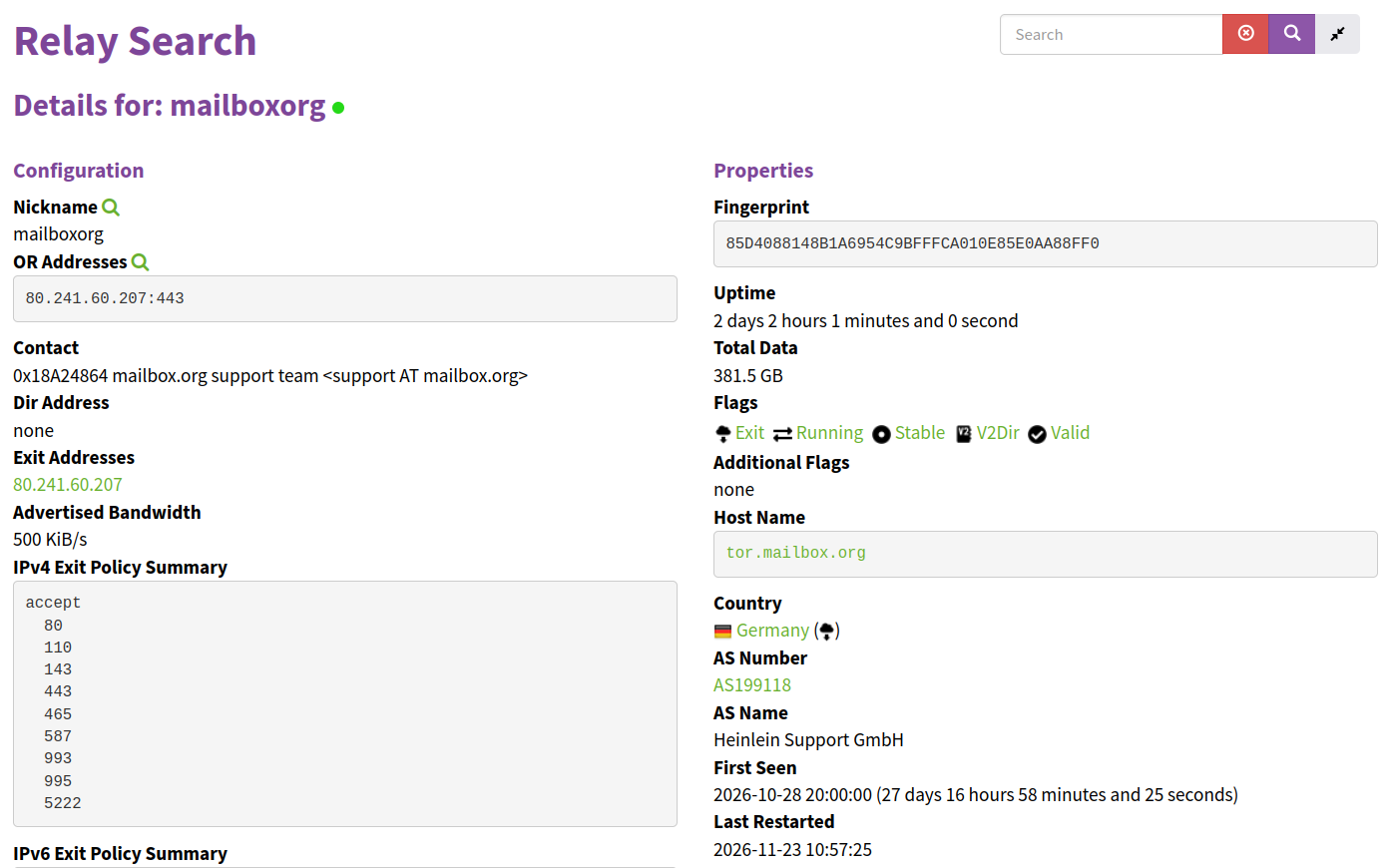
Relay Search mailbox
In recent years, there have been repeated reports of compromised Tor exit nodes attempting man-in-the-middle attacks on HTTPS connections using fake SSL certificates (e.g. 2013: attack when accessing Wikipedia, attack on IMAPS connections, etc.).
To ensure that such attacks cannot be carried out against users of our services, we enable Tor users to do the following:
- Configure our Tor node as an exit node for accessing mailbox.org (by adding a “MapAddress” entry in the Tor configuration), or
- Use our Tor hidden service xy5d2mmnh6zjnroce4yk7njlkyafi7tkrameybxu43rgsg5ywhnelmad.onion (v3) to access SMTP, POP3, IMAP, or XMPP servers.
1. Adjusting the Tor daemon configuration
Advantages
You can instruct the Tor daemon to always use the Tor exit node provided by us (in our data center) to access our services. This combination of mailbox.org and Tor is the best (and safest) way to use our services.
With this solution, you can use mailbox.org without the onion hostname; you will not encounter SSL validation issues and can also use the mailbox web client as usual.
Implementation
If you are using the Tor Browser Bundle, you must have started the Tor Browser at least once before adjusting the configuration.
-
In your Tor installation directory, navigate to the path Browser > TorBrowser > Data > Tor and open the file torrc with a text editor of your choice.
-
Add the following entries (for mailbox and all subdomains) at the end of the file:
MapAddress mailbox.org mailbox.org.85D4088148B1A6954C9BFFFCA010E85E0AA88FF0.exitMapAddress *.mailbox.org *.mailbox.org.85D4088148B1A6954C9BFFFCA010E85E0AA88FF0.exitThese entries ensure that your data traffic is routed through the Tor network to our data center and directly reaches our servers there. In a broad sense, this can be compared to a kind of VPN connection directly to the mailbox server.
To check if everything is configured correctly, open mailbox.org in the Tor Browser and click the connection icon in the address bar. The IP address 80.241.60.207 should be displayed as the final hop.
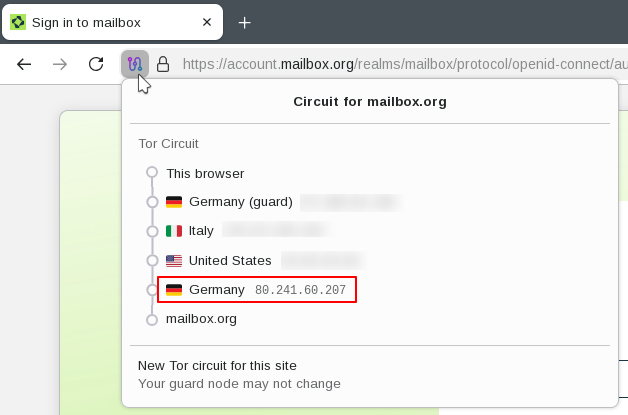
Checking the IP address in the Tor Browser
2. Using the Tor hidden service
We offer a Tor hidden service for both our email service and for accessing our Jabber/XMPP server at the address xy5d2mmnh6zjnroce4yk7njlkyafi7tkrameybxu43rgsg5ywhnelmad.onion (v3). Access to the web client via this address is not possible.
To use this hidden service for SMTP or IMAP/POP3 connections in Thunderbird, you do not need to make any changes to the Tor daemon configuration.
In your Jabber/XMPP client, you can configure our Tor hidden service as the connection server. You will usually find this option in the advanced settings of your configured account.
When using this hidden service for the first time, you will receive an SSL error during the connection process because the certificate for transport encryption is issued for the domain mailbox.org (and not kqiafglit242fygz.onion). In this case, you must verify the validity of the SSL certificate yourself.
Using mailbox with the Tor Browser
Language
As the preferred language for Tor, we generally recommend English so that you remain anonymous within the majority of English-speaking internet users.
Security level
To access mailbox.org using the Tor Browser, we recommend setting the security level to Safer. You can find the security settings by clicking on the shield icon and then selecting Settings:
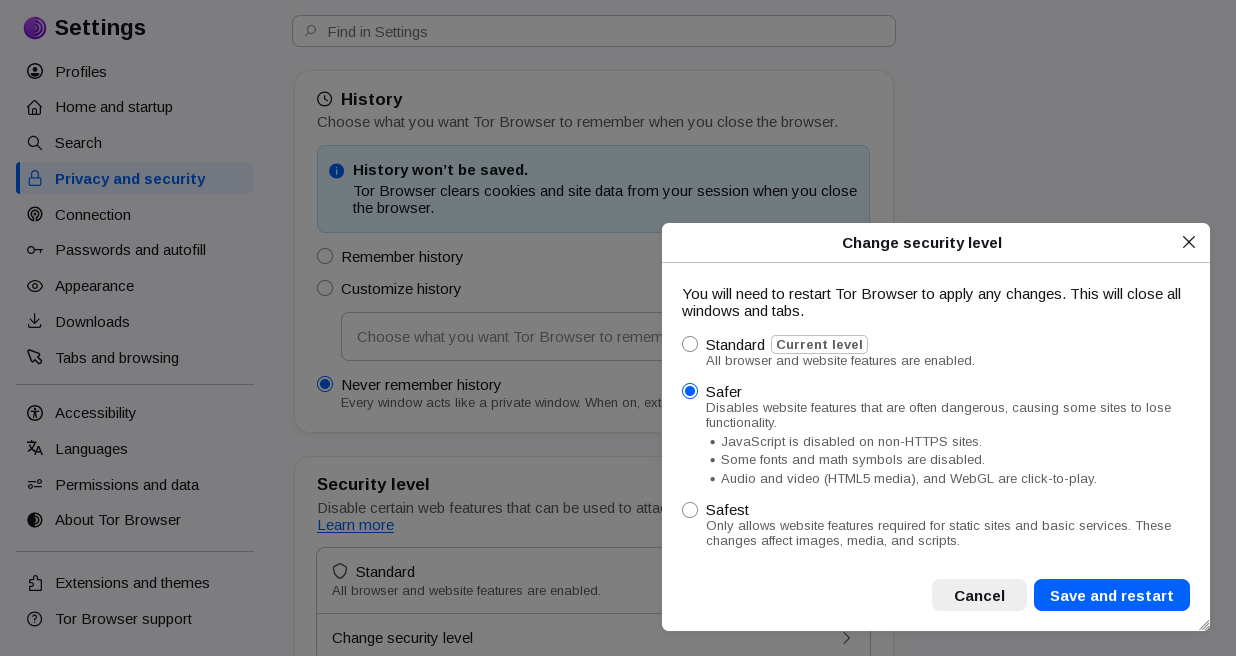
Tor Browser security settings
Canvas functions
Open-Xchange uses Canvas functions in the features Text, Spreadsheet, and Presentation. When logging in, the system automatically checks whether this functionality is available. To successfully continue the login process, you must allow the website app.mailbox.org to extract HTML5 Canvas image data:
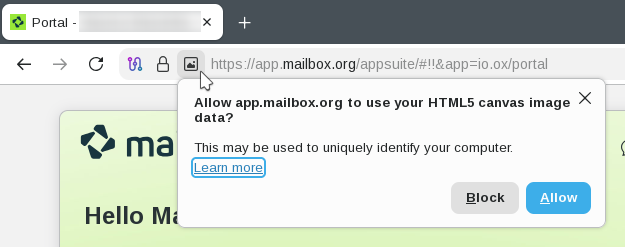
Allowing access
We are not reading the Canvas element for tracking purposes.


