
Sharing Calendars and Address Books
In mailbox, you can share personal calendars and address books with other people — both internally with other mailbox users and externally. This feature is especially useful for family accounts where multiple people want to access the same calendar or contact list. Sharing is done using standardized formats like vCard (for contacts) or iCal (for calendars), which are supported by many applications.
Create a New Address Book
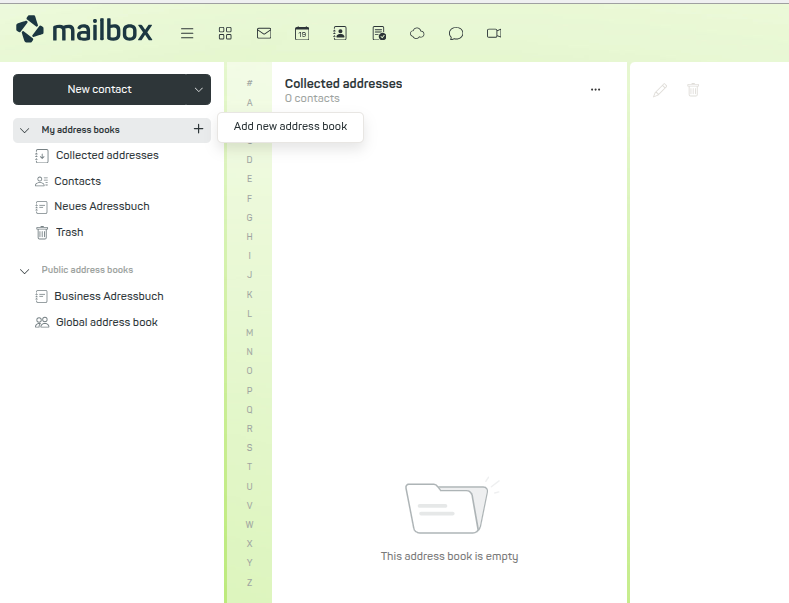
Figure 1: You can create new personal address books via the My address books menu item.
Sharing a Personal Address Book
-
Log in to your mailbox account.
-
Go to the Address Book section.
-
In the column on the left, click on the address book you want to share.
-
Click the three-dot menu next to the address book name and select Share / Permissions.
-
In the share dialog, decide whether access should be restricted to invited users or open to anyone with the link.
-
Copy the public link via Copy link and send it to the intended person or paste it into an application.
-
Alternatively, you can export individual contacts from the address book. Click on the desired contact in the address book. Select the Export option from the contact's three-dot-menu. In the Export selected dialog, select the vCard option and click Export. Then send the contact.
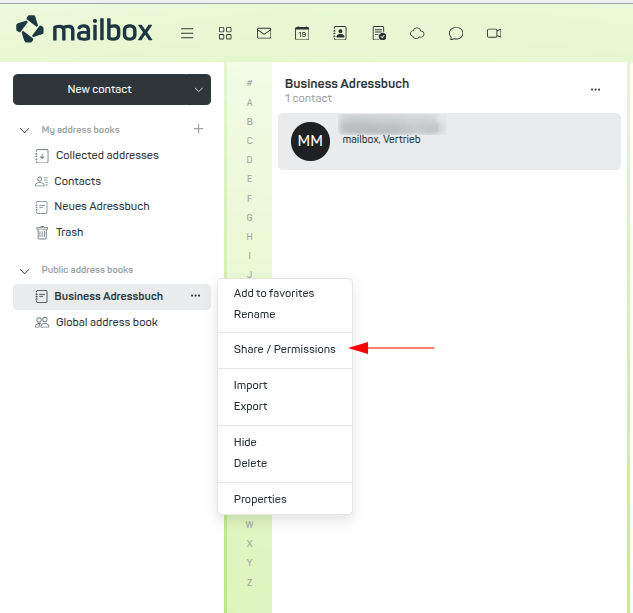
Figure 2: The context menu of the address book allows sharing with third parties.
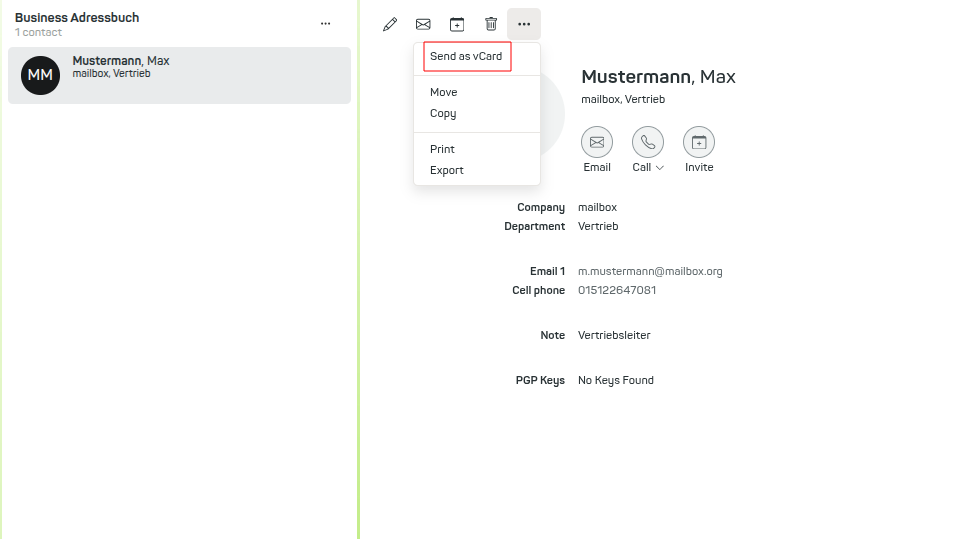
Figure 3: Alternatively, you can export a contact via vCard as a .vcf file.
Note: The global address book of your account is read-only and cannot be shared.
Technical Notes and Security
-
Read-only access: All shared calendars and address books are shared with read-only permissions. This means external users can view the content but cannot edit it.
-
Compatibility: Recipients should use applications that support vCard or iCal. These are standard formats and work in most common calendar and contact applications.
-
Privacy: Anyone with the sharing link can access the shared content. Therefore, only share the link with trusted individuals.
Share Calendar as iCal Link
-
Log in to your mailbox account.
-
Go to the Address Book section.
-
In the column on the left, click on the address book you want to share.
-
Click the three-dot menu next to the address book name and select Share / Permissions.
-
In the share dialog, select the option Anyone with the public link and invited people.
-
Copy the public link by clicking Copy link.
Original public link:
https://share.mailbox.org/ajax/share/03627a6501b88c4f354d908c47eba730f72a0c98f156/1/2/Y2FsOi8vMC8zMQ
- To subscribe to this link as an iCal calendar (e.g., in Thunderbird), add
?ical=trueto the end of the URL.
Resulting iCal link:
https://share.mailbox.org/ajax/share/03627a6501b88c4f354d908c47eba730f72a0c98f156/1/2/Y2FsOi8vMC8zMQ?ical=true
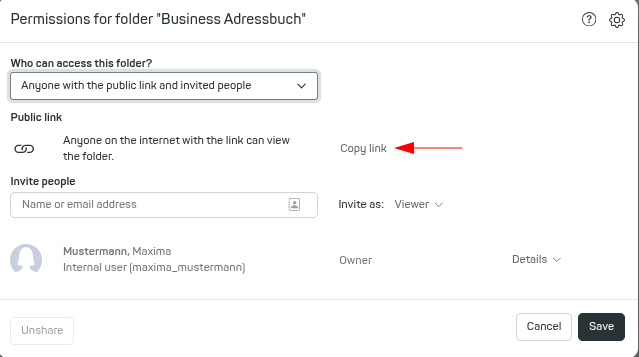
Figure 4: Creating a public link.
OX Documentation
For more information, refer to the Open-Xchange documentation: https://www.oxpedia.org/wiki/index.php?titleAppSuite:Sharing_and_Guest_Mode


