
Integrate external email accounts
Integrating external email accounts in mailbox Office
In mailbox Office, you can integrate external email accounts from other providers such as gmx, web.de, or mail.de. Google has blocked access via mailbox Office since the end of April 2022. If you are a Gmail customer, you can completely migrate to mailbox.
Benefits of integrating external accounts
The integration of external accounts offers you several advantages:
- You can read the emails of the integrated accounts directly in the web client.
- You can send emails with the sender address of the integrated account directly from the web client.
- You have the option to manage all your email accounts centrally and in one place via the mailbox web client.
- With the Unified Mail function, you can even use shared folders for multiple email accounts, such as a central inbox or a shared folder for sent messages.
Settings with the external provider
For some providers, it is necessary to make certain settings to enable the integration. The provider must allow access via IMAP or POP3 as well as SMTP (for sending emails).
Please consult the documentation or support of your respective provider.
Different types of integrating an external mailbox
Mail client function
mailbox Office functions as an email client and displays the messages of the external provider separately.
You have an additional, separate mailbox under the mailbox inbox.
When composing a new email, the external mailbox will be available for selection in the From field. Sent messages and the inbox are, by default, only displayed in this mailbox, not in the primary mailbox inbox.
Both external and mailbox mailboxes can be integrated here, which can be used by multiple people simultaneously. Business customers can conveniently integrate team mailboxes such as marketing@own-domain.de.
For most users, this option is the best choice.
To integrate an external mailbox, click the drop-down menu New email and select Add email account.
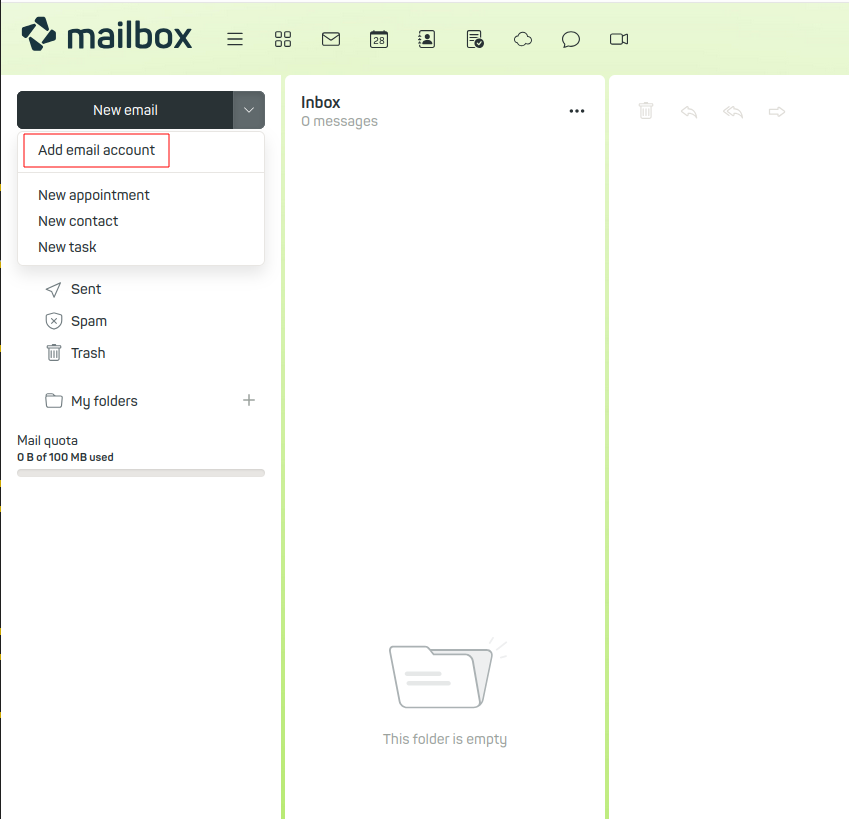
Adding an external email account
Removing an integrated mailbox
To remove a mailbox added in this way, proceed as follows: All settings > Accounts > Delete (x)
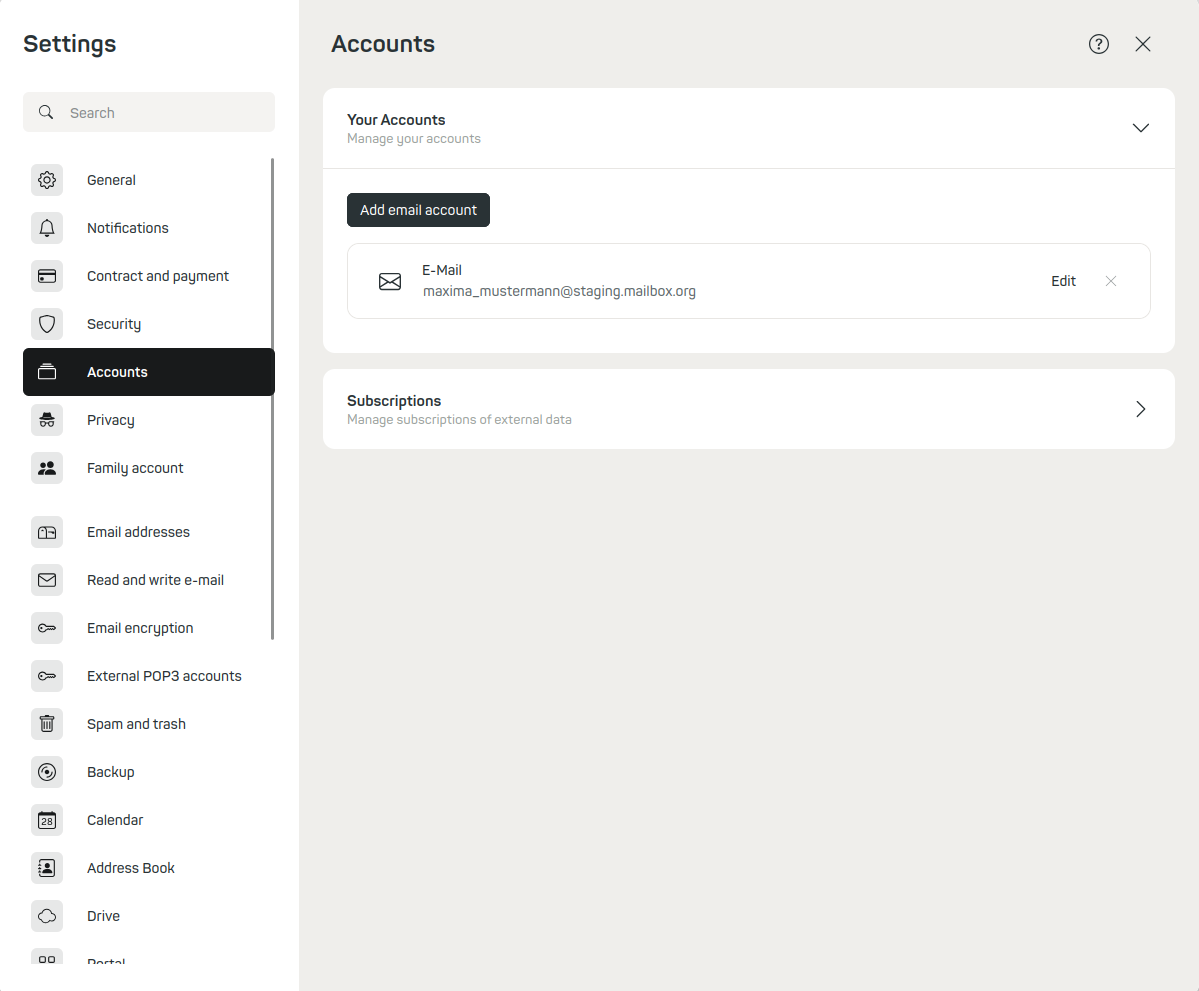
Removing an external email account integrated as an email client
Unified Mail
The Unified Mail function offers you the advantage that, when integrating multiple mailboxes via the mail client method, the Sent Objects and Inbox folders of all mailboxes are combined. This keeps your mailbox Office clear and organised.
Setup steps
Proceed as follows for the setup: All settings > Accounts > Edit
Check the box Use unified mail for this account. This is required for each external mailbox as well as for your mailbox inbox. To ensure consistent standard folder names, you can adjust them in the lower section. Then click Save.
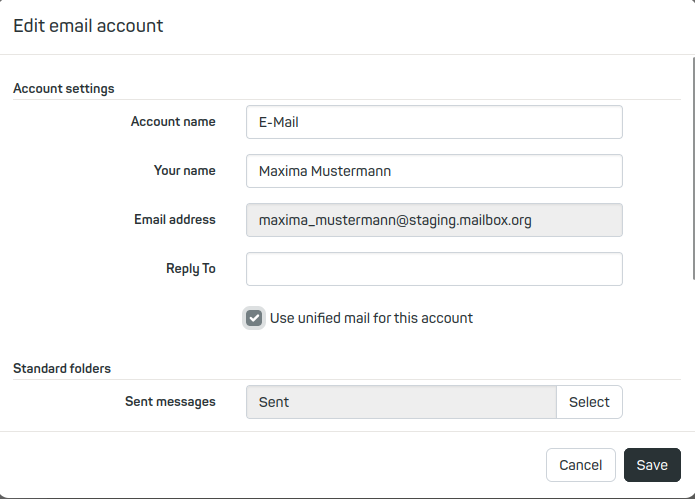
Setting up Unified Mail – a shared folder structure for multiple integrated mailboxes
Important note on integrating Outlook webmailer
Please note that Outlook Webmailer currently cannot be integrated into the mailbox webmailer. The mailbox webmailer is the platform where you log in at https://login.mailbox.org/.
The reason is that Microsoft uses the OAuth2/Modern Auth method for the authentication of Outlook Webmailer, which is not yet supported by mailbox.
This restriction only applies to integrating Outlook Webmailer into the mailbox webmailer. The use of Outlook as a standalone mail client, for example on your PC, is still fully possible.


