
Forward emails automatically
If you use the encrypted mailbox and activate email forwarding, the emails will be forwarded in encrypted form.
Forward all emails to another address
You can set up a rule to forward all incoming emails to another email address.
-
Navigate to All settings > Mail > Rules.
-
Click Auto forward.
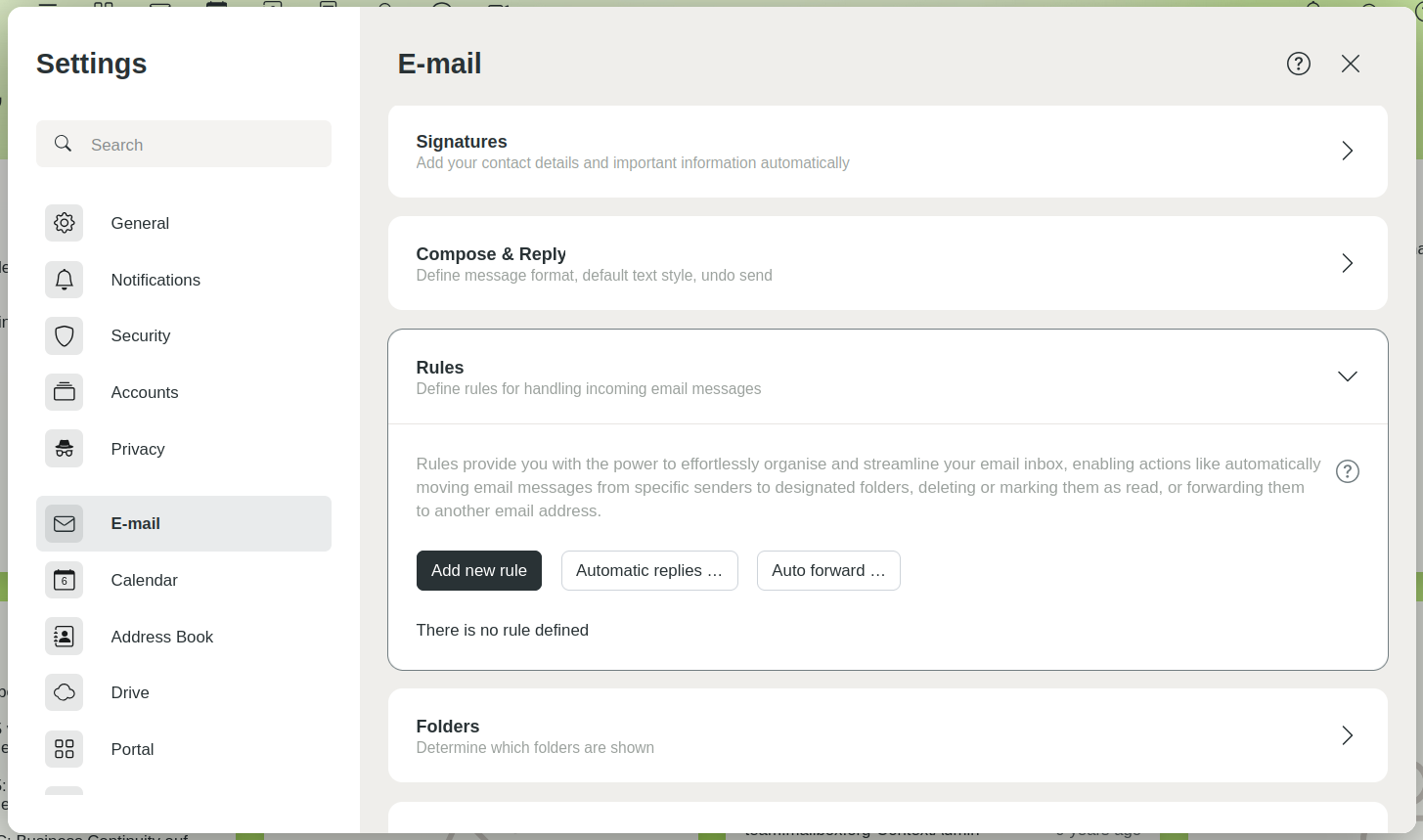
Set up automatic forwarding via rules -
Enter the desired destination address in the settings dialogue.
-
Specify whether copies of incoming emails should be kept in the inbox.
-
Confirm by clicking Apply changes.
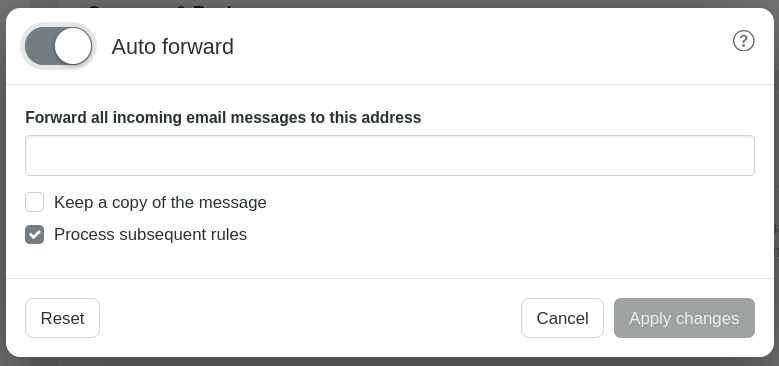
Settings dialogue for configuring automatic forwarding
Forward selected emails to another address
If you only want to forward emails from a specific sender to another address, you can create a rule to automate this task:
- In mailbox Office, navigate to All settings > Mail > Rules.
- Click Add new rule.
- In the settings dialogue, define the condition under which the rule should be applied.
- Select Redirect to as the action and enter the desired destination address.
- Disable the Process subsequent rules option to ensure that no further rules are applied to the message.
- Click Save.
Done: You have successfully set up automatic email forwarding.
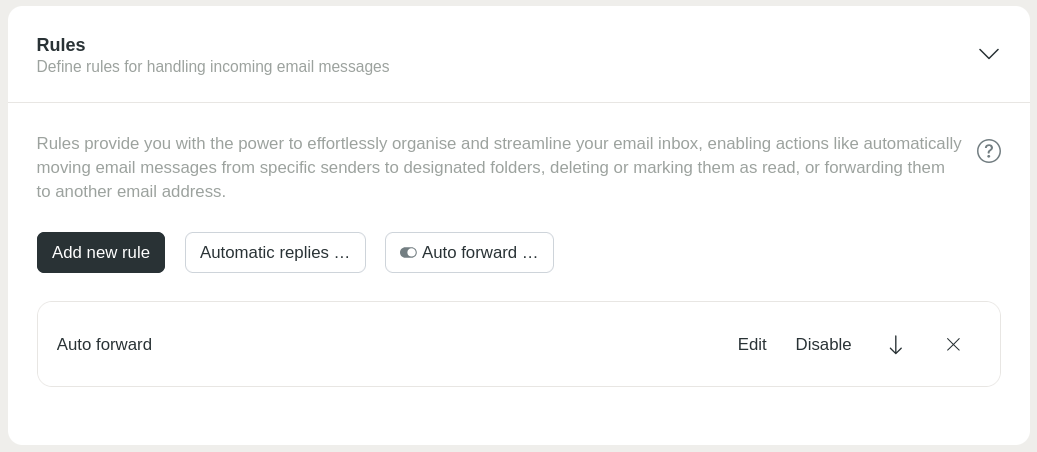
The automatic forwarding will appear under “Rules” after saving.


