
Customising the mailbox spam filter settings
The spam protection settings must be enabled centrally by your administrator via the administration panel.
Spam protection in mailbox is already optimally configured for you. However, if you wish to deactivate individual components, please read this article first to find out how the individual mechanisms work. Further information can be found in the article mailbox spam filter.
We use the following technical terms in this article:
- Client: The system that connects to our servers and attempts to deliver an email, i.e. another mail server or a spam/virus botnet.
- False positive: An email that has been incorrectly classified as spam.
- False negative: A spam email that was not detected.
If an email is detected as spam by our systems, it is “Rejected”: our server therefore refuses to accept the email. In this case, the sender’s system (“Client”) generates a non-delivery notification (“Bounce”) back to the sender. The sender is therefore always notified by their own provider of the unsuccessful attempt to send their email. This bounce mechanism works in exactly the same way as if you had tried to send an email to a non-existent recipient.
Spam settings in mailbox Office
You can find the configuration of your spam filter in mailbox Office under the following path: All settings > Spam and trash > Spam settings.
The settings in the technical filters section relate to the protocol level, i.e. before the server actually “sees” the message.
The settings in the content filters section relate to content-based filters, i.e. searching for specific known patterns within an email. This happens before the message is actually accepted or rejected. You can customise whether an email identified as spam is rejected immediately or moved to a folder of your choice. If you would like to find the spam in the appropriate folder, select the Junk folder.
The options in the technical filters section always result in rejection (with the exception of greylisting, where rejection is only temporary) if they apply. This means that an email will be rejected even if it is identified as spam by the content filter and is to be moved to a subfolder.
Spam filter options
Effective spam protection is always based on the interaction of many different mechanisms. This is the only way to keep the risk of incorrectly filtered emails (false positives) to a minimum. Please understand that we cannot accept complaints regarding inadequate spam protection if you have disabled individual options within this mechanism.
Greylisting as spam protection
In so-called greylisting, a mail server initially temporarily rejects connections from previously unknown clients. Our mail server sends a single “busy” signal, just like a fax machine’s busy line. After five minutes, the client may resend the email. As soon as it attempts delivery again, we accept the email. With this method, the incoming email is therefore not permanently blocked or even returned, meaning there is virtually no risk that an email will fail to arrive due to this technique.
Spammers and (virus) botnets, for various reasons, either find it difficult or have no interest in making multiple delivery attempts. For normal mail servers, however, this “busy” signal is part of everyday life and often occurs during mail transport for entirely different reasons. Mail systems known from previous successful email transactions are no longer greylisted, meaning that over 98% of all “normal” emails are delivered without delay.
Be sure to keep Greylisting enabled.
SMTP plausibility check
During the SMTP plausibility check, we verify whether the hostname of the sender or client (e.g. “I am mailbox”), which is transmitted as part of the message, matches the string stored in the DNS as the hostname for this IP address (this process is called a “reverse DNS lookup”). According to RFC specifications, these strings must match exactly on mail servers. However, spammers and botnets gain various advantages by providing false information here.
In practice, there may in rare cases be issues with authentic but incorrectly configured mail servers. If the administrators of these mail servers have entered incorrect hostnames and other factors are involved, it may even happen that such a mail server is blocked in individual cases.
The risk of false positives during the SMTP plausibility check is low – but it does exist.
Disable the SMTP plausibility check if necessary, for example if certain emails are not being delivered to you. If you disable the SMTP plausibility check, we strongly recommend that you leave all other spam protection settings enabled.
Real-time blacklists (RBL)
Real-time blacklists are publicly available databases containing clients that have been flagged for sending spam. Providers can query these databases to protect their customers.
Such spam-sending clients can include, for example, virus-infected PCs, hacked servers, or mail servers with hacked user accounts. By sending mass amounts of spam, they pose a threat to everyone – the spam emails must therefore be blocked or not delivered.
We view many RBLs very critically, as there are countless blacklists that often operate with a questionably aggressive policy. mailbox therefore uses only three or four different, reputable RBLs, which are utilised by almost all providers and all of which proceed with extreme caution, blacklisting clients only in the event of concrete, acute incidents. None of the entries will appear on the RBLs we use without good reason, but of course ‘normal’ mail servers could also be included here if they pose an immediate threat through the sending of spam or viruses.
The risk of false positives with real-time blacklists is very low.
Make sure to keep Real-time blacklist enabled.
Block executable attachments
By default, mailbox blocks suspicious file names (e.g. duplicate file extensions in Windows programmes), as these can often be dangerous. Furthermore, executable files are blocked if they are attached directly to the email. The risk of a virus infection via phishing emails is too high. Executable files within a .zip archive, on the other hand, are allowed through due to the lower risk. If you disable this mechanism, you will receive all file attachments, regardless of type.
Note: We will continue to block attachments that are detected as infected by reputable antivirus scanners.
The risk of false positives is minimal and rarely affects harmless emails.
Be sure to keep the Block option enabled for executable files as attachments, as the risk of viruses is otherwise too high.
Content spam filter
The content spam filter uses the “SpamAssassin” software. SpamAssassin calculates the probability that an email is spam based on its technical and content-related characteristics. If the probability is too high, an email can be rejected outright or redirected to a specific folder.
We offer the following settings:
- Lenient: The risk of false positives is barely measurable, but in return, more spam emails (false negatives) get through.
- Normal: The optimal balance between maximum spam blocking and minimum risk of false positives, based on years of experience.
- Strict: Emails are identified as spam at a very low threshold. This blocks a lot of spam emails – but the risk of false positives increases.
Use the Normal setting.
Train the spam filter yourself
If you are still receiving spam despite all measures, you can simply train a personal filter:
- Open the spam email in your inbox.
- Click on the “Spam” icon Mark as spam.
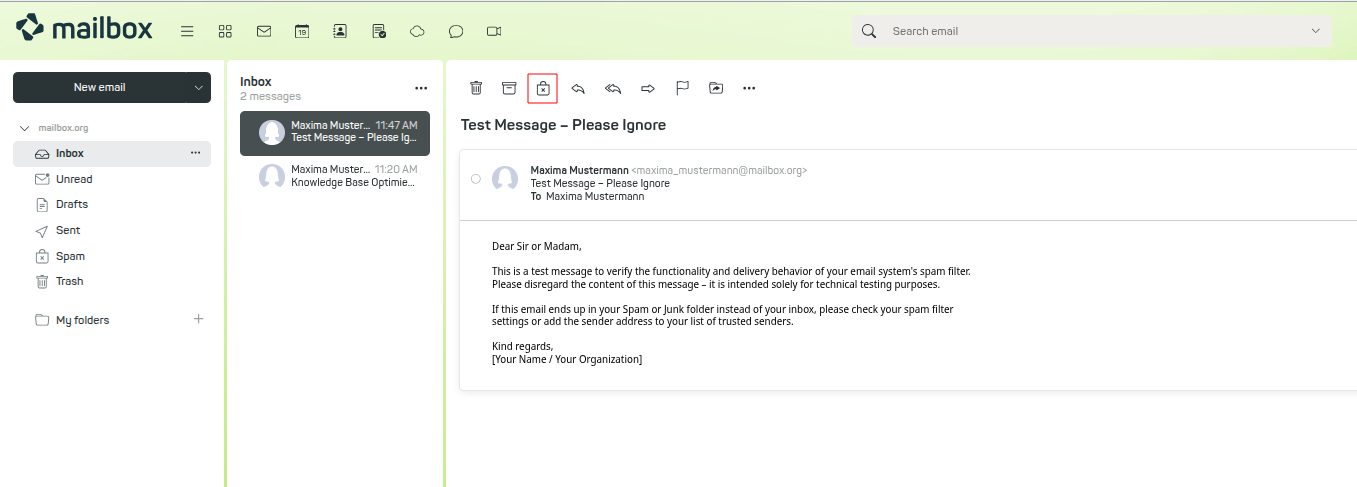
Spam filter
The email will be automatically moved to the Spam folder.
Alternatively, you can simply move the message manually to the Spam folder – this will also trigger the training process. If you have made a mistake, move the message back from the spam folder to your inbox.
Note on training success: The filter trained in this way may require a certain number of examples to reliably identify messages as spam. Training success also depends on the content of the messages.
Blocking unwanted senders
If you consistently receive unwanted messages from a specific sender, you can add their email address to a blacklist. You will then no longer receive their messages.
To do this, proceed as follows:
- In mailbox Office, open the section All Settings > Spam and trash > Email blacklist.
- Enter the unwanted sender’s address.
- Click on Block.
The sender’s address will be added to the blacklist; our servers will now reject emails from this sender. The provider of the sender’s address will send a non-delivery notification to the sender.


