
Creating email app passwords
To protect an email client with a dedicated password or to ensure access when two-factor authentication is enabled, you can create any number of email app passwords. Simply follow these steps:
- Navigate to All settings > Security > Email app-passwords.
- Enter a name or note for the password in the Password name field (e.g. "Thunderbird").
- Select the protocols to be allowed (IMAP, SMTP).
- Finally, click Generate password.
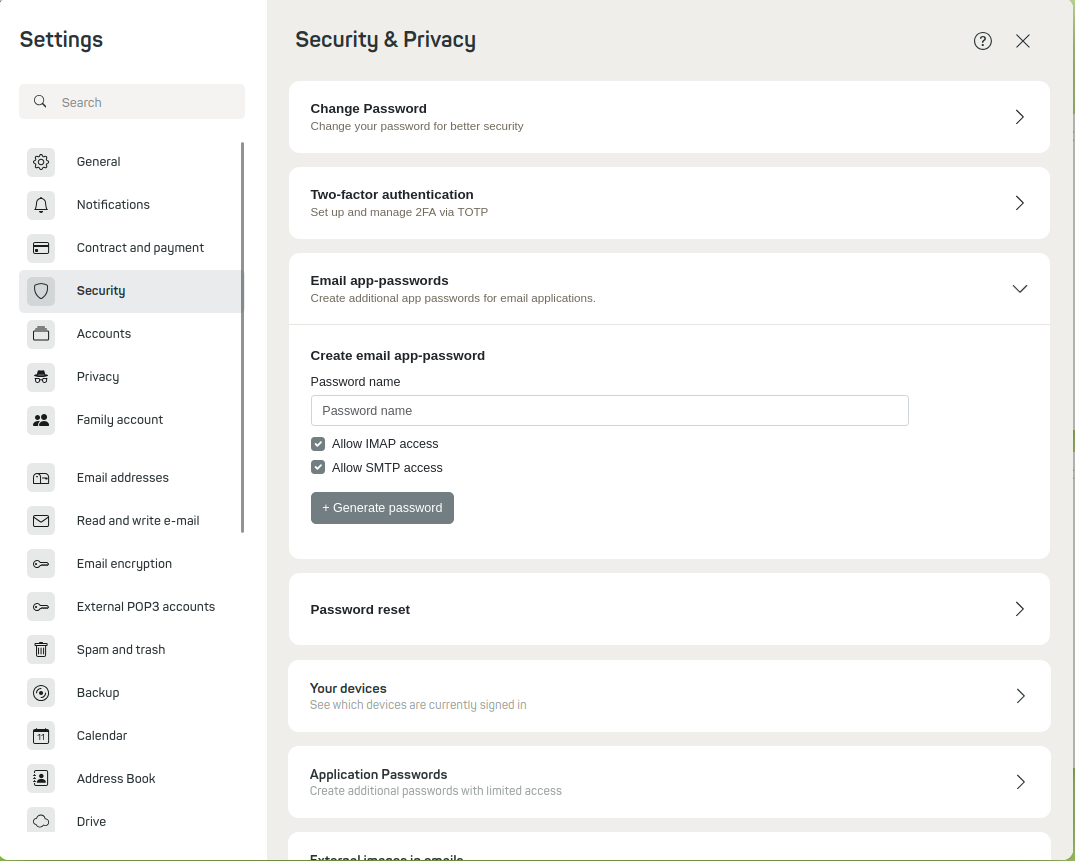
Menu item Email app-passwords
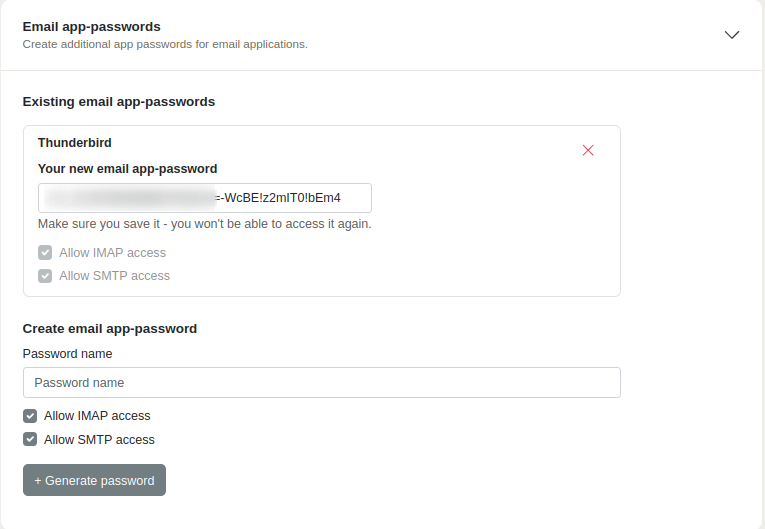
Display of a generated email app-password
You can then use the generated password together with your mailbox email address to sign in to the client as usual.


