
Setting up an email account in Mozilla Thunderbird
Once you have enabled two-factor authentication, external applications such as Outlook, Thunderbird, DAVx⁵, or mobile calendar and contact apps can no longer access mailbox using your regular password. To do so, you need to create an application password (for calendar, contacts, Drive) or email app password (for email clients) in mailbox Office. Without two-factor authentication (2FA) enabled, the use of these passwords is optional.
Here is how to set up your email account in Thunderbird.
Step 1: Start Thunderbird and set up your account
- Open Mozilla Thunderbird.
- If a welcome dialog appears, select the option Skip and use my existing email address.
- Alternatively, click Create a new email account on the Thunderbird start page or open the application menu (3-bar menu) and select New Account > Email.
Depending on your version of Thunderbird, the wording in the application may vary slightly.
Step 2: Enter account information
Enter the following information in the Set Up Your Existing Email Address dialog:
- Your full name: Name that will be displayed to the recipient as the sender
- Email address: Your mailbox email address
- Password: Your mailbox password
Step 3: Automatically detect server settings
- Click Continue. Thunderbird will now automatically detect the server settings.
- To synchronize your emails, you can choose between the IMAP (recommended) and POP3 protocols. Select the desired option.
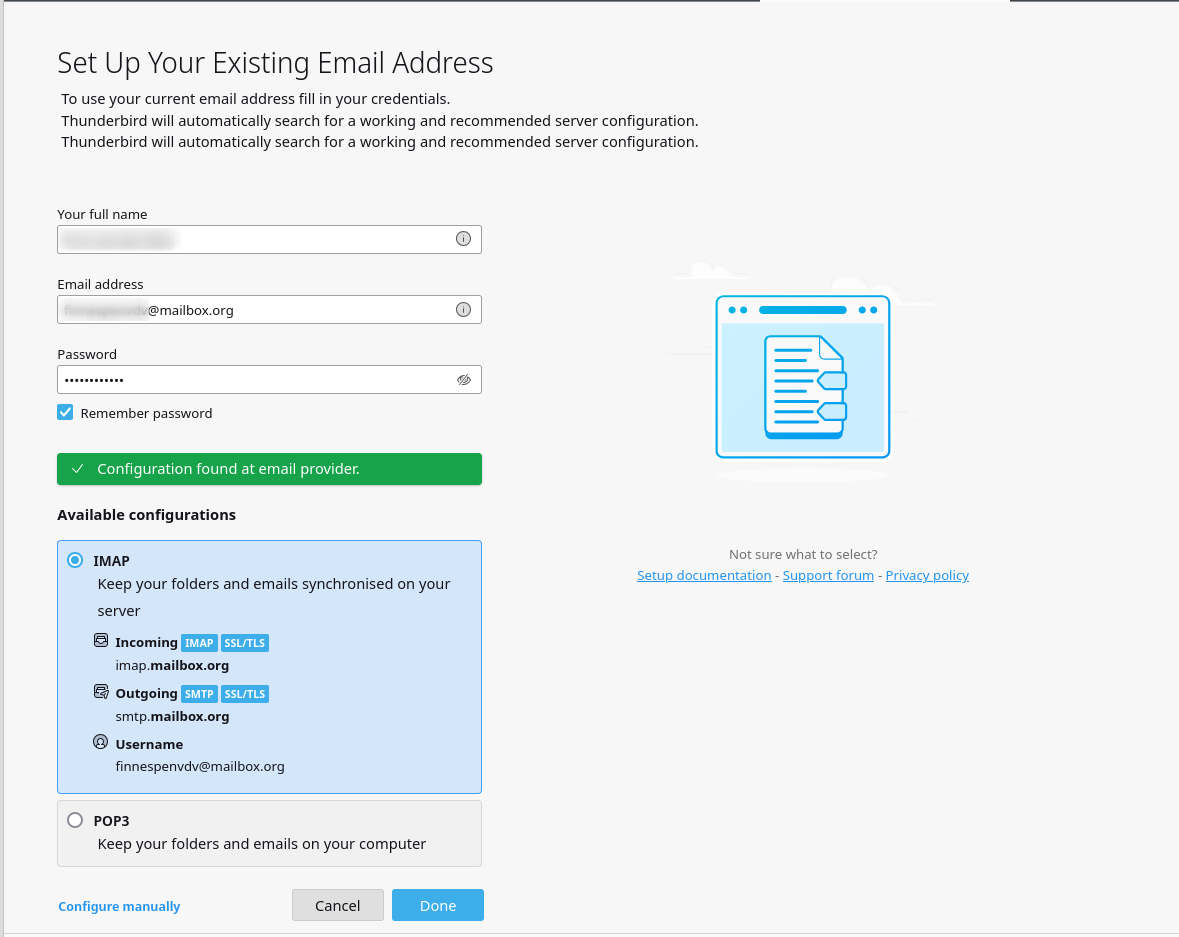
Dialog in Mozilla Thunderbird: Set Up Your Existing Email Address
Step 4: Complete setup
Click Done.
Thunderbird will check your entries. You have successfully set up your mailbox account in Thunderbird.
Connect associated calendars and contacts
In newer versions of Thunderbird, the setup dialog has been expanded. When adding your mailbox account, you can also automatically connect all associated contacts, calendars, and tasks.
After entering your login details, an additional selection area becomes available where you can specify whether Thunderbird should automatically configure CardDAV contacts, CalDAV calendars, and task lists.
Enable the desired options—the required connections will then be set up without having to manually enter the CalDAV or CardDAV URLs.
Using email aliases in Thunderbird
If you use multiple email aliases with mailbox, you can set them up as additional identities in Thunderbird.
- Open the Thunderbird application menu (3-bar menu) and select Account Settings.
- Select your main account.
- Click More Identities in the lower right corner. A dialog with a list of identities will open.
- Click Add.
- In the New Identity dialog, enter the alias address and the desired name.
- Click OK.
The alias is stored in Thunderbird. When composing an email, you can now select the desired alias as the sender from a drop-down menu.


