
Sending encrypted emails with Guard
To use the functions described in this article, you need to have the mailbox Guard activated.
To send a PGP-encrypted email in the mailbox web client, select New email. In the composing dialogue, click the lock icon:
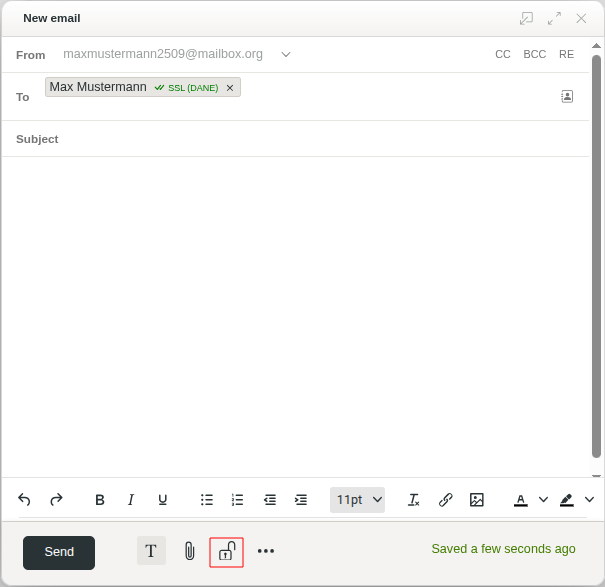
Sending an encrypted email
If a matching PGP key for the recipient is available, you will see the PGP symbol with a golden key next to the recipient address. The mailbox Guard will automatically encrypt your email:
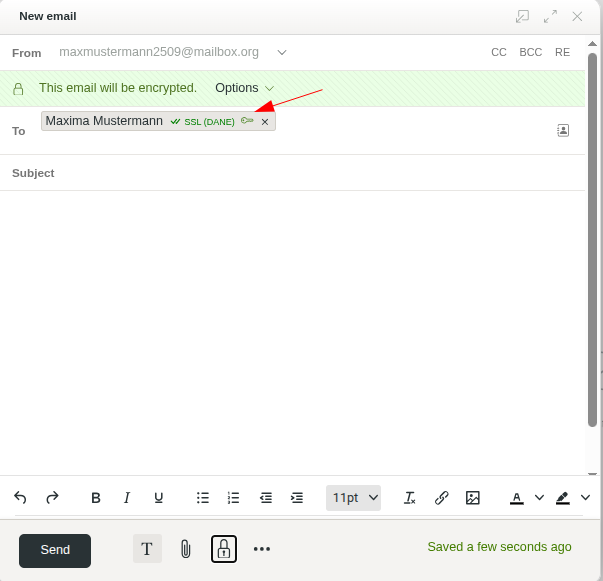
PGP symbol with a key next to the recipient address – the email is automatically encrypted by the mailbox Guard.
The Guard searches for PGP keys in the following sources:
- in the internal key directory of all mailbox users who have activated the Guard
- in your own keyring with public keys of your communication partners.
You manage the keyring yourself (via All settings > Your recipient keys). There you can also import keys of your communication partners. - in Family or Business accounts: in the keys provided by other Guard users of your context.
What happens if the recipient does not use PGP?
If no matching PGP key for a recipient was found, the Guard will display this with a green person icon next to the email address:
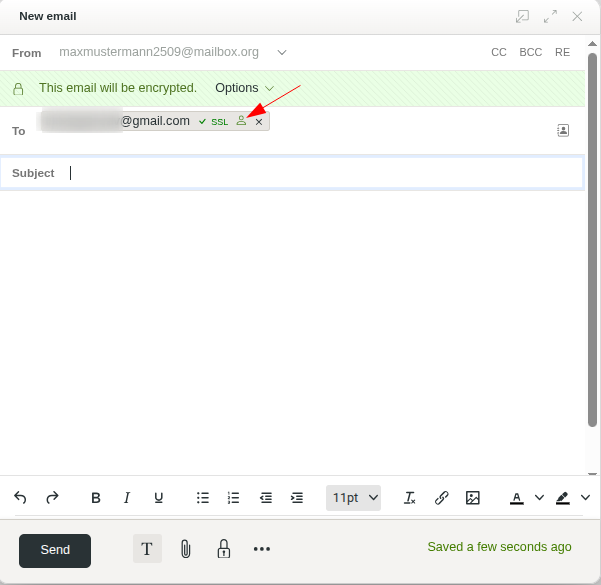
Green person icon next to the email address – the recipient does not use PGP, the mailbox Guard indicates this accordingly.
Here: Next to the email address of the recipient and the result of the transport encryption check
To still enable you to communicate securely and in encrypted form with this recipient, a temporary mailbox will be created for them on our server.


