
Forgotten Guard password
Forgotten Guard password
If you have forgotten your personal Guard password, it cannot be recovered for security reasons. A reset is only possible through Support. This will delete all stored keys – meaning that access to all emails encrypted with these keys will be lost.
This article explains how to proceed in such a case, what consequences a reset has, and how to set up Guard again afterwards.
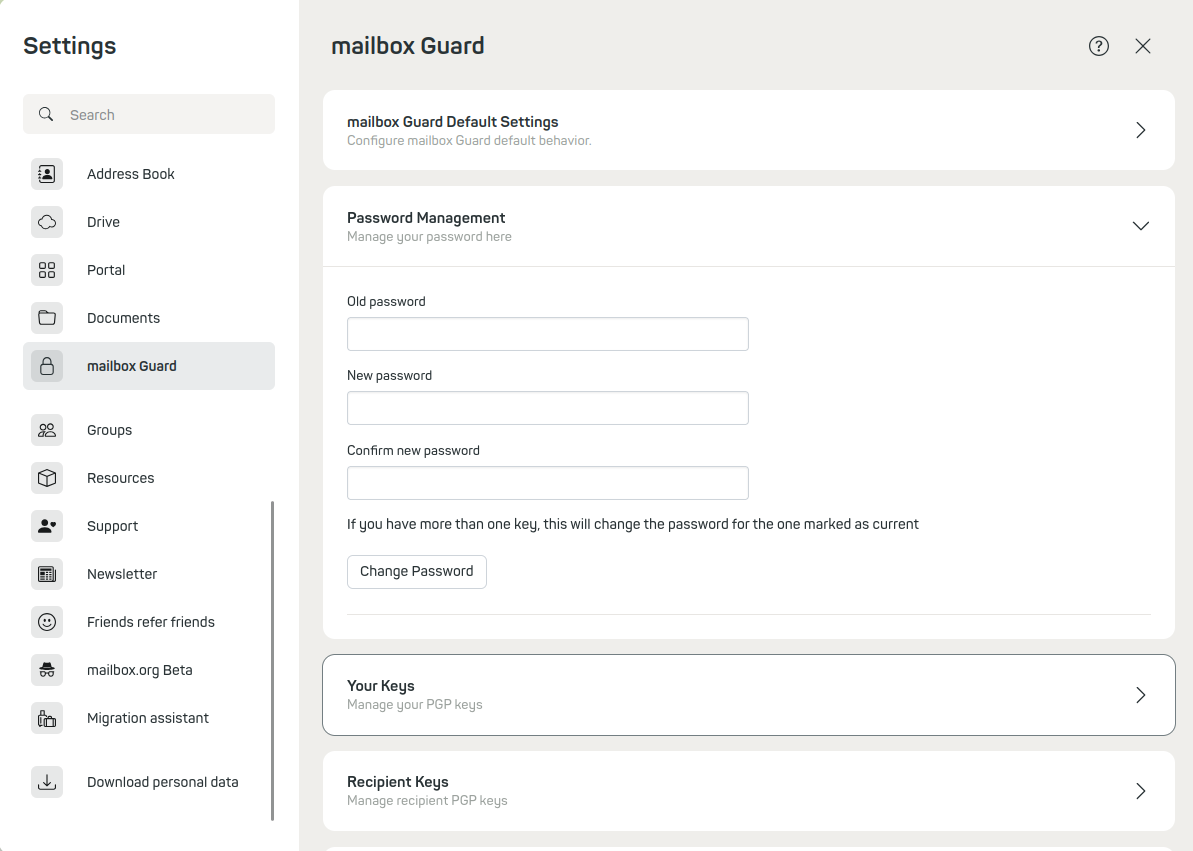
Without your old password, you cannot set a new password in the settings
Reset via Support
A full reset of Guard is possible via a Support ticket in the Support portal. Use the subject "Please reset Guard".
Through this method, all data in Guard will be permanently deleted. Only consider this method if you were unable to create a new key pair.
After the reset, you can reactivate Guard and create a new key pair.
What happens during a reset?
The Guard password protects your private PGP and S/MIME keys. These keys are required to decrypt received or archived emails.
If you no longer know your password, you can reset it – however, all stored keys and certificates will be irretrievably deleted. You will lose access to all emails that were encrypted with these keys.
- The password cannot be recovered.
- Resetting means the complete loss of previous keys.
- Afterwards, you must generate new keys. ::
After the reset
After the reset, mailbox Guard is in its initial state. You should:
- define a new Guard password and document it securely
- generate a new key pair
- export the private key and store it securely
- inform your contacts about the new keys (if using PGP or S/MIME)
Buttons in the key management
| Button | Description |
|---|---|
| Download my public key | Downloads the currently stored public PGP key as a file. |
| Create new | Creates a new PGP key pair (public + private) directly in the mailbox. |
| Upload private key | Allows you to upload an existing private PGP key. |
| Upload public key | Allows you to upload an existing public PGP key. |
In the mailbox Suite, you can find the key list directly under the menu item Your key list.
Create or upload a new key pair
Under All settings > mailbox Guard > Your key list, you can generate a new key pair or upload an existing key. This new key pair will be protected with a new Guard password.
Even if you no longer have access to messages encrypted with the old key, you can continue to use Guard as usual.
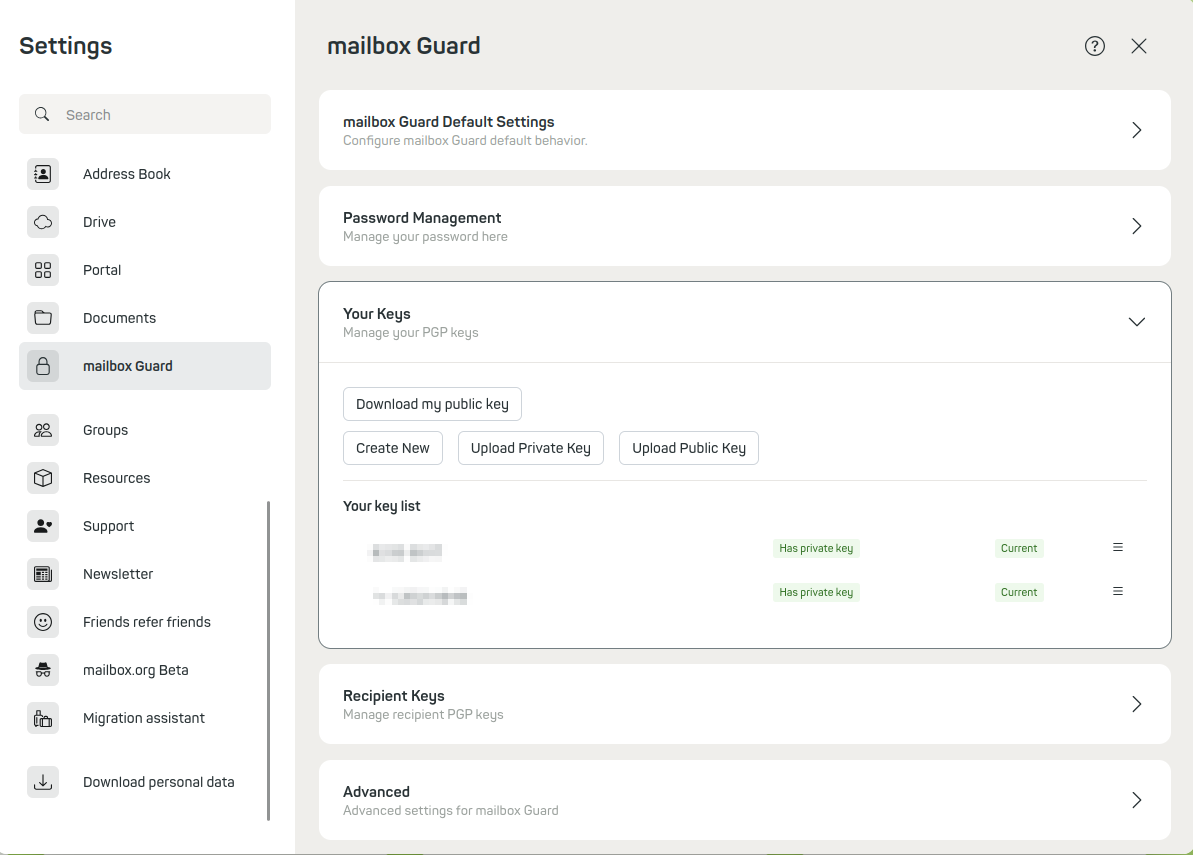
List of your keys for PGP encryption. The last entry is always the one used by Guard by default.
Inform contacts
Do not forget to share the public key of your new key pair with your communication partners and inform them not to use the old key anymore.
You will still not have access to data encrypted with the old key.
Recommendation: Back up your private key
To prevent data loss in the future, we recommend that you create a backup of your private key after reactivating Guard.
You will find the export function in the Guard settings. The private key will be provided in ASCII format (e.g. .asc). Make sure to:
- store it securely, e.g. on an encrypted USB stick or in an encrypted password manager
- not store it unprotected in the cloud
- update it regularly, if you renew or change your key
Only with an up-to-date private key will you be able to access your encrypted emails in an emergency – for example, after device loss or another Guard reset.
Caution with the encrypted mailbox
If your key pair is also used for the encrypted mailbox, resetting Guard will affect it, too.
- This means:
- Incoming emails will still be encrypted with the deleted key and thus become unreadable
- You should use different key pairs for Guard, your encrypted mailbox and email encryption
If you use the same key pair, resetting it will also cause you to lose access to your encrypted mailbox.


