
My Drive storage is full - what to do?
The storage features and upgrade options described in this article apply only to the Premium and Standard plans.
Monitor and expand storage space
The Storage widget on the mailbox Office home screen shows you the amount of storage currently available every time you log in – both in the Email storage section and in Drive storage (file storage).
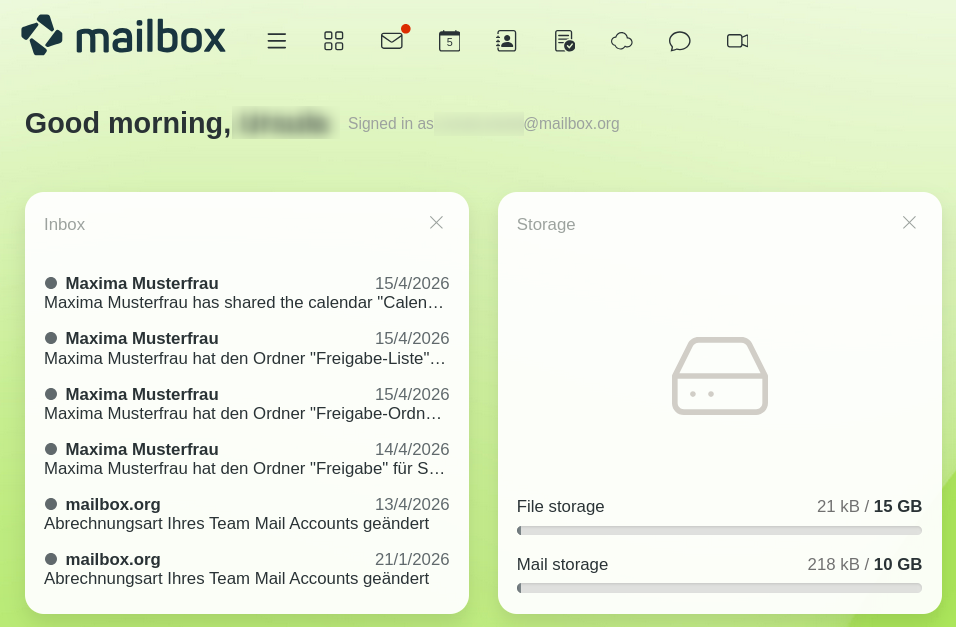
Storage overview
Both storage areas are displayed graphically as progress bars. If these bars are approaching the edge on the right, your storage space is almost full. In this case, you should take at least one of the following steps:
- Delete emails or files you no longer need
- Purchase additional storage space
Check and expand your plan
Under All settings > Contract and payment > Contract you can see at a glance how much storage is currently available to you and whether your current plan still fits your needs. If you regularly reach your storage limits, we recommend switching to a higher-tier plan with more storage space for emails and files.
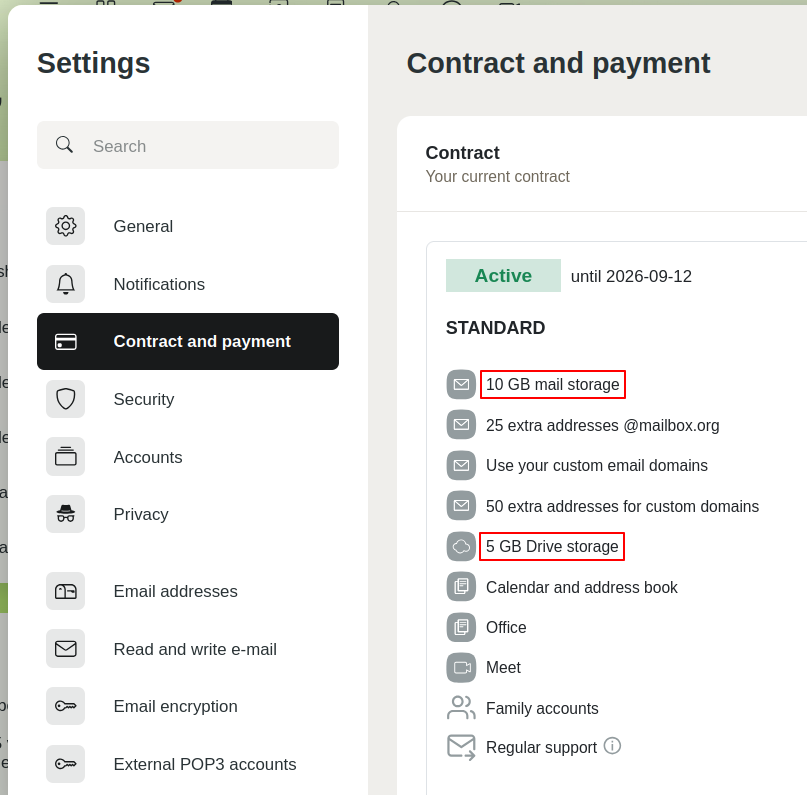
Plan overview and your available storage
Expand Drive storage flexibly
Additional storage for email and Drive
If you need more storage space, you can flexibly add it to your existing plan:
Email storage:
Email storage can be expanded in steps of 1 GB. Costs vary depending on the plan:
- Premium: €0.10 per GB
- Standard: €0.20 per GB
- Light: No expansion possible
Drive storage:
For your files in Drive, you can also book additional storage – in steps of 5 GB:
- Premium: €0.20 per 5 GB
- Standard: €0.40 per 5 GB
- Light: No expansion possible
This way, your storage remains flexible and adaptable – tailored to your specific needs.
How to book additional storage
- Log in to your mailbox account.
- Navigate to All settings > Contract and payment > Contract.
- Click the Get additional storage button.
- In the Cloud field, enter the desired size for your Drive storage.
- Confirm that you have read and accepted the terms and conditions and the cancellation policy, and then click Order with obligation to pay.
The storage space expansion takes effect immediately.
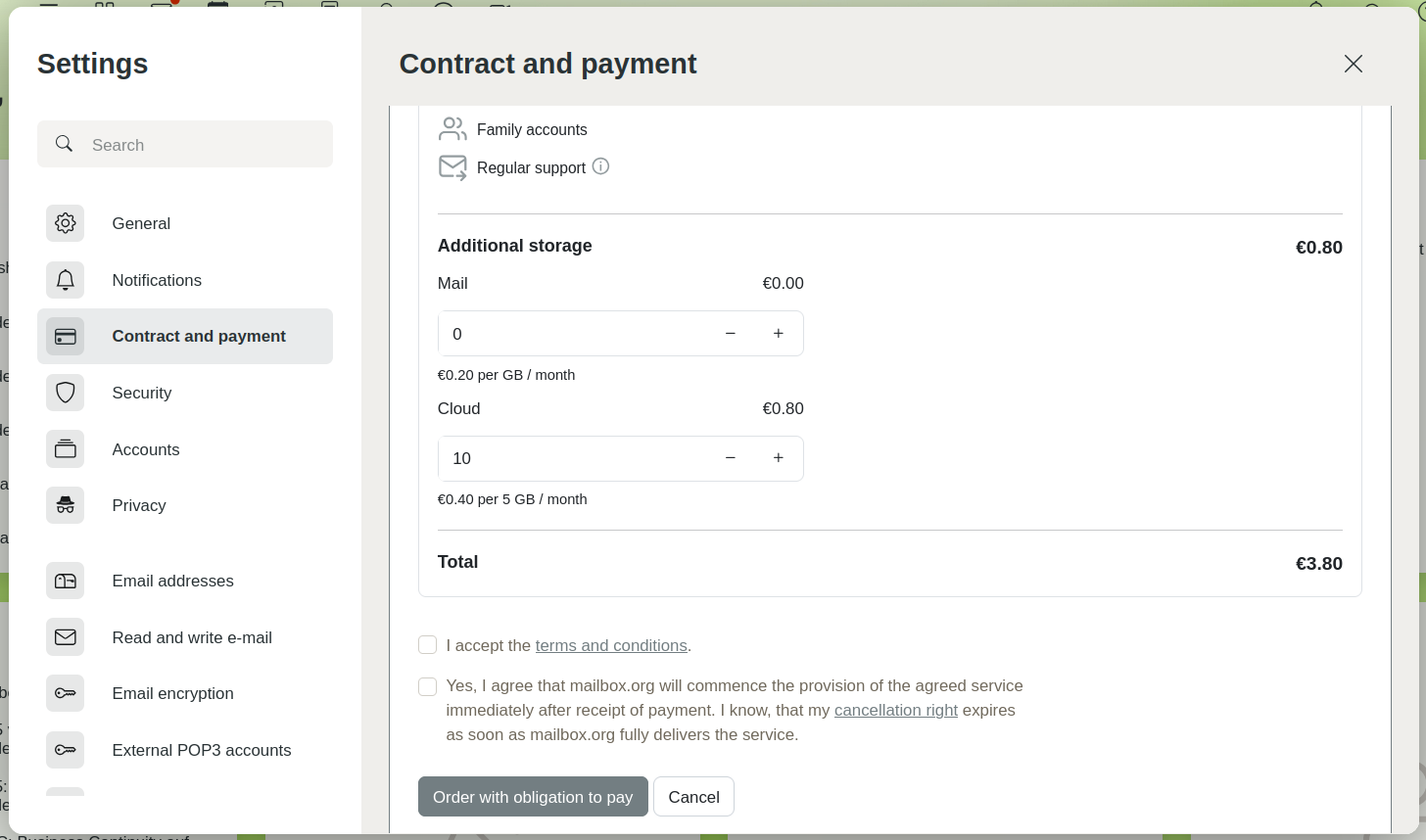
Book additional storage
Free up storage space
Often, simply deleting specific files is enough to free up space. So, before you purchase additional storage, check what files you could delete.
Only delete content that you are certain you no longer need – or make a backup first so that you can restore it if necessary.
These contents consume storage space in Drive:
- Files – including those in the trash
- Older versions of files (retrievable via the context menu)
- Images and attachments in:
- Contacts
- Calendar entries
- Tasks
How to free up space in your Drive
- Empty trash: Open the trash in Drive and permanently delete all files stored there.
- Remove attachments: Delete unnecessary images and file attachments in your contacts, calendars, and tasks.
- Optimise images: Replace large contact photos with smaller versions of lower resolution.
- Clean up files and versions: Delete files you no longer need as well as old file versions via the respective context menu.
- Family account: Inform other members of your family account about the storage limit and, if necessary, ask them to clean up.
Remove no longer needed file versions
Make a backup before deleting old versions of a file – otherwise the data will be lost forever!
Select a file in Drive to view further details about the selected file:
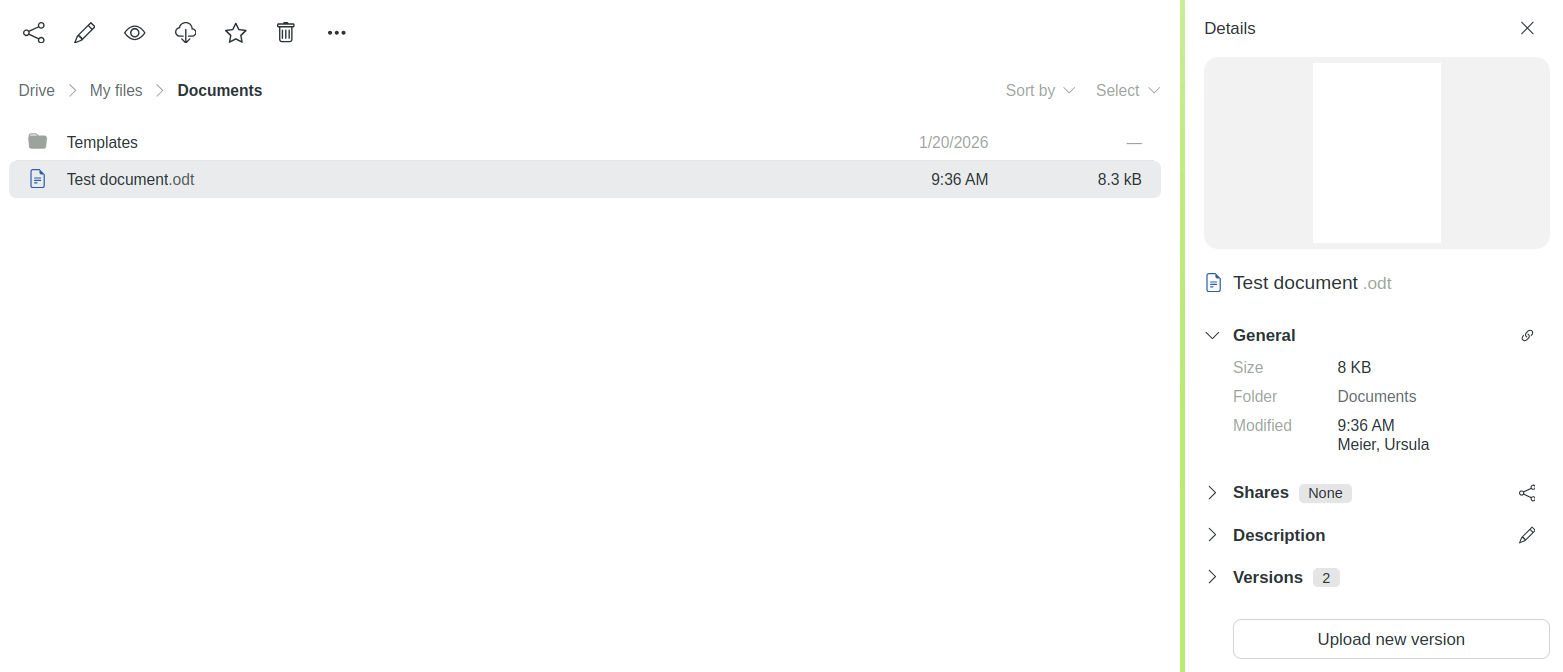
Details about a file in mailbox Drive
Under Versions, you will find information on how many files you have saved as previous versions for recovery, and their sizes:
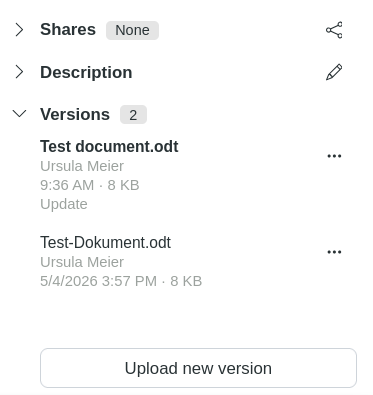
Display of file versions
You can easily delete versions you no longer need via the “...” menu:
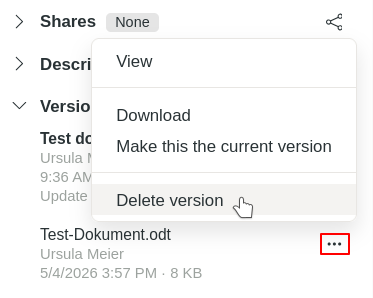
Delete file version


