
Sending links instead of large attachments with Drive Mail
Sending large files
Customers of the Standard or Premium plan have access to storage space in mailbox Drive. This can also be used for sending large files via email.
It has proven useful not to send emails larger than 20 megabytes, as this is the maximum size with many providers. Larger emails risk being rejected. While mailbox allows emails with attachments of up to 100 megabytes, it is still not guaranteed that the recipient has sufficient storage space to save the emails. In such cases, it is better not to send the file itself, but only a link to the file.
Using Drive Mail
At mailbox, this user-friendly alternative is called Drive Mail. When composing an email, you attach a file as usual by clicking the paperclip symbol and then selecting Add from Drive.
Please make sure that enough storage space is available in Drive – with this procedure, the storage space of the file is used twice.
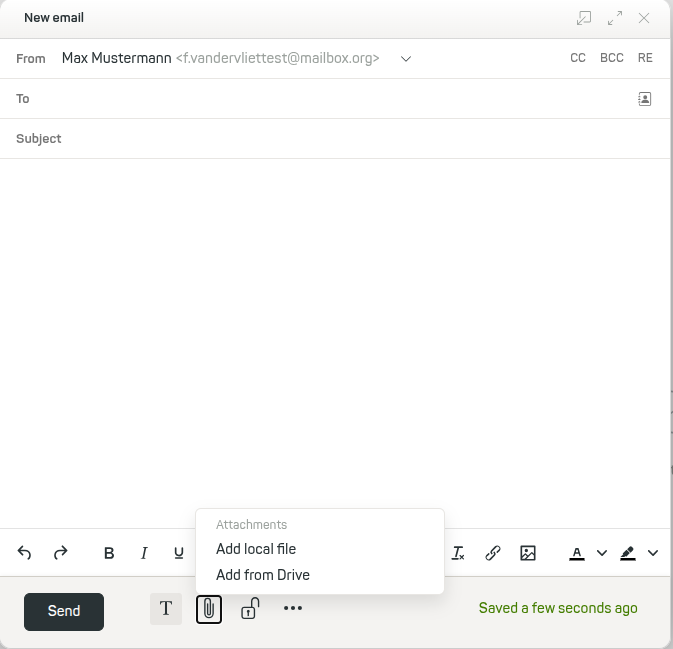
Attaching files when composing an email
The following dialogue box shows you all files that you have stored online in the mailbox Suite:
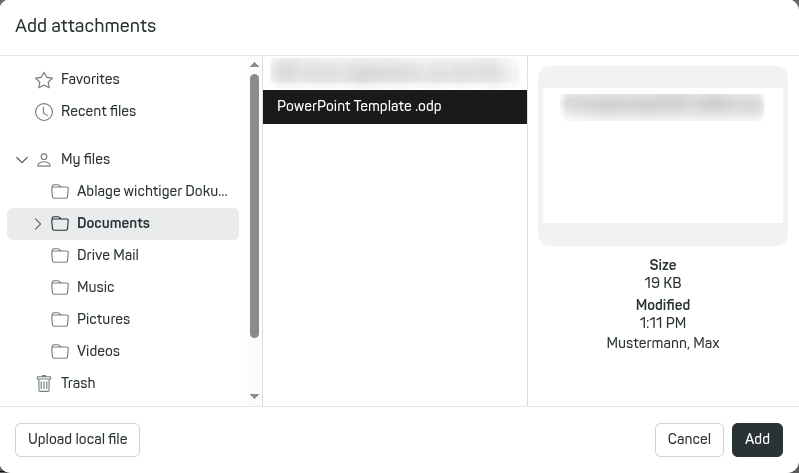
Selecting a file from mailbox Drive
Select the desired file and click Add. mailbox has now added the file as an attachment to the email. Activate the checkbox Use Drive Mail to avoid sending the file directly and instead embed only the link to the file.
A copy of the file will be placed in the Drive Mail folder. At the same time, a download link to this file will automatically be inserted into the email.
Under Options, you can set a validity period for this link and protect the file with a password.
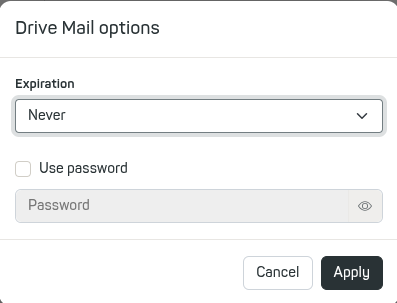
Set an expiration date and secure the link with a password
Emails with files sent via Drive Mail can be identified in your Sent folder by a small cloud symbol.


