
XMPP Chat at mailbox
XMPP is only available in the Standard and Premium plans. If you want to use XMPP with a custom domain, please note the steps described in this article.
mailbox offers its own modern and certified XMPP server with strong encryption and additional security features, which is available to you under your respective account name (identical to your primary email address). You are automatically activated and can use this service at any time, provided you do not use a custom domain. The chat is accessible either via web chat or with a local client.
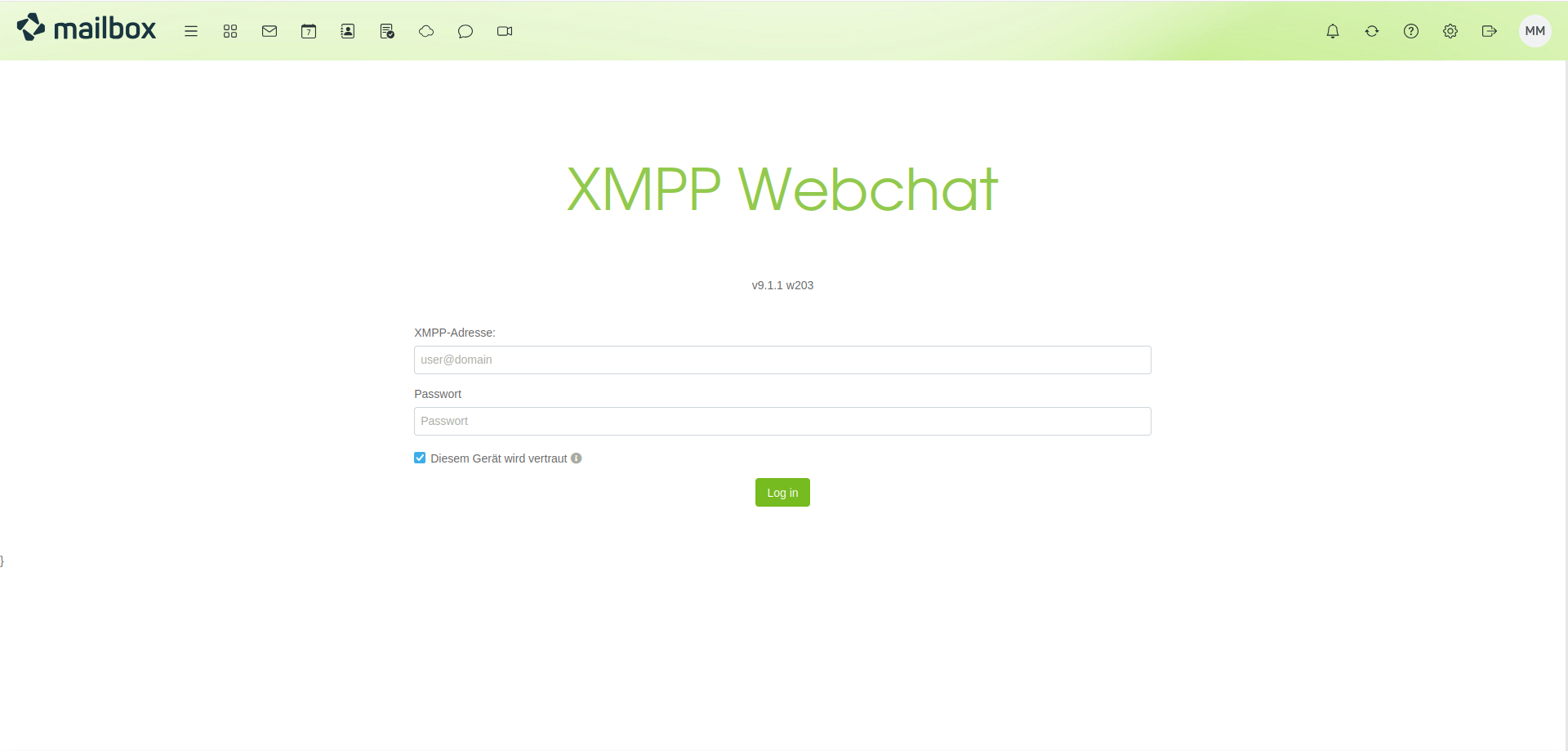
Figure 1: The XMPP chat, also referred to as “Jabber,” allows free, secure, and private instant messaging with mailbox
What is XMPP?
XMPP, also known as Jabber, is a chat system for instant messaging, similar to Facebook Messenger, Signal, Threema, or Telegram. An advantage of XMPP over most other chat services is that the software and the entire XMPP protocol are available as open source software. XMPP operates in a decentralized manner, meaning that as a user, you are not dependent on a central provider or owner of the software. On the contrary, because the XMPP protocol is open, you are free to choose which provider you trust by using their server, or you can operate your own server.
With the right know-how, you can even set up your own XMPP server. The XMPP servers of the various providers are interconnected. This means that as a user of one provider, you can also communicate with users on servers of other providers. An XMPP chat message is delivered to the relevant server in a similar way to an email, but is usually much faster and closer to real-time messaging (instant messaging).
XMPP clients display a list of your own communication partners. When you add users, you receive the corresponding permissions from them, allowing you to see who is currently online at any time and start direct communication if necessary. However, XMPP can do much more than just provide text chat, such as file exchange and group chats.
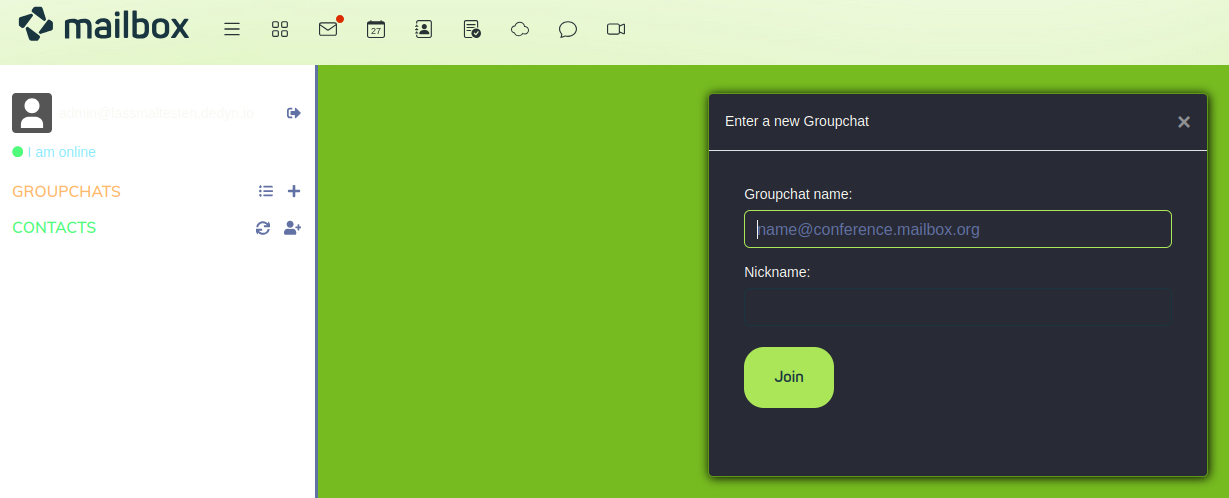
Figure 2: Group chats, contact management, and status messages are among the basic functions of all XMPP-clients
XMPP in local client
Requirements
Before you begin the setup, make sure that you meet the following requirements:
- Active mailbox account with a Standard or Premium plan
- Technical know-how: Due to the large number of local clients and configurations, we do not offer support for XMPP. Problems are usually caused by the client software, so we ask you to seek help via the respective user forum of the client.
- Optional: Use XMPP with a custom domain
XMPP with custom domain
Steps
Before you can use XMPP with your custom domain, complete the following steps:
- Link your custom domain with mailbox and configure at least one usable email address. You can then use this email address for your XMPP account (see Using e-mails with a custom domain).
- Store two SRV entries in the domain name system (DNS) of your custom domain. You need to make these settings with the provider where you registered your domain.
- Create a support ticket in our portal support.mailbox.org so that we can activate your domain for XMPP. Due to DNS caching times, it may take up to 24 hours for the new entry to become functional and propagate everywhere.
- Once your support ticket has been processed, you can use your XMPP client with your email address as the username and the account password of mailbox.
DNS entries for XMPP domains
The following DNS entries tell your XMPP client which server to connect to. Other XMPP servers also need this information so that XMPP messages can be delivered correctly:
_xmpp-client._tcp.example.com. 3600 IN SRV 0 5 5222 xmpp.mailbox.org.
_xmpp-server._tcp.example.com. 3600 IN SRV 0 5 5269 xmpp.mailbox.org.
Replace example.com with your custom domain.
Catch-all address not possible
For technical reasons, it is not possible to use the catch-all account for XMPP with your custom domain.
Functionality
- Service Discovery (XEP-0030)
- Carbons (XEP-0280)
- Client State Indication (XEP-0352)
- Stream Management (XEP-0198)
- Push Notifications (XEP-0357)
- Blocking (XEP-0191)
- Muli-User Chat (XEP-0045)
- Message Archive Management (XEP-0313)
- HTTP File Upload (XEP-0363)
- SOCKS5 Bytestreams (XEP-0065)
- Datatransfer Proxy: proxy.mailbox.org, Port: 5000
- Tor Hidden Service Adresse: kqiafglit242fygz.onion
- Message Archive Management (XEP-0313) with a retention period of 7 days. (Group chats are not logged by default, but this can be configured for each room in your XMPP client.)
- HTTP File Upload (XEP-0363): To share images in XMPP conference rooms, we have enabled HTTP file upload – maximum file size 10 MB. Shared images are deleted from the server after 1 hour. Please note: Most XMPP clients store images on our server in unencrypted form – check your client before using this feature.
Encryption and SSL certificates
- Communication with our XMPP server is only possible via SSL/TLS with valid certificates.
- Self-signed certificates are not supported.
We offer all mailbox users with Standard or Premium plans the opportunity to use our secure chat server, which uses state-of-the-art TLS encryption and supports modern security features such as DANE/TLSA.


