
Creating and editing notes
Create and open notes
-
Log in to your mailbox account.
-
Open the Apps menu next to the mailbox logo and select Notes.
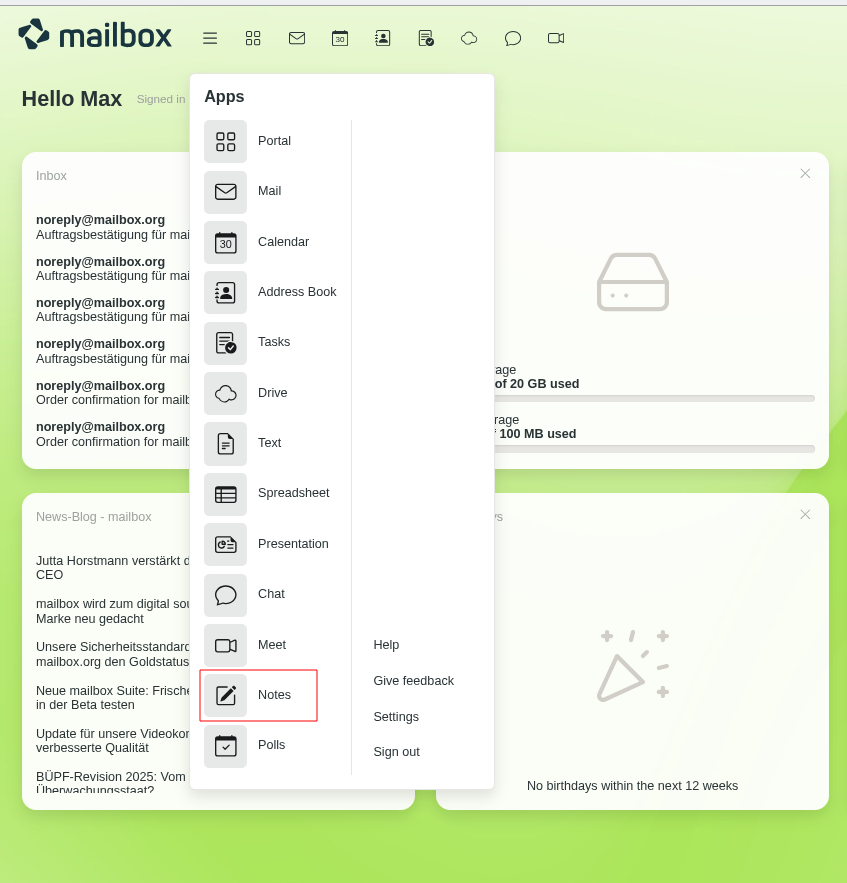
Selecting the “Notes” app in the menu -
To create a new note, enter a Name and then click Create. To open an existing note, click on the note’s name in the overview.
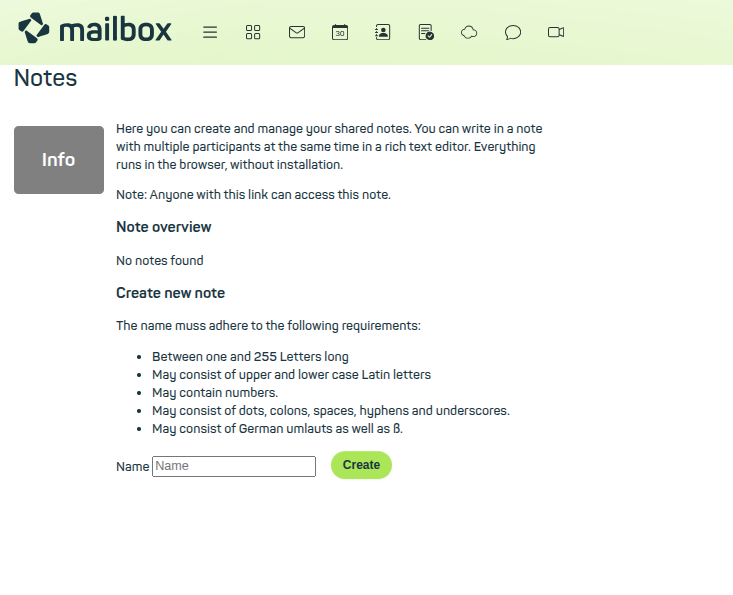
“Notes” app in mailbox Office
Editing notes together
Click Copy link to copy the link to the note to the clipboard.
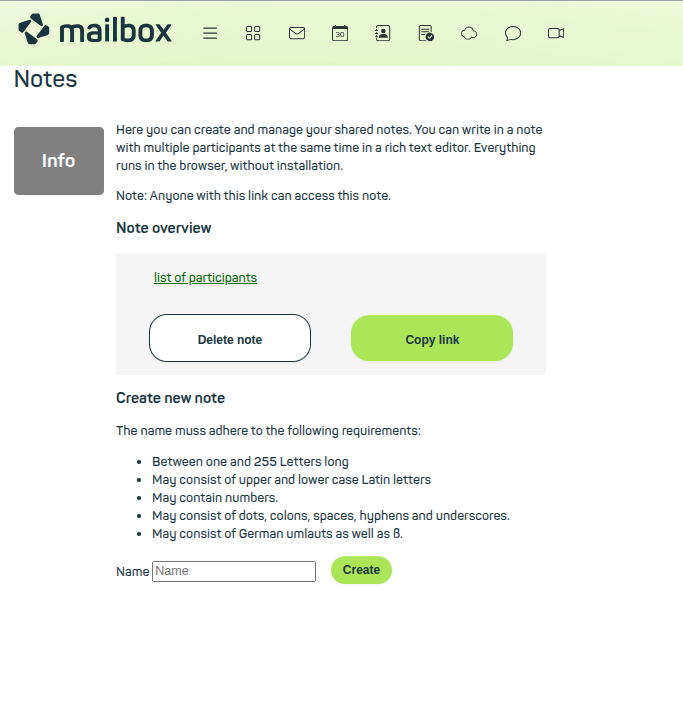
Copy the link to a note
Share this link with the people you want to collaborate with on the note. Everyone can edit the note in real time. Your own text will be highlighted in a different colour so you can keep track of it at all times.
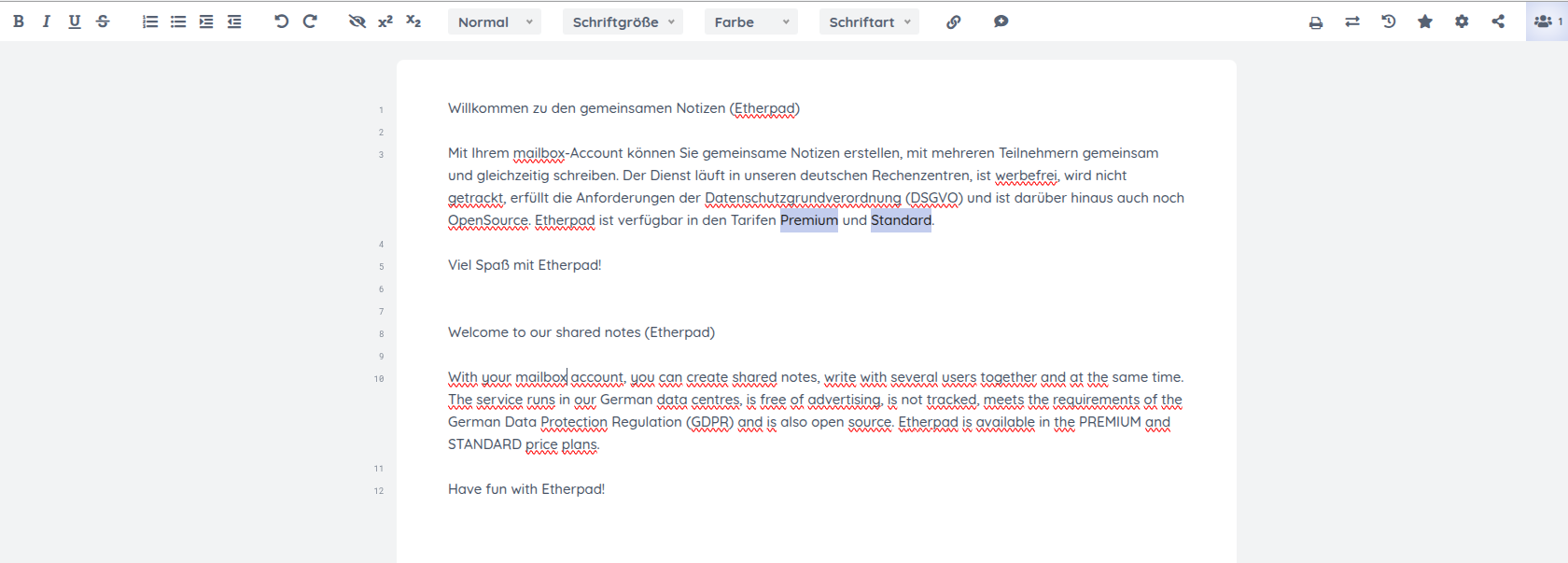
Colour-coding of text sections during editing
While working on the note, you can chat with the other participants. In the menu, you can see all active co-editors and the colours assigned to them.
The following tools are also available:
- Leave a comment on the selected text
- Print note
- Import and export note
- View editing history
- Save current version
- Share or embed note
- Configure settings
Configuring settings
Click the gear icon to open the Pad settings menu. There you will find additional configuration options for editing and communication within the note:
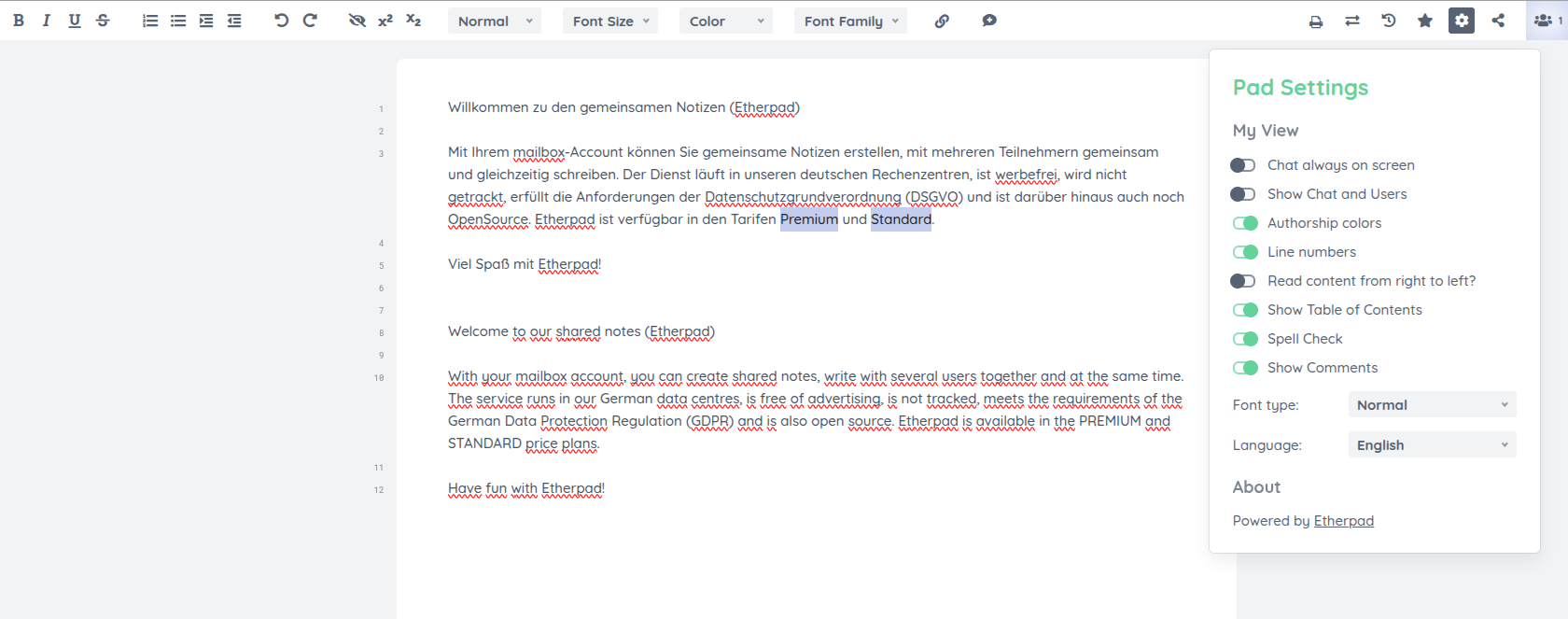
Additional options for collaborative editing and communication


